> ## Documentation Index
> Fetch the complete documentation index at: https://help.ruddr.io/llms.txt
> Use this file to discover all available pages before exploring further.
# Microsoft Teams Integration Setup
> Install the Ruddr app in Microsoft Teams, connect your organization to a Ruddr workspace, link members, and manage the integration.
Integrating Microsoft Teams with Ruddr provides the benefits outlined in the [Microsoft Teams Integration Overview](/integrations/microsoft-teams-integration-overview) article. A Microsoft 365 administrator installs the Ruddr app once for your organization, and a Ruddr Workspace Admin then connects the organization to the workspace. There are five steps to follow:
1. [Install the Ruddr App for Your Organization](#step-1-install-the-ruddr-app-for-your-organization)
2. [Connect Your Organization](#step-2-connect-your-organization)
3. [Link Members](#step-3-link-members)
4. [Specify Notifications for your Workspace](#step-4-specify-the-notifications-for-your-workspace)
5. [Choose Project Channels](#step-5-choose-project-channels)
#### Step 1: Install the Ruddr App for Your Organization
Ruddr is available as an app in Microsoft Marketplace. The same app provides the Ruddr app for Microsoft Teams and the [Microsoft 365 Copilot connector](/integrations/ai-connectors-microsoft-copilot-setup), so if your organization has already installed Ruddr for Copilot, the Microsoft Teams app is already available and you can skip to [Step 2](#step-2-connect-your-organization).
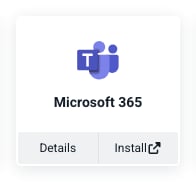
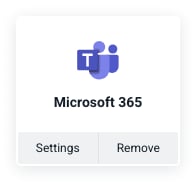
1. In Ruddr, navigate to the [Integrations](/workspace-administration/integrations) area under **Settings** and click **Install** on the **Microsoft 365** widget (Figure 1). This opens the [Ruddr listing in Microsoft Marketplace](https://marketplace.microsoft.com/en-us/product/WA200012456) in a new tab.
2. A Microsoft 365 administrator selects **Get it now** on the listing. Marketplace takes them to **Settings** > **Integrated apps** in the Microsoft 365 admin center, where they deploy Ruddr to all users or to selected users and groups. Installing the app gives nobody access to Ruddr data on its own.
 Once deployed, Ruddr appears under **Apps** in Microsoft Teams for the members it was deployed to, and each member has a personal chat with the Ruddr app. To receive project updates in a channel, also add the Ruddr app to each team whose channels you want to use.
The first time a member opens the Ruddr app in Microsoft Teams, Microsoft shows a one-time consent dialog for the app's permissions, which they accept.
#### Step 2: Connect Your Organization
A Ruddr Workspace Admin connects your Microsoft 365 organization to a Ruddr workspace once, using a one-time link from the Ruddr app:
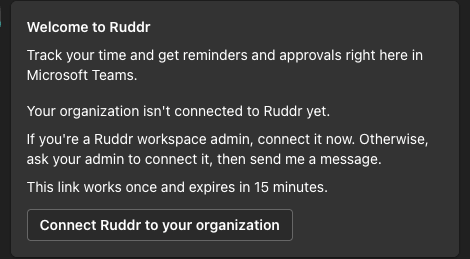
1. Send the Ruddr app a message in your personal chat. Because your organization isn't connected yet, the app replies with a **Welcome to Ruddr** card. Click **Connect Ruddr to your organization** (Figure 2). The link works once and expires after 15 minutes.
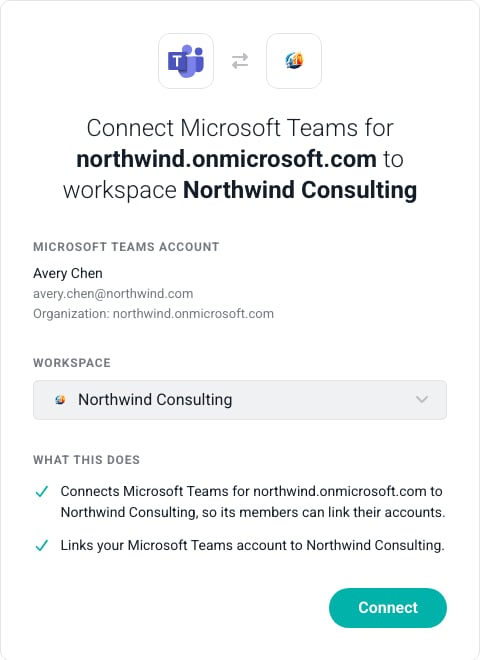
2. The link opens Ruddr, where you sign in if you aren't already. Choose the workspace to connect in the **Workspace** box and click **Connect** (Figure 3). This connects your organization to the workspace and links your own Microsoft Teams account at the same time.
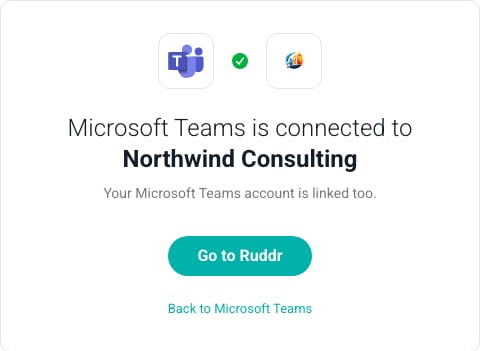
3. Ruddr confirms that Microsoft Teams is connected to the workspace (Figure 4). Click **Go to Ruddr** to open the workspace, or close the tab and continue in Microsoft Teams.
Once deployed, Ruddr appears under **Apps** in Microsoft Teams for the members it was deployed to, and each member has a personal chat with the Ruddr app. To receive project updates in a channel, also add the Ruddr app to each team whose channels you want to use.
The first time a member opens the Ruddr app in Microsoft Teams, Microsoft shows a one-time consent dialog for the app's permissions, which they accept.
#### Step 2: Connect Your Organization
A Ruddr Workspace Admin connects your Microsoft 365 organization to a Ruddr workspace once, using a one-time link from the Ruddr app:
1. Send the Ruddr app a message in your personal chat. Because your organization isn't connected yet, the app replies with a **Welcome to Ruddr** card. Click **Connect Ruddr to your organization** (Figure 2). The link works once and expires after 15 minutes.
2. The link opens Ruddr, where you sign in if you aren't already. Choose the workspace to connect in the **Workspace** box and click **Connect** (Figure 3). This connects your organization to the workspace and links your own Microsoft Teams account at the same time.
3. Ruddr confirms that Microsoft Teams is connected to the workspace (Figure 4). Click **Go to Ruddr** to open the workspace, or close the tab and continue in Microsoft Teams.
 Only a Ruddr Workspace Admin can connect an organization. If someone who isn't an admin opens the link, Ruddr asks them to have an admin connect it.
Throughout the integration, **connecting** always refers to the organization and the workspace, which a Workspace Admin does once, and **linking** always refers to a member's own Microsoft Teams account, which each member does for themselves.
A workspace can be connected to one Microsoft 365 organization. If the workspace you choose is already connected to a different organization, Ruddr refuses the connection until a Workspace Admin removes the existing one (see [Removing the Integration](#removing-the-integration)).
If a link has expired, Ruddr shows a **This link has expired** page; if it was already used, a **This link has already been used** page. Send the Ruddr app another message to get a new link.
#### Step 3: Link Members
Each member needs their Microsoft Teams account linked to their Ruddr member account before they can track time or receive notifications in Microsoft Teams.
When a member sends the Ruddr app a message, Ruddr links them automatically if the email address or user name of their Microsoft Teams account matches their email address in Ruddr. Otherwise, and always for guest accounts, the member links their account with a one-time link:
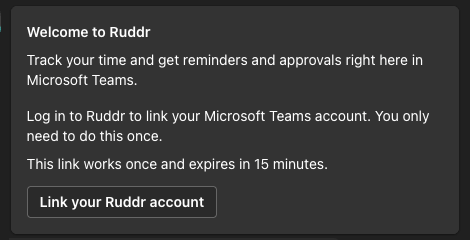
1. The Ruddr app replies with a **Welcome to Ruddr** card. Click **Link your Ruddr account** (Figure 5). Like the connect link, it works once and expires after 15 minutes.
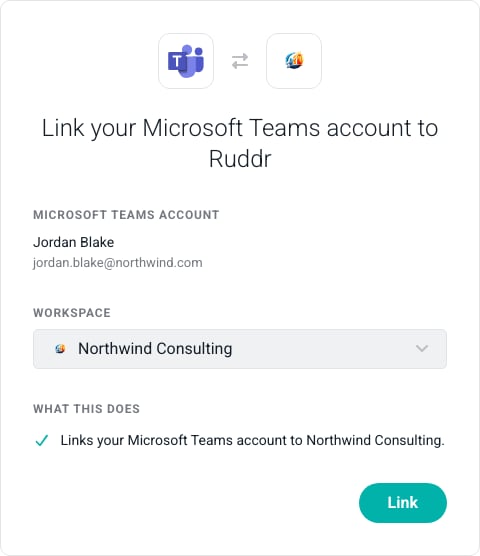
2. The link opens Ruddr, where you sign in if you aren't already. Choose the workspace and click **Link** (Figure 6). The list only includes workspaces your account isn't linked to yet.
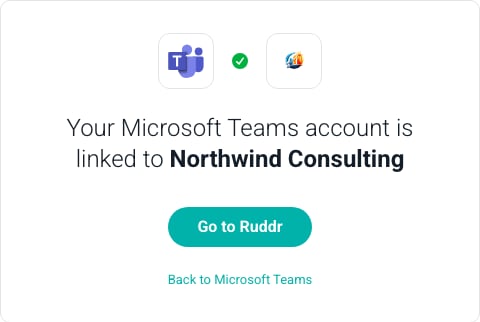
3. Ruddr confirms that your Microsoft Teams account is linked to the workspace (Figure 7). Click **Go to Ruddr** to open the workspace, or close the tab and start tracking time in Microsoft Teams.
Only a Ruddr Workspace Admin can connect an organization. If someone who isn't an admin opens the link, Ruddr asks them to have an admin connect it.
Throughout the integration, **connecting** always refers to the organization and the workspace, which a Workspace Admin does once, and **linking** always refers to a member's own Microsoft Teams account, which each member does for themselves.
A workspace can be connected to one Microsoft 365 organization. If the workspace you choose is already connected to a different organization, Ruddr refuses the connection until a Workspace Admin removes the existing one (see [Removing the Integration](#removing-the-integration)).
If a link has expired, Ruddr shows a **This link has expired** page; if it was already used, a **This link has already been used** page. Send the Ruddr app another message to get a new link.
#### Step 3: Link Members
Each member needs their Microsoft Teams account linked to their Ruddr member account before they can track time or receive notifications in Microsoft Teams.
When a member sends the Ruddr app a message, Ruddr links them automatically if the email address or user name of their Microsoft Teams account matches their email address in Ruddr. Otherwise, and always for guest accounts, the member links their account with a one-time link:
1. The Ruddr app replies with a **Welcome to Ruddr** card. Click **Link your Ruddr account** (Figure 5). Like the connect link, it works once and expires after 15 minutes.
2. The link opens Ruddr, where you sign in if you aren't already. Choose the workspace and click **Link** (Figure 6). The list only includes workspaces your account isn't linked to yet.
3. Ruddr confirms that your Microsoft Teams account is linked to the workspace (Figure 7). Click **Go to Ruddr** to open the workspace, or close the tab and start tracking time in Microsoft Teams.
 Members only need to do this once. A Microsoft 365 organization can also connect to more than one Ruddr workspace. If you are a Workspace Admin of a workspace that isn't connected to your organization yet, the link page lists it as **not connected yet**. Linking your account there also connects the workspace to your organization, so its other members can then link their own accounts. A member who is already linked can type `link` in their personal chat with the Ruddr app to link another workspace. A member linked to more than one workspace chooses which one to use in Microsoft Teams, and can type `switch` to change it.
A member can type `unlink` in their personal chat with the Ruddr app to unlink their account. If they are linked to more than one workspace, the Ruddr app asks which one to unlink. After that, Ruddr doesn't link them automatically again. The next time they message the Ruddr app, it sends a new **Link your Ruddr account** button.
#### Step 4: Specify the Notifications for your Workspace
Once an organization is connected, Microsoft 365 appears in the Active Integrations section of the [Integrations](/workspace-administration/integrations) area under **Settings**. Click the **Settings** button on the Microsoft 365 integration widget (Figure 8) to open the Microsoft 365 Settings drawer.
Members only need to do this once. A Microsoft 365 organization can also connect to more than one Ruddr workspace. If you are a Workspace Admin of a workspace that isn't connected to your organization yet, the link page lists it as **not connected yet**. Linking your account there also connects the workspace to your organization, so its other members can then link their own accounts. A member who is already linked can type `link` in their personal chat with the Ruddr app to link another workspace. A member linked to more than one workspace chooses which one to use in Microsoft Teams, and can type `switch` to change it.
A member can type `unlink` in their personal chat with the Ruddr app to unlink their account. If they are linked to more than one workspace, the Ruddr app asks which one to unlink. After that, Ruddr doesn't link them automatically again. The next time they message the Ruddr app, it sends a new **Link your Ruddr account** button.
#### Step 4: Specify the Notifications for your Workspace
Once an organization is connected, Microsoft 365 appears in the Active Integrations section of the [Integrations](/workspace-administration/integrations) area under **Settings**. Click the **Settings** button on the Microsoft 365 integration widget (Figure 8) to open the Microsoft 365 Settings drawer.
 The drawer shows the **Connected Organization**, with who connected it and when (Figure 9). The **Microsoft Teams** section below it covers members, projects, and notifications. **Connected Projects** shows how many projects have a channel selected, with a **Manage** link to the projects list.
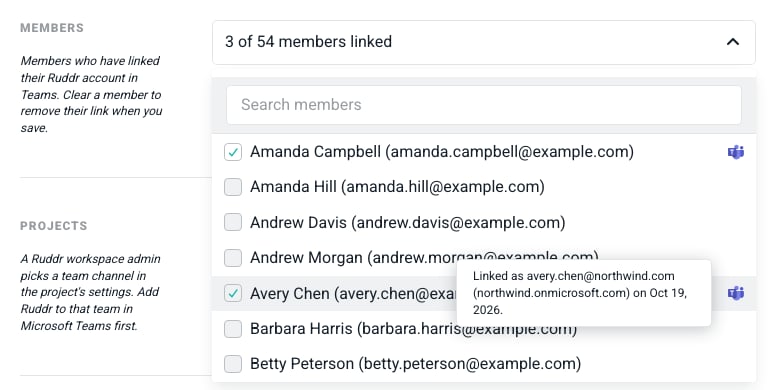
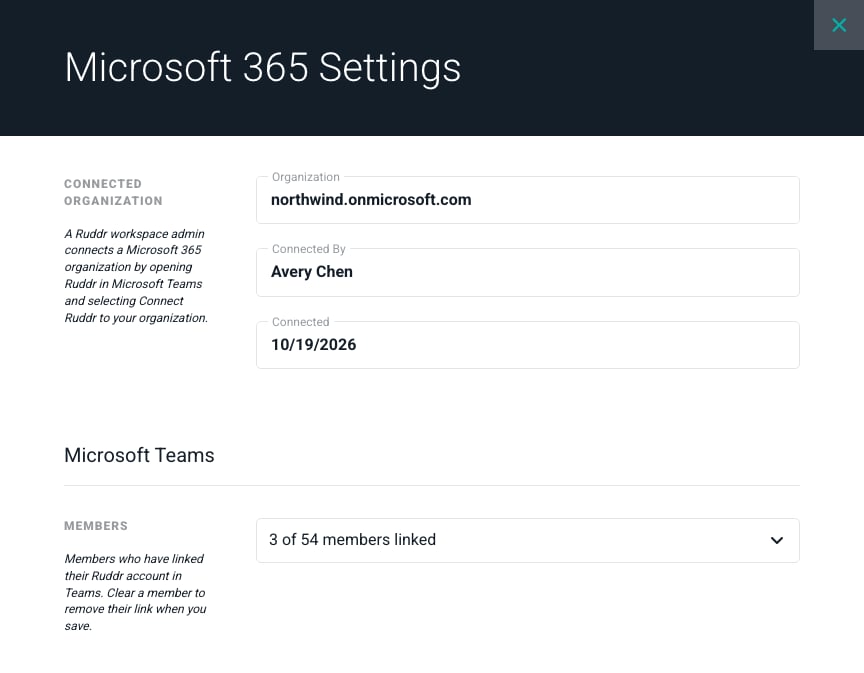 The **Members** box shows how many members have linked their account. Open the list to see each member, with a Microsoft Teams icon next to the ones who are linked. Hover over the icon to see the linked Microsoft Teams account, its organization, and the date it was linked (Figure 10). To remove a member's link, clear the checkbox next to their name, click **Save & Close**, and confirm. The next time that member messages the Ruddr app, it replies with a new **Link your Ruddr account** button.
 A linked member's Microsoft Teams account also appears as an icon under their picture in the member's details under **Settings** > **Members**. Hover over it to see the linked account.
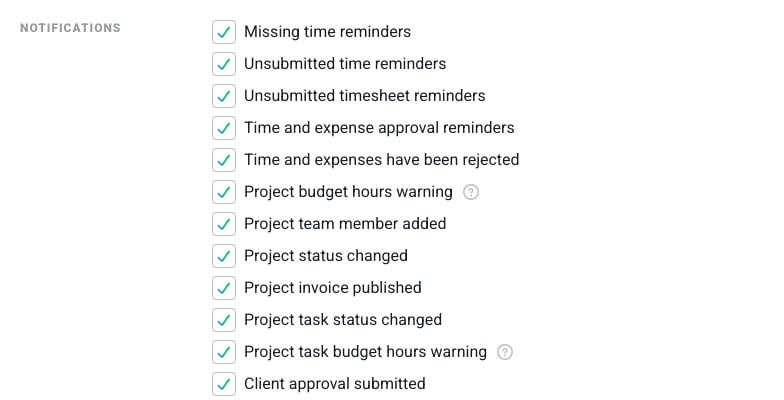
In the **Notifications** section (Figure 11), choose which notifications are sent to members and project channels. Checking the box next to a notification enables it. Once the notifications have been selected, click **Save & Close** to apply the settings. Approval notifications also require the **Send time and expense approval notifications** option in the workspace's [General settings](/workspace-administration/general-workspace-settings), as they do for email and Slack.
A linked member's Microsoft Teams account also appears as an icon under their picture in the member's details under **Settings** > **Members**. Hover over it to see the linked account.
In the **Notifications** section (Figure 11), choose which notifications are sent to members and project channels. Checking the box next to a notification enables it. Once the notifications have been selected, click **Save & Close** to apply the settings. Approval notifications also require the **Send time and expense approval notifications** option in the workspace's [General settings](/workspace-administration/general-workspace-settings), as they do for email and Slack.
 #### Step 5: Choose Project Channels
To post project updates to Microsoft Teams, first add the Ruddr app to the team that contains the channel. Then, in Ruddr, open the project's **Settings** tab, select **Microsoft Teams** under **Overview**, choose the channel in the **Project Microsoft Teams Channel** box, and click **Save**. The box only lists channels in teams where the Ruddr app has been added. See [Project Channel Alerts](/integrations/microsoft-teams-integration-overview#key-integration-benefits) for the updates Ruddr posts.
Ruddr can post to standard channels only. Private and shared channels are not supported.
#### Removing the Integration
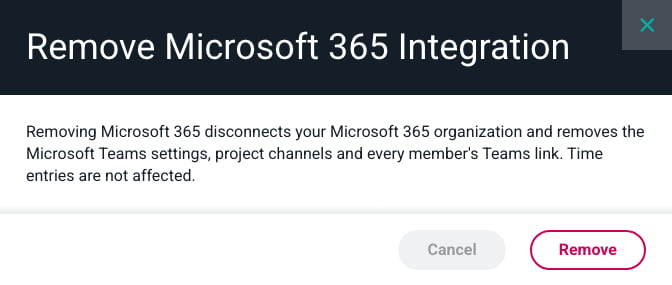
To disconnect Microsoft Teams, click the **Remove** button on the Microsoft 365 integration widget (Figure 8) and confirm (Figure 12). Removing the integration disconnects your Microsoft 365 organization and removes the Microsoft Teams settings, project channels, and every member's Microsoft Teams link. Time entries are not affected. Members aren't notified; the next time a member messages the Ruddr app, it replies with the **Welcome to Ruddr** card so the organization can be connected again.
#### Step 5: Choose Project Channels
To post project updates to Microsoft Teams, first add the Ruddr app to the team that contains the channel. Then, in Ruddr, open the project's **Settings** tab, select **Microsoft Teams** under **Overview**, choose the channel in the **Project Microsoft Teams Channel** box, and click **Save**. The box only lists channels in teams where the Ruddr app has been added. See [Project Channel Alerts](/integrations/microsoft-teams-integration-overview#key-integration-benefits) for the updates Ruddr posts.
Ruddr can post to standard channels only. Private and shared channels are not supported.
#### Removing the Integration
To disconnect Microsoft Teams, click the **Remove** button on the Microsoft 365 integration widget (Figure 8) and confirm (Figure 12). Removing the integration disconnects your Microsoft 365 organization and removes the Microsoft Teams settings, project channels, and every member's Microsoft Teams link. Time entries are not affected. Members aren't notified; the next time a member messages the Ruddr app, it replies with the **Welcome to Ruddr** card so the organization can be connected again.
 For more information about the Ruddr app for Microsoft Teams, see the [Microsoft Teams Integration Overview](/integrations/microsoft-teams-integration-overview) article.
This documentation is built and hosted on [Mintlify](https://mintlify.com), a developer documentation platform.
For more information about the Ruddr app for Microsoft Teams, see the [Microsoft Teams Integration Overview](/integrations/microsoft-teams-integration-overview) article.
This documentation is built and hosted on [Mintlify](https://mintlify.com), a developer documentation platform.