> ## Documentation Index
> Fetch the complete documentation index at: https://help.ruddr.io/llms.txt
> Use this file to discover all available pages before exploring further.
# HubSpot Integration Setup
Integrating HubSpot with Ruddr provides numerous benefits as outlined in the [HubSpot Integration Overview](/integrations/hubspot-integration-overview) article. To install the HubSpot integration, follow the steps below. Note that you must be a Ruddr Workspace Admin to install integrations in Ruddr and that the [Pipeline](/pipeline/pipeline-overview) feature in Ruddr must be enabled.
### Step 1: Find the HubSpot Integration
To get to the Integrations area of Ruddr, simply click on the **Settings** main nav bar option and then select the **Integrations** menu option (see [Integrations](/workspace-administration/integrations) for more information). The Integrations section is separated into two sections which are Active Integrations and Available Integrations. If you haven't previously set up the HubSpot integration, it will be listed in the Available Integrations section. Simply click on the **Install** button at the bottom of the integration widget (Figure 1).
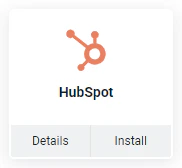 Figure 1 - Click Install to Begin the HubSpot Integration in Ruddr
### Step 2: Connect the Integration
Once you click on the **Install** button, if you are already logged in to HubSpot, you will be taken to an authorization screen (Figure 2). If you aren't logged in to HubSpot, you will be asked to login first (Figure 3). The authorization screen explains the type of information and actions that will be made available to Ruddr through the integration.
Figure 1 - Click Install to Begin the HubSpot Integration in Ruddr
### Step 2: Connect the Integration
Once you click on the **Install** button, if you are already logged in to HubSpot, you will be taken to an authorization screen (Figure 2). If you aren't logged in to HubSpot, you will be asked to login first (Figure 3). The authorization screen explains the type of information and actions that will be made available to Ruddr through the integration.
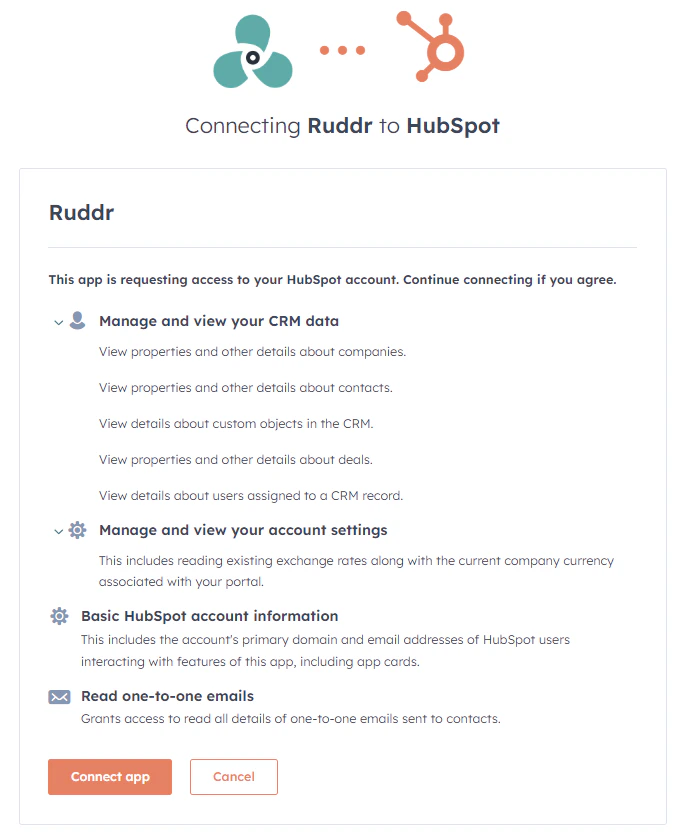 Figure 2 - Click **Connect app** to Authorize the Ruddr Connection with HubSpot
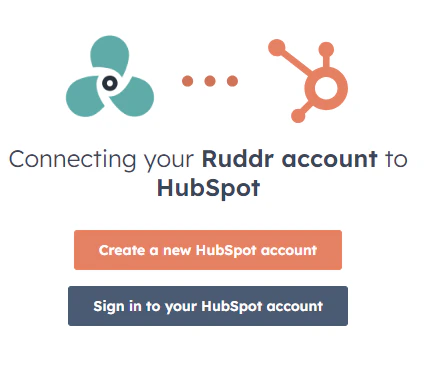 Figure 3 - You May be Asked to Login to HubSpot Prior to Authorizing the Connection
If you are comfortable with providing the privileges to the Ruddr integration, simply click on the **Connect app** button.
At this point, the HubSpot integration is installed but it now needs to be configured. You will be redirected to the HubSpot integration settings screen in Ruddr (Figure 4), where the configuration will continue according the following steps below.
Figure 3 - You May be Asked to Login to HubSpot Prior to Authorizing the Connection
If you are comfortable with providing the privileges to the Ruddr integration, simply click on the **Connect app** button.
At this point, the HubSpot integration is installed but it now needs to be configured. You will be redirected to the HubSpot integration settings screen in Ruddr (Figure 4), where the configuration will continue according the following steps below.
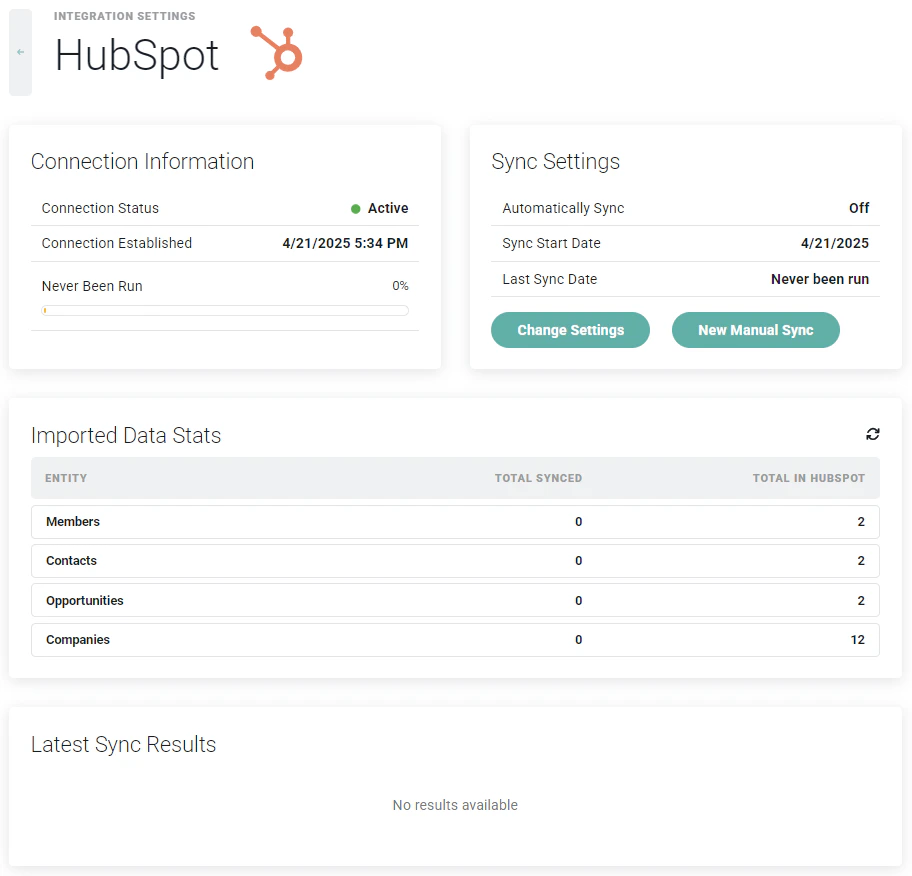 Figure 4 - Configure the HubSpot Integration in Ruddr
### Step 3: Configure HubSpot Sync Settings
To configure HubSpot sync settings, click on the **Change Settings** button in the Sync Settings section (Figure 5).
Figure 4 - Configure the HubSpot Integration in Ruddr
### Step 3: Configure HubSpot Sync Settings
To configure HubSpot sync settings, click on the **Change Settings** button in the Sync Settings section (Figure 5).
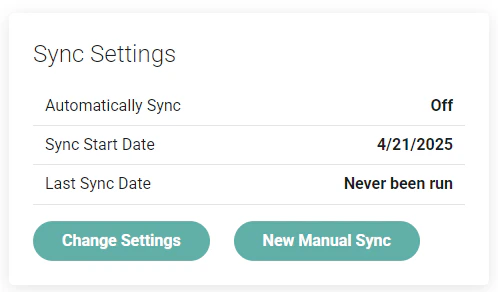 Figure 5 - The Sync Settings Section of HubSpot Integration Settings
This will bring up the **Sync Settings** drawer (Figure 6), where you will be able to configure the following settings:
* **Automatically Sync**: Set whether or not the HubSpot integration will automatically sync data from HubSpot to Ruddr on an interval. You can also set the **Frequency** of the sync with one of the following values.
* Every Hour
* Every Two Hours
* Every Three Hours
* Every Four Hours
* Every Eight Hours
* Every Twelve Hours
* Daily
* **Beginning Date**: Specify the earliest Start Date from which you want to sync opportunities. Any opportunity created prior to the Start Date will not be synced.
* **Opportunity Minimums**: Any opportunities with a Probability less than the **Minimum Probability** or with an opportunity amount less than the **Minimum Amount** will not be synced.
* **Opportunity Types**: Any opportunities with the selected opportunity types will be synced. These opportunity types are based on the types in your HubSpot instance.
* **Pipelines:** Ruddr can connect to multiple HubSpot pipelines. Choose the HubSpot pipelines from which you will sync companies, contacts, and opportunities. Any time you select an additional pipeline in the settings, you will want to [follow this guidance](#multiple-hubspot-pipelines).
* **Activity Types:** Specify the types of activities related to companies and opportunities that you would like to sync to Ruddr.
* **Imported Member Availability:** Ruddr will create inactive members in Ruddr as needed to support various fields on pipeline entities, including Contact Owner, Company Owner, and Opportunity Owner. Specify whether you want these inactive members to be created with the workspace default [capacity](/workspace-administration/member-profile#capacity-periods) or without a capacity ("No Availability").
Figure 5 - The Sync Settings Section of HubSpot Integration Settings
This will bring up the **Sync Settings** drawer (Figure 6), where you will be able to configure the following settings:
* **Automatically Sync**: Set whether or not the HubSpot integration will automatically sync data from HubSpot to Ruddr on an interval. You can also set the **Frequency** of the sync with one of the following values.
* Every Hour
* Every Two Hours
* Every Three Hours
* Every Four Hours
* Every Eight Hours
* Every Twelve Hours
* Daily
* **Beginning Date**: Specify the earliest Start Date from which you want to sync opportunities. Any opportunity created prior to the Start Date will not be synced.
* **Opportunity Minimums**: Any opportunities with a Probability less than the **Minimum Probability** or with an opportunity amount less than the **Minimum Amount** will not be synced.
* **Opportunity Types**: Any opportunities with the selected opportunity types will be synced. These opportunity types are based on the types in your HubSpot instance.
* **Pipelines:** Ruddr can connect to multiple HubSpot pipelines. Choose the HubSpot pipelines from which you will sync companies, contacts, and opportunities. Any time you select an additional pipeline in the settings, you will want to [follow this guidance](#multiple-hubspot-pipelines).
* **Activity Types:** Specify the types of activities related to companies and opportunities that you would like to sync to Ruddr.
* **Imported Member Availability:** Ruddr will create inactive members in Ruddr as needed to support various fields on pipeline entities, including Contact Owner, Company Owner, and Opportunity Owner. Specify whether you want these inactive members to be created with the workspace default [capacity](/workspace-administration/member-profile#capacity-periods) or without a capacity ("No Availability").
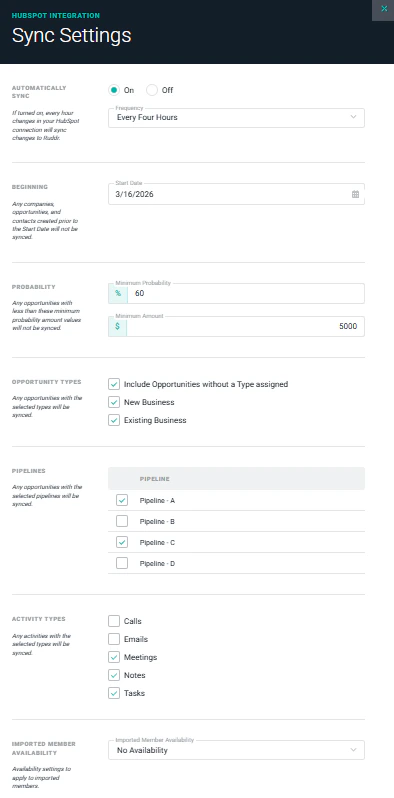 Figure 6 - Configure the Sync Settings for HubSpot
#### Multiple HubSpot Pipelines
If, at any time, you opt to include an additional HubSpot pipeline for synchronization, you will need to select that pipeline (Figure 7) from the settings drawer (Figure 6) within the HubSpot integrations area in Ruddr and save the settings. Then, you will need to immediately [run a manual, full synchronization](#step-4-manually-run-a-full-hubspot-synchronization) to ensure that the additional pipeline's settings, custom data, and sales data are synched for the first time.
Figure 6 - Configure the Sync Settings for HubSpot
#### Multiple HubSpot Pipelines
If, at any time, you opt to include an additional HubSpot pipeline for synchronization, you will need to select that pipeline (Figure 7) from the settings drawer (Figure 6) within the HubSpot integrations area in Ruddr and save the settings. Then, you will need to immediately [run a manual, full synchronization](#step-4-manually-run-a-full-hubspot-synchronization) to ensure that the additional pipeline's settings, custom data, and sales data are synched for the first time.
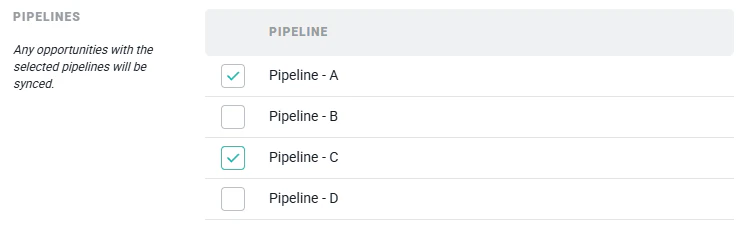 Figure 7 - Specify Pipelines From Which to Sync Contacts, Companies, and Opportunities
### Step 4: Manually Run a Full HubSpot Synchronization
Once you have specified the various sync settings, click the **New Manual Sync** button found on the Sync Settings block (Figure 5) of the integrations settings page.
This will prompt you (Figure 8) to select whether or not you wish to run a **Full synchronization**, which will fetch all company, contact, opportunity, and activity data going back to the Start Date that you specified in Sync Settings in Step 2.
Once the initial, full synchronization has been run, you will be able to leave the **Full synchronization** setting unchecked, which will result in an incremental sync that will only bring over any updates since the most recent, successful sync was completed.
Figure 7 - Specify Pipelines From Which to Sync Contacts, Companies, and Opportunities
### Step 4: Manually Run a Full HubSpot Synchronization
Once you have specified the various sync settings, click the **New Manual Sync** button found on the Sync Settings block (Figure 5) of the integrations settings page.
This will prompt you (Figure 8) to select whether or not you wish to run a **Full synchronization**, which will fetch all company, contact, opportunity, and activity data going back to the Start Date that you specified in Sync Settings in Step 2.
Once the initial, full synchronization has been run, you will be able to leave the **Full synchronization** setting unchecked, which will result in an incremental sync that will only bring over any updates since the most recent, successful sync was completed.
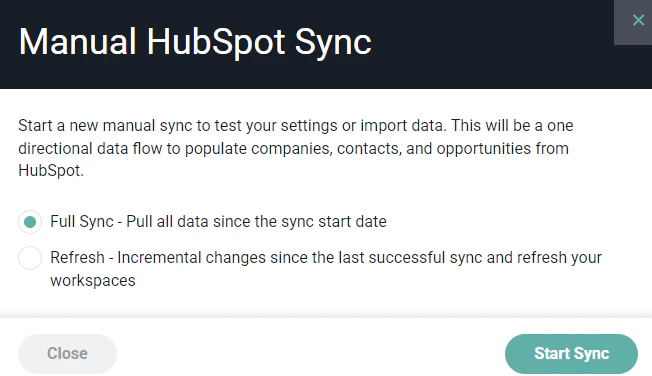 Figure 8 - Execute a Manual, Full Synchronization as a First Sync of HubSpot Data
### Step 5: Review the Sync Results Log
For both Automatic and Manual syncs, Ruddr will provide a log of the synchronization results, which can be accessed from the Latest Sync Results section (Figure 9) on the HubSpot integration settings page.
Figure 8 - Execute a Manual, Full Synchronization as a First Sync of HubSpot Data
### Step 5: Review the Sync Results Log
For both Automatic and Manual syncs, Ruddr will provide a log of the synchronization results, which can be accessed from the Latest Sync Results section (Figure 9) on the HubSpot integration settings page.
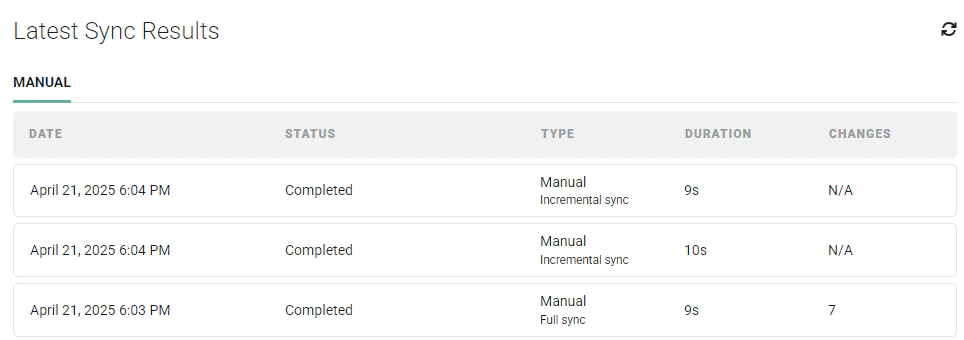 Figure 9 - Ruddr Provides Log Files from Automatic and Manual Syncs