> ## Documentation Index
> Fetch the complete documentation index at: https://help.ruddr.io/llms.txt
> Use this file to discover all available pages before exploring further.
# BambooHR Integration Setup
Integrating BambooHR with Ruddr provides numerous benefits as outlined in the [BambooHR Integration Overview](/integrations/bamboohr-integration-overview) article. To install the BambooHR integration, simply follow the steps below. Note that you must be a Ruddr Workspace Admin to install integrations in Ruddr.
### Step 1: Find the Bamboo Integration
To get to the Integrations area of Ruddr, simply click on the **Settings** main nav bar option and then select the **Integrations** menu option (see [Integrations](/workspace-administration/integrations) for more information). The Integrations screen is separated into two sections which are Active Integrations and Available Integrations. If you have yet to set up the BambooHR integration, it will be listed in the Available Integrations section. Simply click on the **Install** button at the bottom of the integration widget (Figure 1).
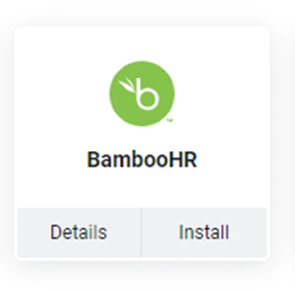 Figure 1 - Click Install to Begin the BambooHR Integration in Ruddr
### Step 2: Authorize the Integration
Being logged into BambooHR (having an active browser session) prior to beginning this process ensures a seamless experience with setting up the integration. Also, you will want to ensure that you are setting this integration up using a BambooHR user account with full access to all BambooHR users and time off policies.
Once you click on the **Install** button, you will be presented with a window (Figure 2) that will ask for your BambooHR **companydomain**.
Figure 1 - Click Install to Begin the BambooHR Integration in Ruddr
### Step 2: Authorize the Integration
Being logged into BambooHR (having an active browser session) prior to beginning this process ensures a seamless experience with setting up the integration. Also, you will want to ensure that you are setting this integration up using a BambooHR user account with full access to all BambooHR users and time off policies.
Once you click on the **Install** button, you will be presented with a window (Figure 2) that will ask for your BambooHR **companydomain**.
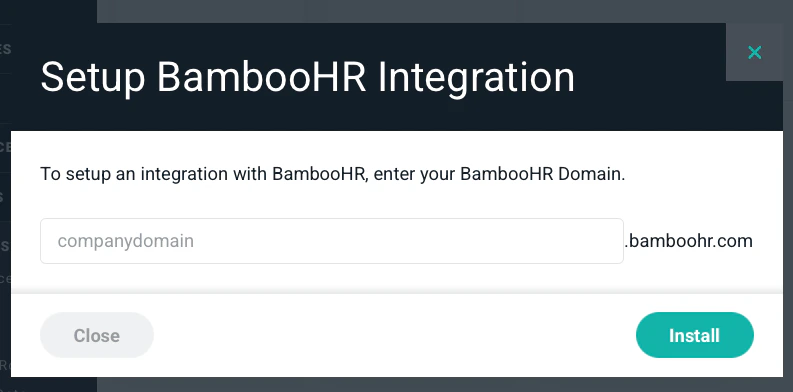 Figure 2 - Begin Setup of Ruddr / BambooHR Integration by Entering BambooHR Integration Requirements
### Step 3: Authorize Ruddr and BambooHR access
Once you enter your BambooHR domain, you will be directed to BambooHR to allow Ruddr to access the desired information. (Figure 3) You can customize in this screen the information you would like sent to Ruddr. Once complete, you can select Allow Access and now you are set up with OAuth.
Figure 2 - Begin Setup of Ruddr / BambooHR Integration by Entering BambooHR Integration Requirements
### Step 3: Authorize Ruddr and BambooHR access
Once you enter your BambooHR domain, you will be directed to BambooHR to allow Ruddr to access the desired information. (Figure 3) You can customize in this screen the information you would like sent to Ruddr. Once complete, you can select Allow Access and now you are set up with OAuth.
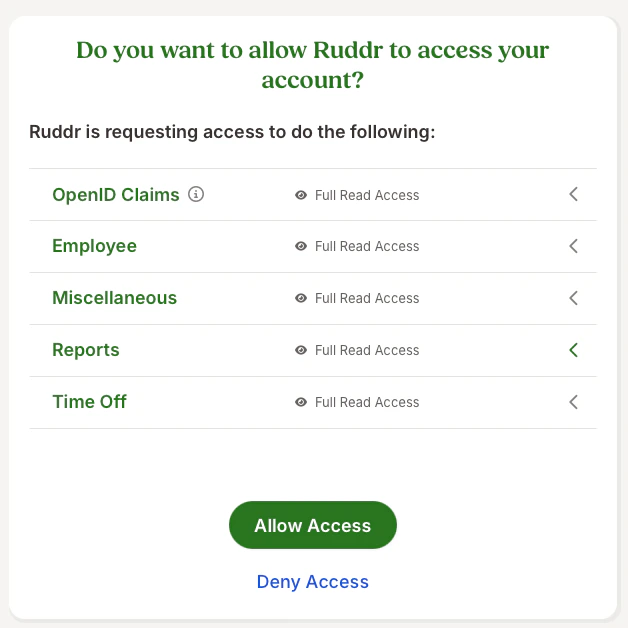 ### Figure 3 - Allow Ruddr to Access BambooHR data
### Step 4: Configure BambooHR Integration Settings
There are a number of BambooHR configuration settings in Ruddr, available from the Settings screen (Figure 4).
* [Member Settings](#member-settings)
* [Time Off Settings](#time-off-settings)
* [Sync Settings](#sync-settings)
### Figure 3 - Allow Ruddr to Access BambooHR data
### Step 4: Configure BambooHR Integration Settings
There are a number of BambooHR configuration settings in Ruddr, available from the Settings screen (Figure 4).
* [Member Settings](#member-settings)
* [Time Off Settings](#time-off-settings)
* [Sync Settings](#sync-settings)
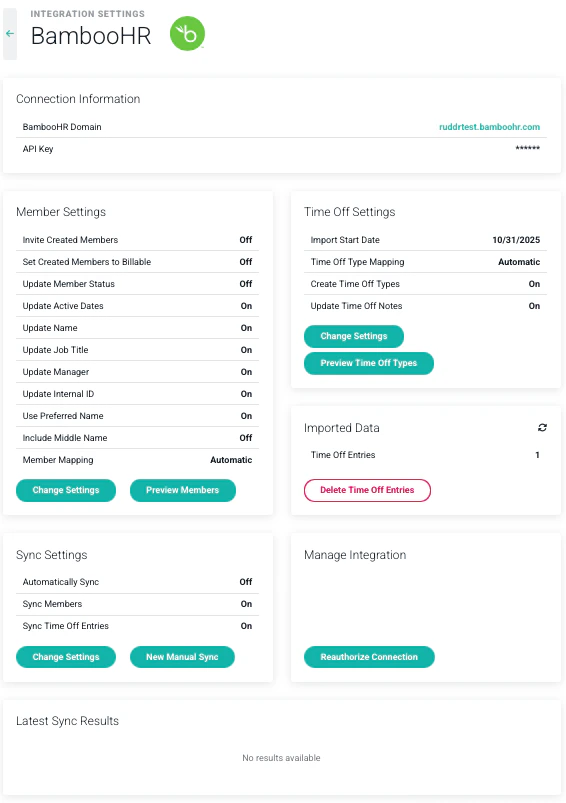 Figure 4 - BambooHR Integration Settings in Ruddr
This screen is immediately available after supplying the companydomain and API key, and is also accessible by clicking the **Settings** button on the BambooHR integration widget (Figure 5) once the integration is enabled.
Figure 4 - BambooHR Integration Settings in Ruddr
This screen is immediately available after supplying the companydomain and API key, and is also accessible by clicking the **Settings** button on the BambooHR integration widget (Figure 5) once the integration is enabled.
 Figure 5 - BambooHR Integration Widget when Enabled
The following sections will cover each of these groups of settings.
#### Member Settings
In the Member Settings section (Figure 6), you can specify how you want the integration to manage Ruddr workspace members and relevant member data fields.
Figure 5 - BambooHR Integration Widget when Enabled
The following sections will cover each of these groups of settings.
#### Member Settings
In the Member Settings section (Figure 6), you can specify how you want the integration to manage Ruddr workspace members and relevant member data fields.
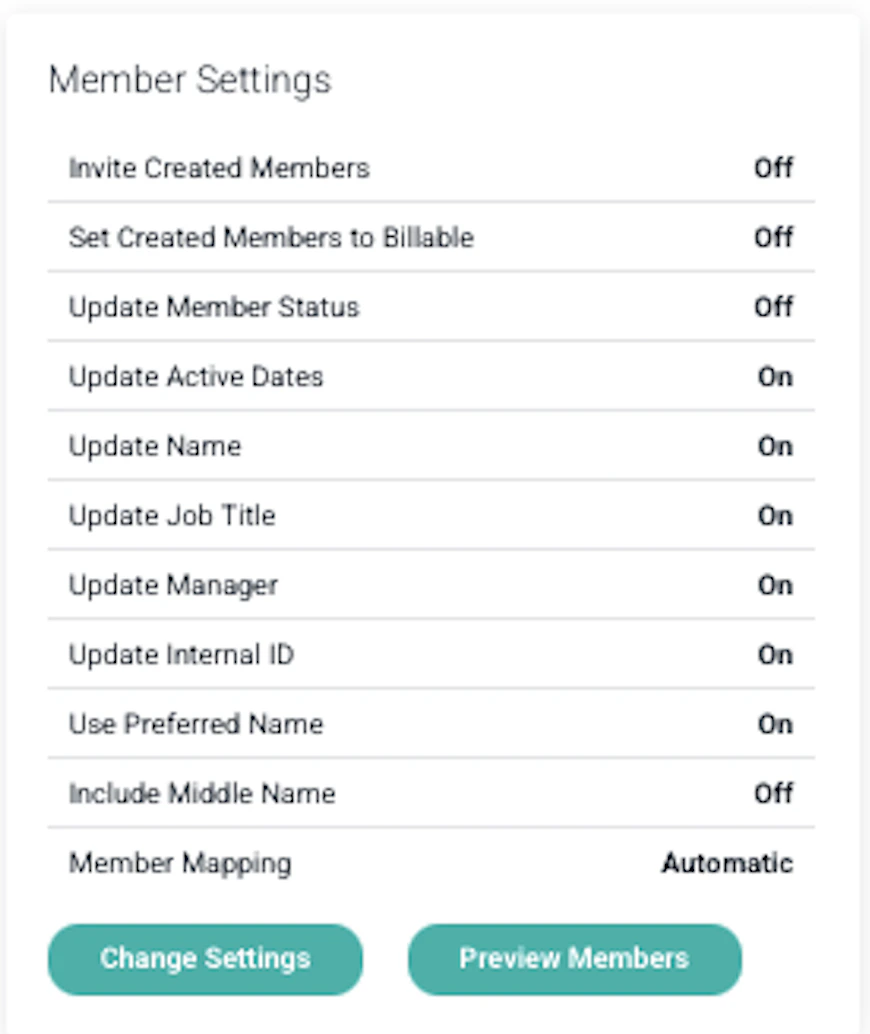 Figure 6 - Member Settings
Clicking the **Change Settings** button will open the Member Settings drawer (Figure 7).
Figure 6 - Member Settings
Clicking the **Change Settings** button will open the Member Settings drawer (Figure 7).
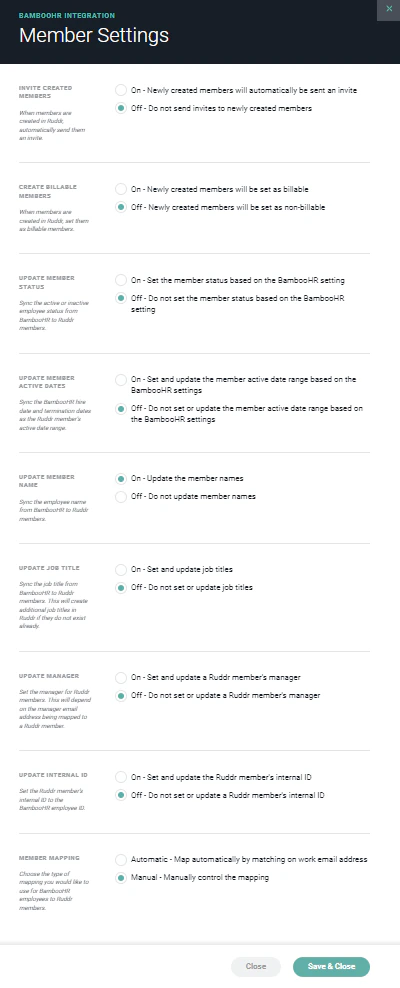 Figure 7 - Manage Member Settings for the Ruddr / BambooHR Integration
The following Member Settings are available:
* **Invite Created Members** - by default, the integration is set to create new workspace members in Ruddr but not send invitations to those members. By toggling this setting to **On**, the integration will automatically send invitations to Ruddr members when they are created in BambooHR. Note that when members are created in Ruddr, their [Security Role](/workspace-administration/security-roles) is set to the default Security Role in the workspace.
* **Set Created Members to Billable** - by default, Ruddr members that are created by the BambooHR integration are set as non-billable workspace members in Ruddr. Changing this to **On** will configure all newly created Ruddr members as billable in your workspace.
* **Update Member Status** - This setting controls whether or not the integration will automatically update a Ruddr member's status (Active or Inactive) based on the employee status in BambooHR. If an employee in BambooHR is terminated, and this setting is set to **On**, the integration will automatically deactivate the member in the Ruddr workspace. Conversely, if an inactive employee in BambooHR is reactivated, or a new employee is created, the integration will set this member's workspace status to Active in Ruddr. By default, this setting is set to **Off**.
* **Update Member Active Dates** - enabling this setting will ensure that the BambooHR hire date and termination date will be used as the Ruddr member's active date and inactive date, respectively.
* **Update Member Name** - sync the employee name from BambooHR to Ruddr members.
* **Update Job Title** - this setting allows the integration to sync an employee's job title from BambooHR to Ruddr members. If the Job Title does not exist as a record in [Custom Data](/workspace-administration/custom-data), then Ruddr will create the Job Title record.
* **Update Manager** - if the email of the employee's manager maps to a Ruddr member, the manager will be set on the employee's member record.
* **Update Internal ID** - enabling this setting will sync the employee's BambooHR employee ID to the Internal ID field on the member profile in Ruddr.
* **Member Mapping** - This setting controls how the integration maps BambooHR employees to Ruddr members. Provided your workspace members use the same email address in both systems, you can leave this set to **Automatic**. Setting this to **Manual** requires you to manually map BambooHR employees to Ruddr members. The default setting is **Automatic**.
**NOTE**: In order for Ruddr to create a member, an email address must be found in BambooHR. There are multiple email values on an employee record in BambooHR; the email must be entered on the "Work Email" field in order to be used by Ruddr in creating a member.
When Ruddr is set to automatically map members with BambooHR, the Member Settings section (Figure 6) will present a **Preview Members** button. Clicking this button will open up the **Member Matching** drawer (Figure 8), which will display the Ruddr member and email address in the left column, and the BambooHR employee and email address in the right column. In this drawer, you will be able to see the following:
* Successfully mapped members
* Members found in Ruddr but not in BambooHR
* Members found in BambooHR but not in Ruddr
When automatic mapping is set, the integration will automatically create a Ruddr member when a BambooHR employee has no corresponding member in Ruddr.
Figure 7 - Manage Member Settings for the Ruddr / BambooHR Integration
The following Member Settings are available:
* **Invite Created Members** - by default, the integration is set to create new workspace members in Ruddr but not send invitations to those members. By toggling this setting to **On**, the integration will automatically send invitations to Ruddr members when they are created in BambooHR. Note that when members are created in Ruddr, their [Security Role](/workspace-administration/security-roles) is set to the default Security Role in the workspace.
* **Set Created Members to Billable** - by default, Ruddr members that are created by the BambooHR integration are set as non-billable workspace members in Ruddr. Changing this to **On** will configure all newly created Ruddr members as billable in your workspace.
* **Update Member Status** - This setting controls whether or not the integration will automatically update a Ruddr member's status (Active or Inactive) based on the employee status in BambooHR. If an employee in BambooHR is terminated, and this setting is set to **On**, the integration will automatically deactivate the member in the Ruddr workspace. Conversely, if an inactive employee in BambooHR is reactivated, or a new employee is created, the integration will set this member's workspace status to Active in Ruddr. By default, this setting is set to **Off**.
* **Update Member Active Dates** - enabling this setting will ensure that the BambooHR hire date and termination date will be used as the Ruddr member's active date and inactive date, respectively.
* **Update Member Name** - sync the employee name from BambooHR to Ruddr members.
* **Update Job Title** - this setting allows the integration to sync an employee's job title from BambooHR to Ruddr members. If the Job Title does not exist as a record in [Custom Data](/workspace-administration/custom-data), then Ruddr will create the Job Title record.
* **Update Manager** - if the email of the employee's manager maps to a Ruddr member, the manager will be set on the employee's member record.
* **Update Internal ID** - enabling this setting will sync the employee's BambooHR employee ID to the Internal ID field on the member profile in Ruddr.
* **Member Mapping** - This setting controls how the integration maps BambooHR employees to Ruddr members. Provided your workspace members use the same email address in both systems, you can leave this set to **Automatic**. Setting this to **Manual** requires you to manually map BambooHR employees to Ruddr members. The default setting is **Automatic**.
**NOTE**: In order for Ruddr to create a member, an email address must be found in BambooHR. There are multiple email values on an employee record in BambooHR; the email must be entered on the "Work Email" field in order to be used by Ruddr in creating a member.
When Ruddr is set to automatically map members with BambooHR, the Member Settings section (Figure 6) will present a **Preview Members** button. Clicking this button will open up the **Member Matching** drawer (Figure 8), which will display the Ruddr member and email address in the left column, and the BambooHR employee and email address in the right column. In this drawer, you will be able to see the following:
* Successfully mapped members
* Members found in Ruddr but not in BambooHR
* Members found in BambooHR but not in Ruddr
When automatic mapping is set, the integration will automatically create a Ruddr member when a BambooHR employee has no corresponding member in Ruddr.
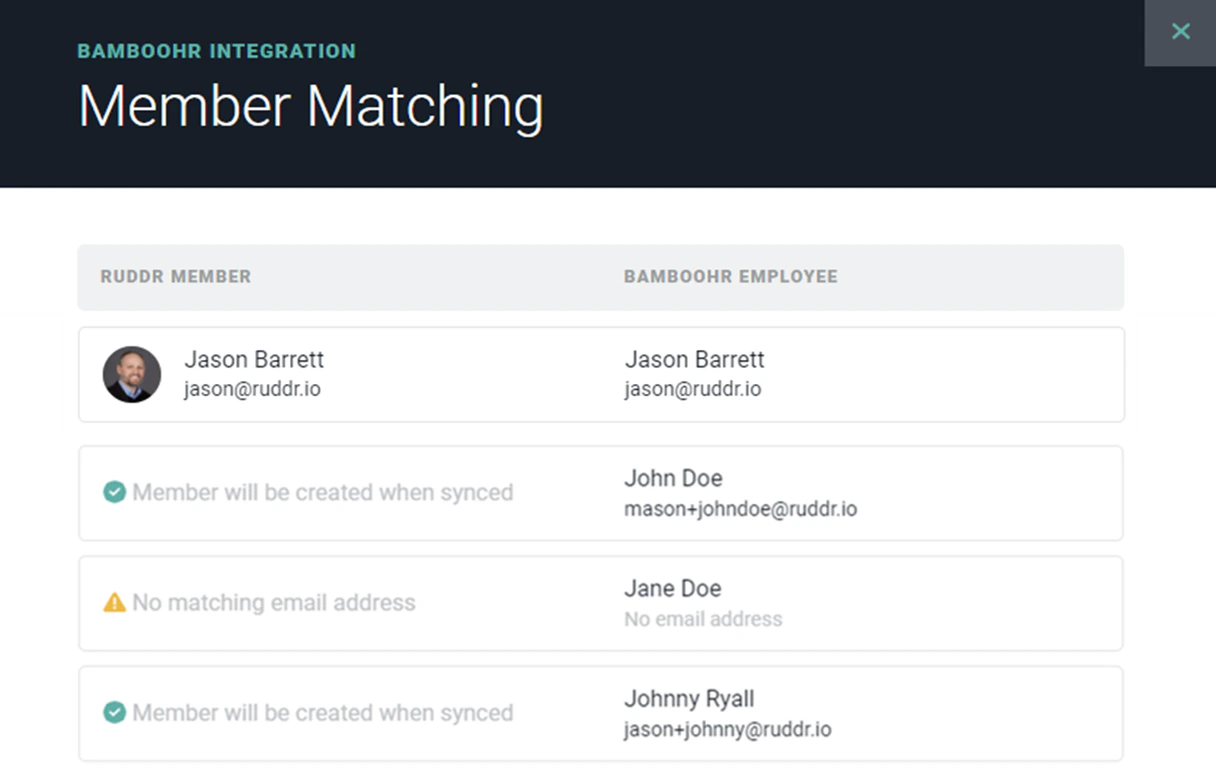 Figure 8 - Member Matching Preview
When you select to manually set the Member Mapping, the Member Settings section (Figure 9) will display an **Edit Mappings** button.
Figure 8 - Member Matching Preview
When you select to manually set the Member Mapping, the Member Settings section (Figure 9) will display an **Edit Mappings** button.
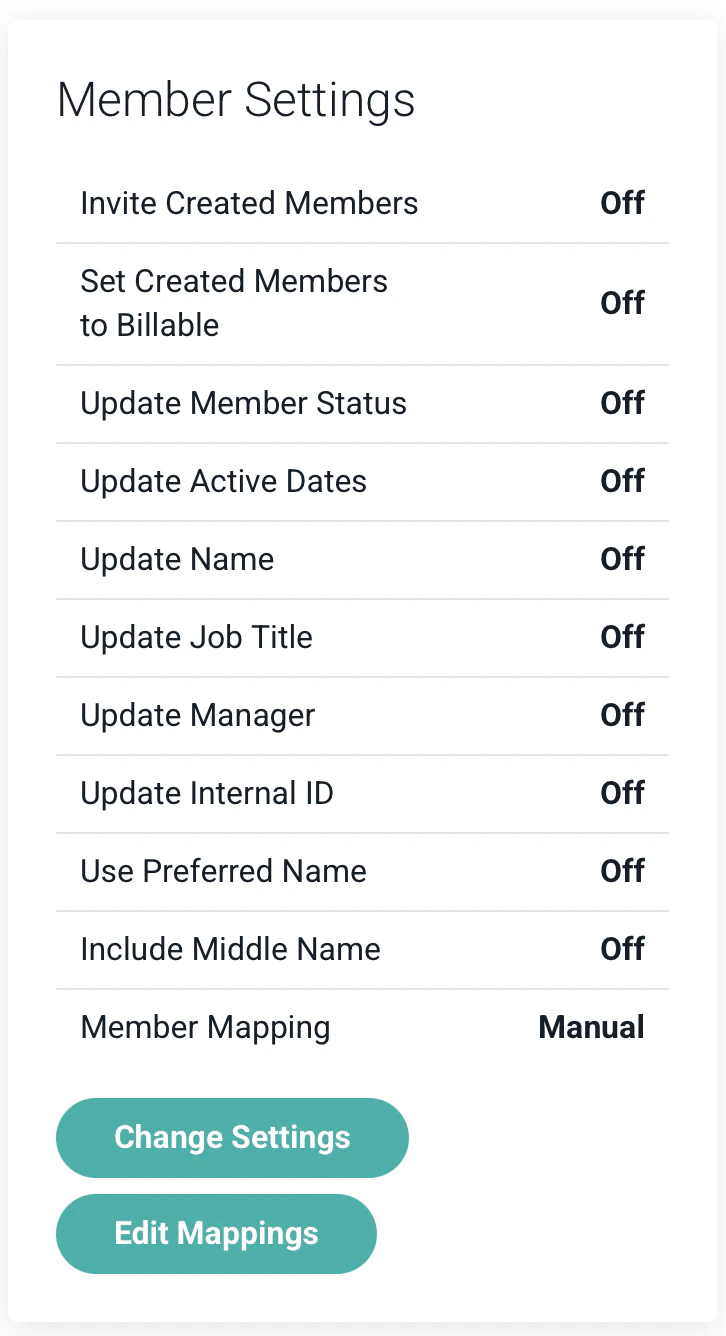 Figure 9 - Edit Member Mappings when the Setting is Manual
Clicking the **Edit Mappings** button will present you with a Member Matching drawer (Figure 9) that will allow you to map each member in Ruddr to the corresponding employee in BambooHR.
Figure 9 - Edit Member Mappings when the Setting is Manual
Clicking the **Edit Mappings** button will present you with a Member Matching drawer (Figure 9) that will allow you to map each member in Ruddr to the corresponding employee in BambooHR.
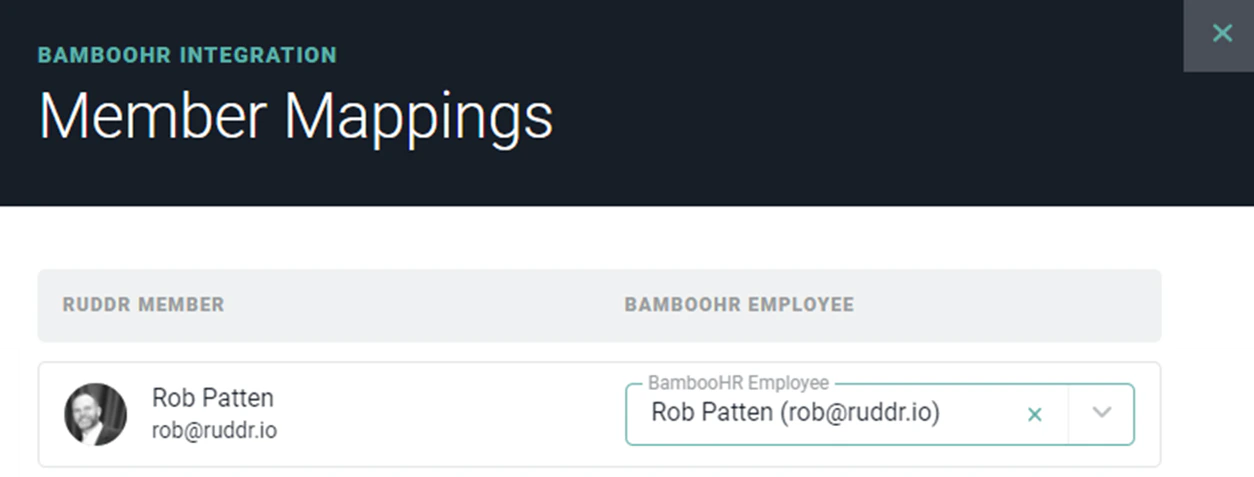 Figure 9 - Manually Map Ruddr Members to BambooHR Users
#### Time Off Settings
In the Time Off Settings section (Figure 10), you can specify how you want to manage time off time entries from BambooHR.
Figure 9 - Manually Map Ruddr Members to BambooHR Users
#### Time Off Settings
In the Time Off Settings section (Figure 10), you can specify how you want to manage time off time entries from BambooHR.
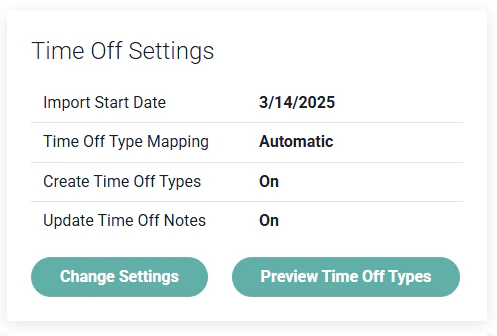 Figure 10 - Time Off Settings
The following Time Off Settings are available:
* **Import Start Date** - Setting this date establishes the first date of time off requests that Ruddr will import from BambooHR. You may prefer to import time off time entries beginning on the date the integration is setup.
* **Time Off Type Mapping** - In Ruddr and BambooHR, you can specify the types of time off available to employees. For example, you may allow employees to enter Vacation, Sick Leave, or Holiday time. The integration allows for BambooHR time off types to be mapped to Ruddr time off types. Setting this to **Manual** will allow you to control the mappings between the two systems. The default setting is **Automatic**.
* **Create Time Off Types** - The default setting is **On**. In this case, the integration will map time off types between the two systems when the time off type name is identical. If no match is found, the time off type will be created in Ruddr and the time off entry will be imported. If this setting is switched to **Off** and the integration does not find a matching time off type, the time off entry will not be imported.
* **Update Time Off Notes** - Ruddr will sync any description associated with a time off request in BambooHR as Notes on the time entry that gets created. If you do not want these notes to be available on time entries in Ruddr, you can change this setting to **Off**.
When the integration is set to automatically map time off types with BambooHR, the Time Off Settings section (Figure 4) will present a **Preview Time Off Types** button. Clicking this button will open up the **Time Off Types Matching** drawer (Figure 11), which will display the Ruddr time off type in the left column and the BambooHR time off type in the right column. In this drawer, you will be able to see the following:
* Successfully mapped types
* Time off types found in Ruddr but not in BambooHR
* Time off types found in BambooHR but not in Ruddr
Figure 10 - Time Off Settings
The following Time Off Settings are available:
* **Import Start Date** - Setting this date establishes the first date of time off requests that Ruddr will import from BambooHR. You may prefer to import time off time entries beginning on the date the integration is setup.
* **Time Off Type Mapping** - In Ruddr and BambooHR, you can specify the types of time off available to employees. For example, you may allow employees to enter Vacation, Sick Leave, or Holiday time. The integration allows for BambooHR time off types to be mapped to Ruddr time off types. Setting this to **Manual** will allow you to control the mappings between the two systems. The default setting is **Automatic**.
* **Create Time Off Types** - The default setting is **On**. In this case, the integration will map time off types between the two systems when the time off type name is identical. If no match is found, the time off type will be created in Ruddr and the time off entry will be imported. If this setting is switched to **Off** and the integration does not find a matching time off type, the time off entry will not be imported.
* **Update Time Off Notes** - Ruddr will sync any description associated with a time off request in BambooHR as Notes on the time entry that gets created. If you do not want these notes to be available on time entries in Ruddr, you can change this setting to **Off**.
When the integration is set to automatically map time off types with BambooHR, the Time Off Settings section (Figure 4) will present a **Preview Time Off Types** button. Clicking this button will open up the **Time Off Types Matching** drawer (Figure 11), which will display the Ruddr time off type in the left column and the BambooHR time off type in the right column. In this drawer, you will be able to see the following:
* Successfully mapped types
* Time off types found in Ruddr but not in BambooHR
* Time off types found in BambooHR but not in Ruddr
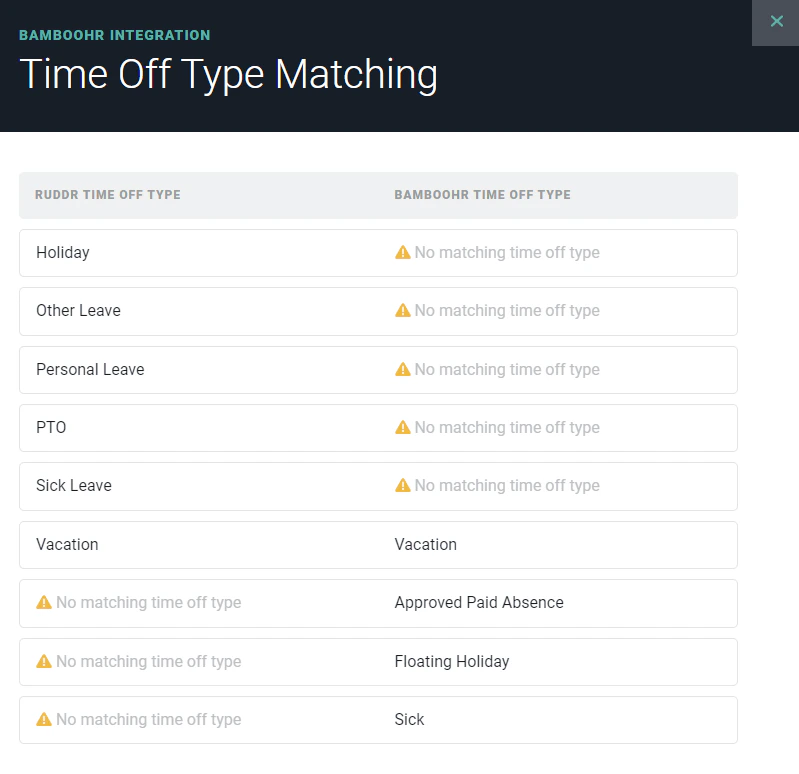 Figure 11 - Time Off Type Matching Preview
When you choose to manually set the Time Off Type Mapping, the Time Off Settings section (Figure 12) will display an **Edit Mappings** button, as shown below.
Figure 11 - Time Off Type Matching Preview
When you choose to manually set the Time Off Type Mapping, the Time Off Settings section (Figure 12) will display an **Edit Mappings** button, as shown below.
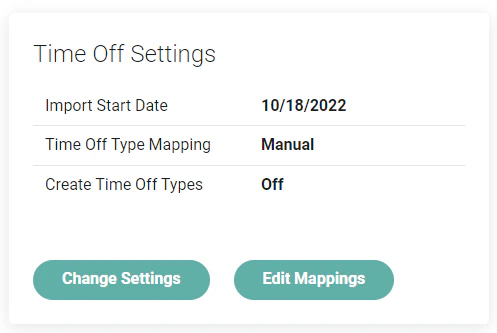 Figure 12 - Edit Time Off Type Mappings when the Setting is Manual
Clicking the **Edit Mappings** button will present a Time Off Type Matching drawer (Figure 13) that will allow you to map each time off type in BambooHR to any time off type in Ruddr.
Note that multiple BambooHR time off types can be mapped to a single Ruddr time off type. This allows you to consolidate multiple BambooHR time off types into a single Ruddr time off type. It also provides for a level of data privacy in that what might otherwise be sensitive time off information can be represented in Ruddr as any time off type you choose.
Figure 12 - Edit Time Off Type Mappings when the Setting is Manual
Clicking the **Edit Mappings** button will present a Time Off Type Matching drawer (Figure 13) that will allow you to map each time off type in BambooHR to any time off type in Ruddr.
Note that multiple BambooHR time off types can be mapped to a single Ruddr time off type. This allows you to consolidate multiple BambooHR time off types into a single Ruddr time off type. It also provides for a level of data privacy in that what might otherwise be sensitive time off information can be represented in Ruddr as any time off type you choose.
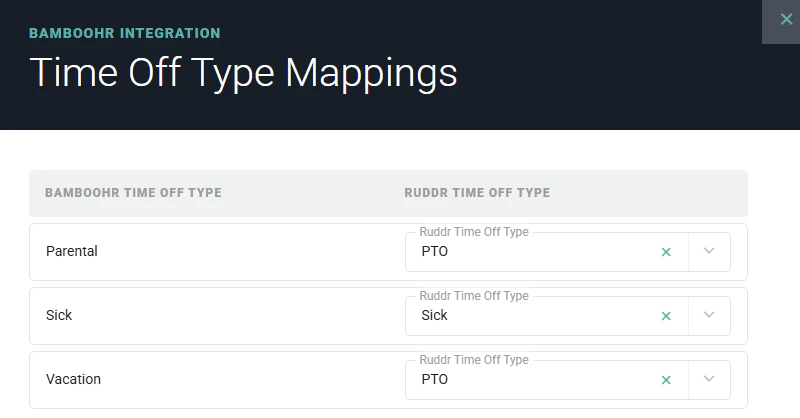 Figure 13 - Manually Map BambooHR Time Off Types to Ruddr Time Off Types
#### Sync Settings
The final step in the BambooHR integration setup is to configure the sync settings. To do this, click the **Change Settings** button in the Sync Settings section (Figure 14).
Figure 13 - Manually Map BambooHR Time Off Types to Ruddr Time Off Types
#### Sync Settings
The final step in the BambooHR integration setup is to configure the sync settings. To do this, click the **Change Settings** button in the Sync Settings section (Figure 14).
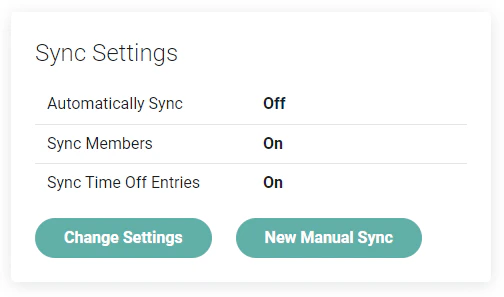 Figure 14 - BambooHR Integration Sync Settings
Clicking the **Change Settings** button will open the Sync Settings drawer (Figure 15). From this drawer, you first specify whether or not you want the sync process to run on an automatic schedule. Although the default setting is **Off**, you most likely will want this setting turned **On**. When turned on, Ruddr will sync with BambooHR on an hourly basis.
Next, you choose whether or not you want Members synchronized to Ruddr as part of this integration.
Finally, you specify whether or not you want approved time off requests in BambooHR synched to Ruddr time off entries.
Figure 14 - BambooHR Integration Sync Settings
Clicking the **Change Settings** button will open the Sync Settings drawer (Figure 15). From this drawer, you first specify whether or not you want the sync process to run on an automatic schedule. Although the default setting is **Off**, you most likely will want this setting turned **On**. When turned on, Ruddr will sync with BambooHR on an hourly basis.
Next, you choose whether or not you want Members synchronized to Ruddr as part of this integration.
Finally, you specify whether or not you want approved time off requests in BambooHR synched to Ruddr time off entries.
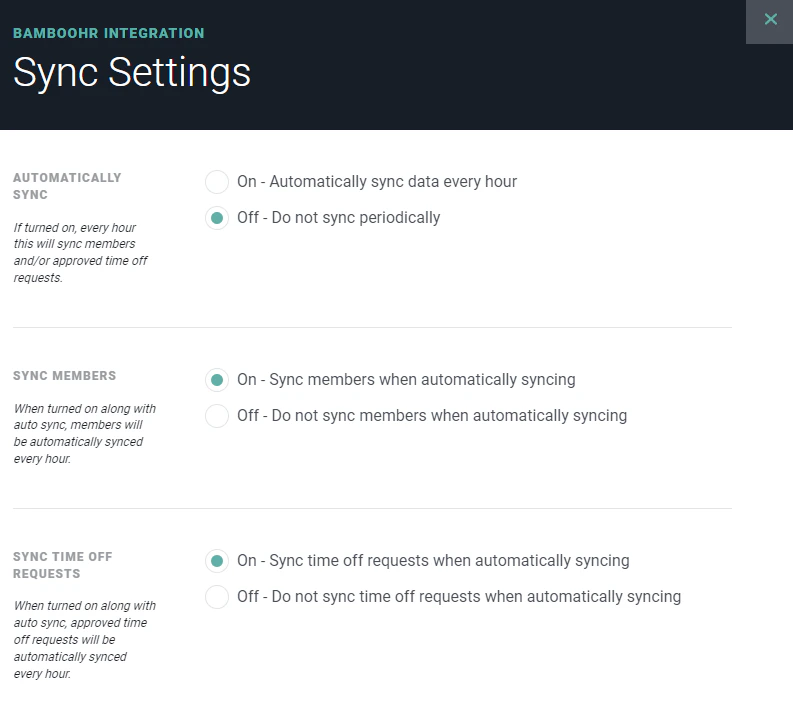 Figure 15 - Manage Ruddr / BambooHR Sync Setting
Note that from the **Sync Settings** section (Figure 15), you can also initiate a manual sync by clicking on the **New Manual Sync** button.
At this point, your BambooHR integration is configured and ready to go. But, there are a couple of other areas of the BambooHR integration to point out.
### Imported Data
The Imported Data section (Figure 16) of the BambooHR integration settings shows statistics about the data that has been synchronized from BambooHR to Ruddr. This section also provides a mechanism to delete time off entries that have been synched from BambooHR.
Figure 15 - Manage Ruddr / BambooHR Sync Setting
Note that from the **Sync Settings** section (Figure 15), you can also initiate a manual sync by clicking on the **New Manual Sync** button.
At this point, your BambooHR integration is configured and ready to go. But, there are a couple of other areas of the BambooHR integration to point out.
### Imported Data
The Imported Data section (Figure 16) of the BambooHR integration settings shows statistics about the data that has been synchronized from BambooHR to Ruddr. This section also provides a mechanism to delete time off entries that have been synched from BambooHR.
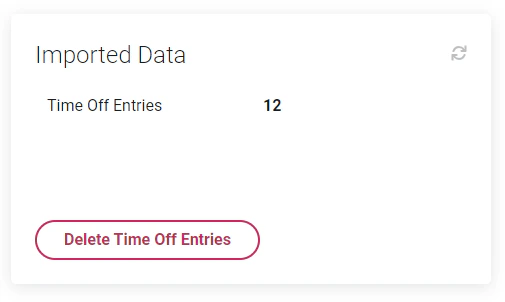 Figure 16 - The Imported Data section Displays Statistics Regarding the Integration
Clicking the **Delete Time Off Entries** button will present a dialog (Figure 17), asking you to confirm that you want to delete time entries synched from BambooHR.
Figure 16 - The Imported Data section Displays Statistics Regarding the Integration
Clicking the **Delete Time Off Entries** button will present a dialog (Figure 17), asking you to confirm that you want to delete time entries synched from BambooHR.
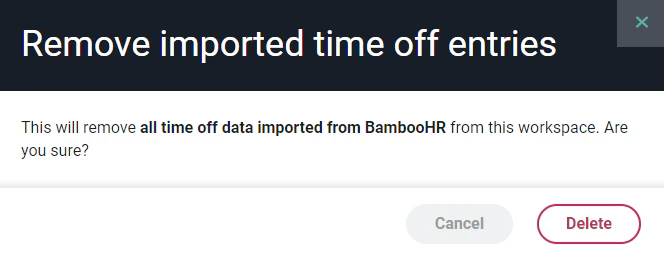 Figure 17 - Confirm your Choice to Delete all Time Entries Created by the BambooHR Integration
### Latest Sync Results / Sync Logs
At the bottom of the BambooHR integration settings screen, you will find a log of sync results (Figure 18) for both Manual and Automatic syncs. Clicking on a row in the log will display the details (Figure 19) regarding that synchronization. Viewing these logs can assist the Workspace Admin in evaluating the Ruddr records that have been created by the sync as well as information related to the Member mapping and the Time Off Type mapping.
Figure 17 - Confirm your Choice to Delete all Time Entries Created by the BambooHR Integration
### Latest Sync Results / Sync Logs
At the bottom of the BambooHR integration settings screen, you will find a log of sync results (Figure 18) for both Manual and Automatic syncs. Clicking on a row in the log will display the details (Figure 19) regarding that synchronization. Viewing these logs can assist the Workspace Admin in evaluating the Ruddr records that have been created by the sync as well as information related to the Member mapping and the Time Off Type mapping.
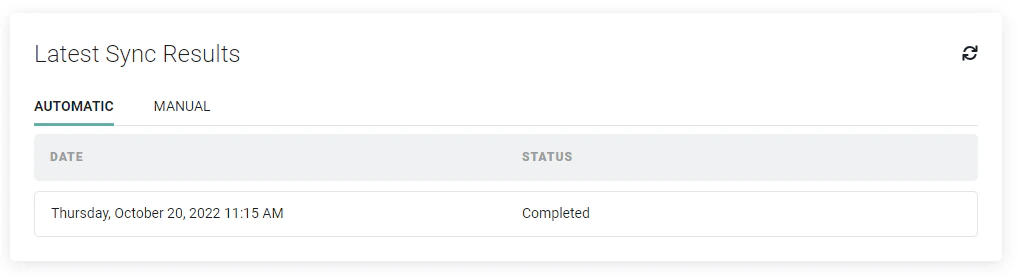 Figure 18 - Detailed Log of Sync Results
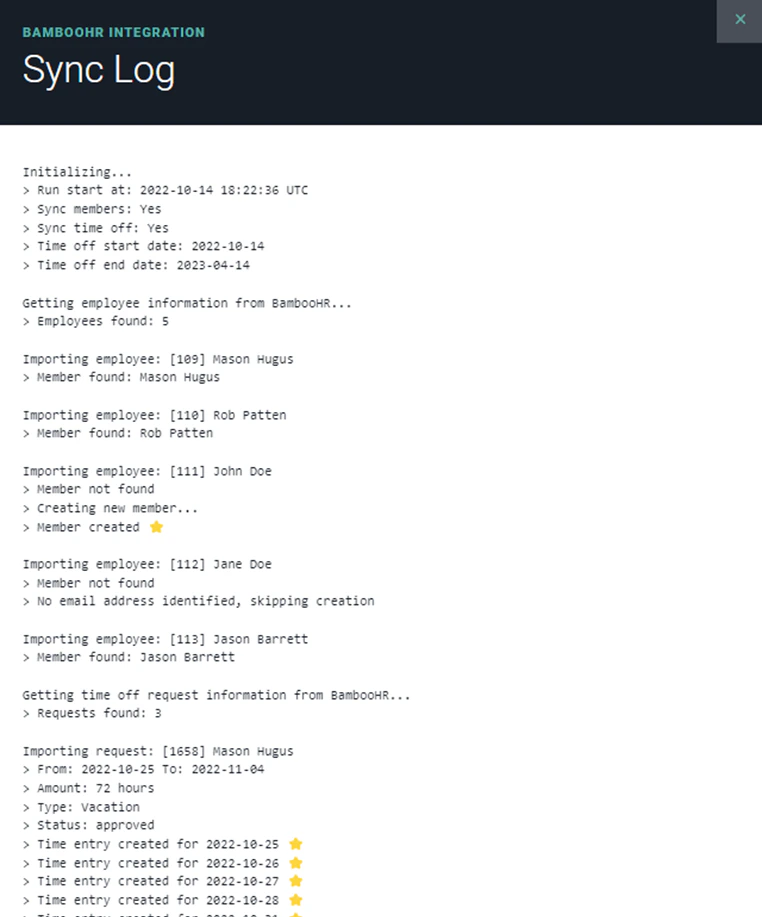 Figure 19 - List of Results for past Synchronizations