> ## Documentation Index
> Fetch the complete documentation index at: https://help.ruddr.io/llms.txt
> Use this file to discover all available pages before exploring further.
# Signing Up for Ruddr
To sign up for Ruddr, you must go to the Ruddr website at [www.ruddr.io](https://www.ruddr.io). From the home page (Figure 1), click on the **Start Trial** button at the top-right of the screen.
 Figure 1 - Ruddr.io Home Page
The first step in the sign up process is to provide your user account information (Figure 2) including your email address, name, and password. As part of this step, please be sure to read our [Terms of Use](https://www.ruddr.io/terms), and check the box indicating that you agree to those terms.
Figure 1 - Ruddr.io Home Page
The first step in the sign up process is to provide your user account information (Figure 2) including your email address, name, and password. As part of this step, please be sure to read our [Terms of Use](https://www.ruddr.io/terms), and check the box indicating that you agree to those terms.
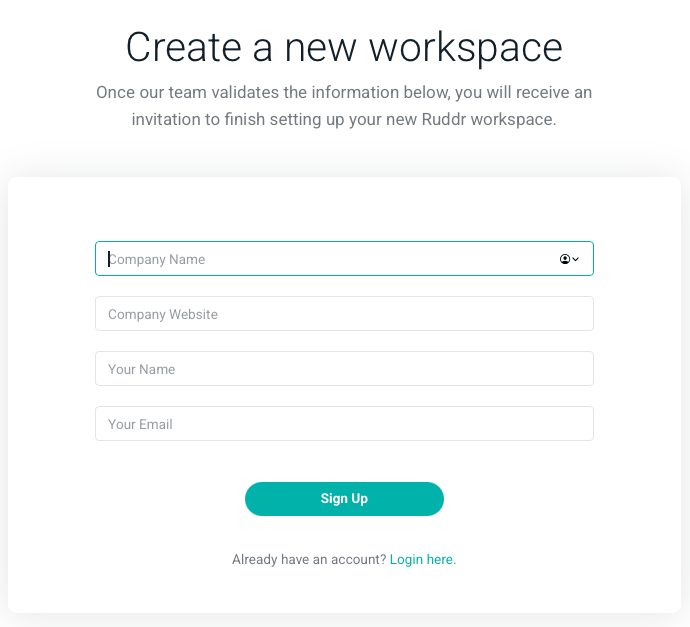 Figure 2 - New Account Details
After providing the user account information, simply click the **Create Account** button. You will then be advised to confirm your email address via an email that was sent to the email address you provided.
Figure 2 - New Account Details
After providing the user account information, simply click the **Create Account** button. You will then be advised to confirm your email address via an email that was sent to the email address you provided.
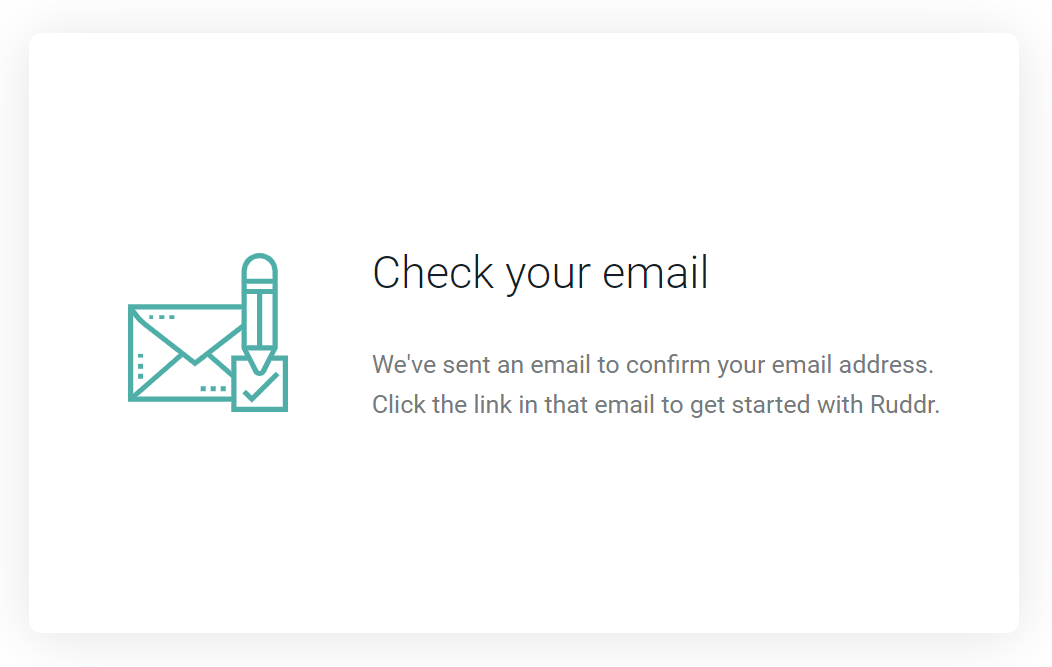 Figure 3 - Notice of Confirmation Email
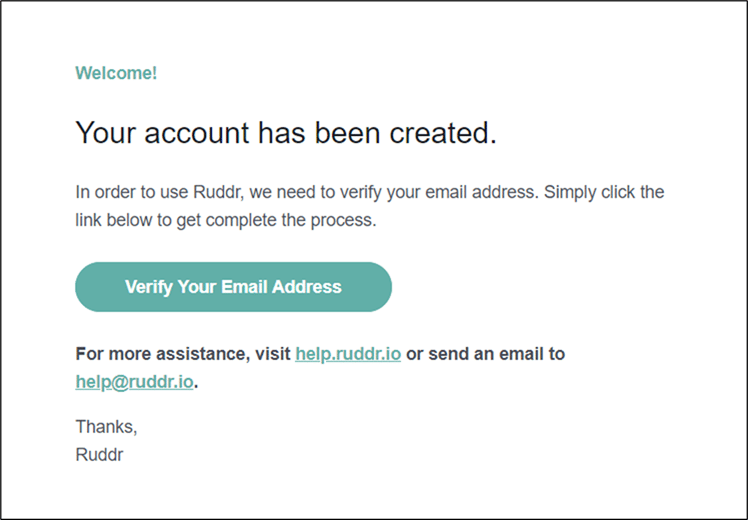 Figure 4 - Email Request for Verification
Once you verify your email address (Figure 4), you will be provided with the option to create a new workspace or join a workspace (Figure 5) that you have been previously invited to. If your company is already using Ruddr, but you haven't been invited into the workspace yet, ask your Workspace Admin to send you an invite.
Figure 4 - Email Request for Verification
Once you verify your email address (Figure 4), you will be provided with the option to create a new workspace or join a workspace (Figure 5) that you have been previously invited to. If your company is already using Ruddr, but you haven't been invited into the workspace yet, ask your Workspace Admin to send you an invite.
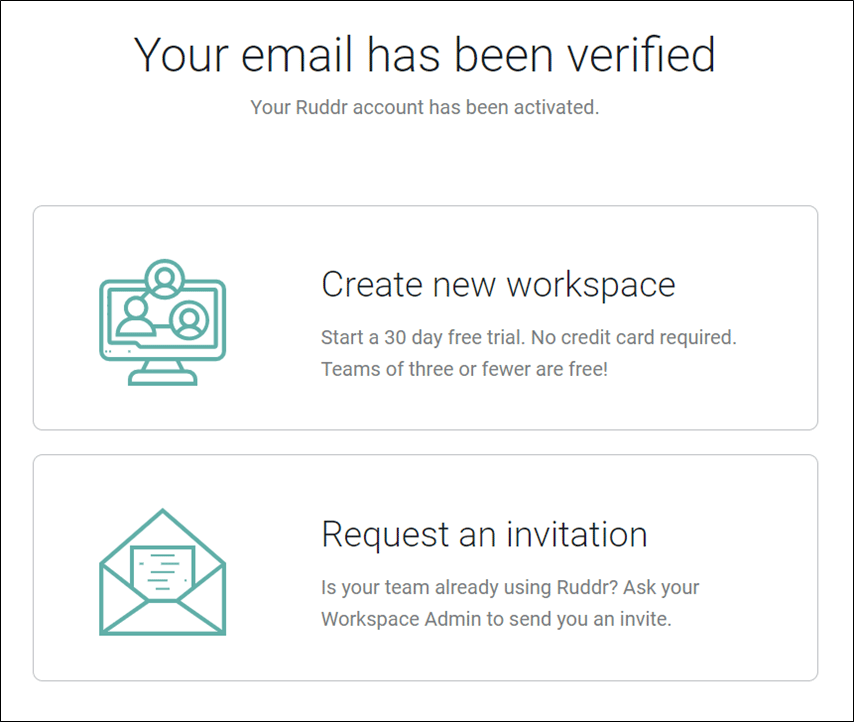 Figure 5 - Create a Workspace or Request an Invitation