> ## Documentation Index
> Fetch the complete documentation index at: https://help.ruddr.io/llms.txt
> Use this file to discover all available pages before exploring further.
# Ruddr Assistant
**NOTE**\*\*:\*\* The Ruddr Assistant [feature](/workspace-administration/features) must be enabled in workspace settings in order for this to be available in your workspace.
The **Ruddr Assistant** is an AI-powered chatbot that helps you find answers, explore workspace data, and understand Ruddr features faster. A member can ask questions in plain English about essentially any data in the Ruddr workspace that the member has permission to access. The assistant produces text-based answers as well as downloadable custom reports and charts. It can also help you navigate Ruddr documentation and clarify PSA and professional services concepts, making it easier to become proficient with Ruddr.
Just click the **Ask Ruddr** button to begin a conversation with the Ruddr Assistant. The assistant can:
* **Find answers in Ruddr Help Center articles** — features, settings, permissions, and workflows.
* **Query workspace data** — time, expenses, clients, projects, pipeline, billing, and members.
* **Analyze performance** — revenue, margin, utilization, forecasts, and trends.
* **Summarize results** — turn raw data into plain-English takeaways, custom reports, and custom graphs.
* **Build rollups** — like revenue by client, client industry, member, project, or month.
* **Explain general concepts** — PSA and professional services terms
#### Ruddr Assistant Permissions
The Ruddr Assistant is available in all Ruddr plans and to all workspace members. The information the assistant will retrieve and analyze is based on each member's [security role](/workspace-administration/security-roles). The assistant will only return data that the member otherwise has access to via Ruddr reports, dashboards, and screens.
To give members access to the assistant once the feature is enabled, you can set the **Ruddr Assistant enabled** setting on any [member's profile](/workspace-administration/member-profile). Note that this setting can also be managed via the Members bulk editing capabilities within workspace settings.
#### Accessing the Ruddr Assistant
You can launch the Ruddr Assistant via the **Ask Ruddr** button (Figure 1) at the top of screen.
 Figure 1 - Click the **Ask Ruddr** Button to Access the Ruddr Assistant
Clicking on the **Ask Ruddr** button will open a panel (Figure 2), where you can start a conversation with the assistant. Several sample prompts will be shown at the bottom of the screen.
Figure 1 - Click the **Ask Ruddr** Button to Access the Ruddr Assistant
Clicking on the **Ask Ruddr** button will open a panel (Figure 2), where you can start a conversation with the assistant. Several sample prompts will be shown at the bottom of the screen.
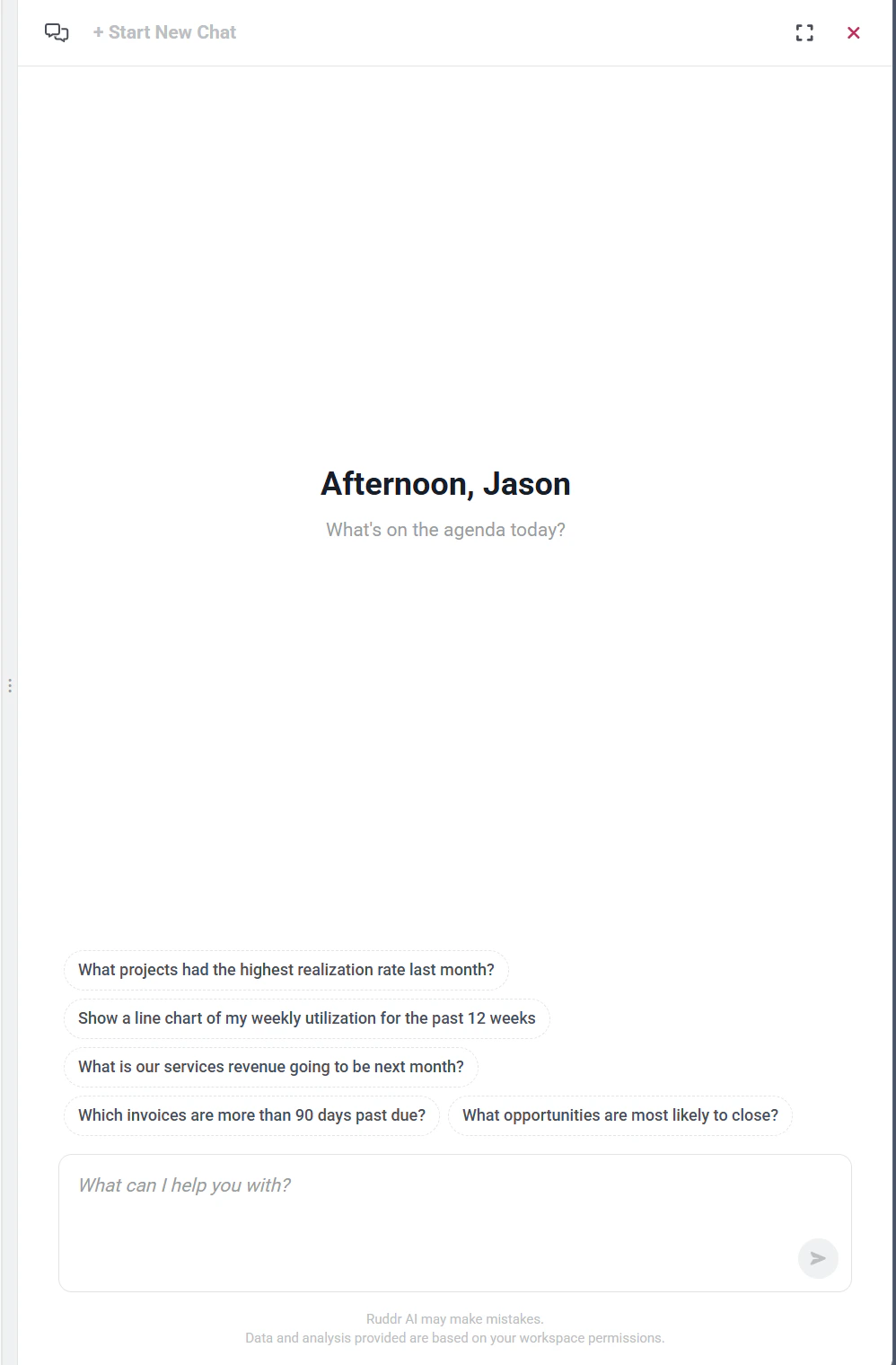 Figure 2 - Access the Assistant in the Ruddr UI
When accessing the assistant, you can enlarge the panel by either dragging on the handle (Figure 3) that lines the left side of the panel or by clicking on the **Expand** icon (Figure 4) at the top-right of the panel.
Figure 2 - Access the Assistant in the Ruddr UI
When accessing the assistant, you can enlarge the panel by either dragging on the handle (Figure 3) that lines the left side of the panel or by clicking on the **Expand** icon (Figure 4) at the top-right of the panel.
 Figure 3 - Drag the Handle / Border That Lines the Left Side of the Panel to Expand/Collapse
 Figure 4 - Click the **Expand** Button to Enlarge the Assistant Panel
The **+ Start New Chat** button (Figure 5) begins a fresh conversation. Use it when you want to ask a new question, switch topics, or clear out the context from a previous conversation. Starting a new chat is helpful when you want a clean slate for a different task, such as looking up a report, exploring a new dataset, or asking about a separate Ruddr feature.
Figure 4 - Click the **Expand** Button to Enlarge the Assistant Panel
The **+ Start New Chat** button (Figure 5) begins a fresh conversation. Use it when you want to ask a new question, switch topics, or clear out the context from a previous conversation. Starting a new chat is helpful when you want a clean slate for a different task, such as looking up a report, exploring a new dataset, or asking about a separate Ruddr feature.
 Figure 5 - Begin a New Chat Session with the Ruddr Assistant
Starting a new chat will also save your prior chat for future access. You can access your chat history by clicking on the Chat History button (Figure 6) on the assistant panel.
Figure 5 - Begin a New Chat Session with the Ruddr Assistant
Starting a new chat will also save your prior chat for future access. You can access your chat history by clicking on the Chat History button (Figure 6) on the assistant panel.
 Figure 6 - Access Your AI Chat History to Refer to Prior Conversations
Accessing your chat history (Figure 7) will give you the ability to review prior conversations. Click on any of the prior chats in the history to load that conversation including any reports and graphs.
Figure 6 - Access Your AI Chat History to Refer to Prior Conversations
Accessing your chat history (Figure 7) will give you the ability to review prior conversations. Click on any of the prior chats in the history to load that conversation including any reports and graphs.
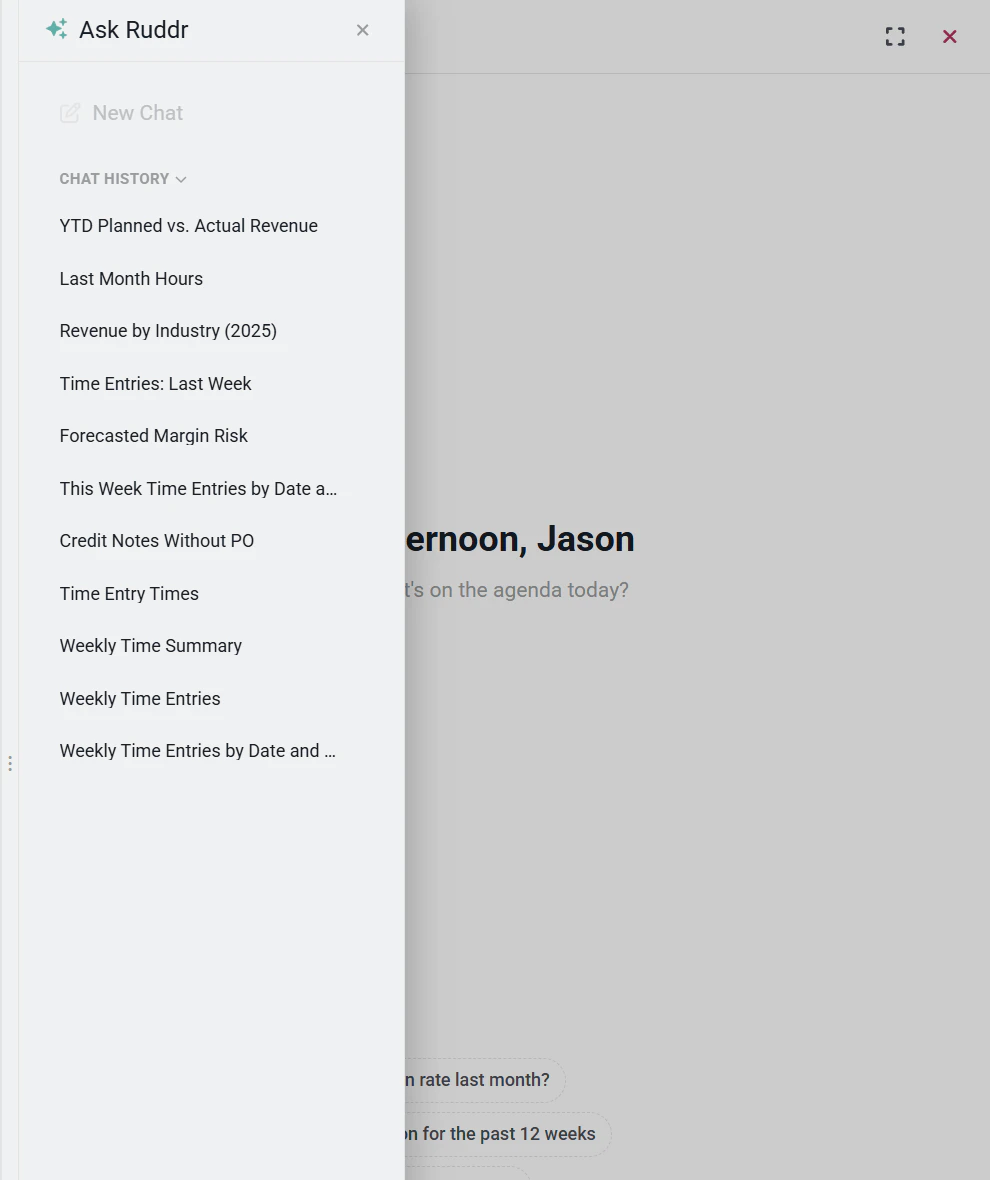 Figure 7 - Access Your Chat History with the Ruddr Assistant
The Ruddr Assistant can be closed at any time by clicking the **X** button at the top-right of the panel.
#### Custom Reports and Charts
In addition to providing text-based answers and analysis, the Ruddr Assistant can create custom reports and charts. The assistant allows for easy export of these artifacts for use in software products such as Microsoft PowerPoint or Google Slides.
When showing a custom report, the assistant will include buttons at the bottom that allow you to expand/collapse report rows or save the report data to a CSV (Comma Separated Values) file (Figure 8).
Figure 7 - Access Your Chat History with the Ruddr Assistant
The Ruddr Assistant can be closed at any time by clicking the **X** button at the top-right of the panel.
#### Custom Reports and Charts
In addition to providing text-based answers and analysis, the Ruddr Assistant can create custom reports and charts. The assistant allows for easy export of these artifacts for use in software products such as Microsoft PowerPoint or Google Slides.
When showing a custom report, the assistant will include buttons at the bottom that allow you to expand/collapse report rows or save the report data to a CSV (Comma Separated Values) file (Figure 8).
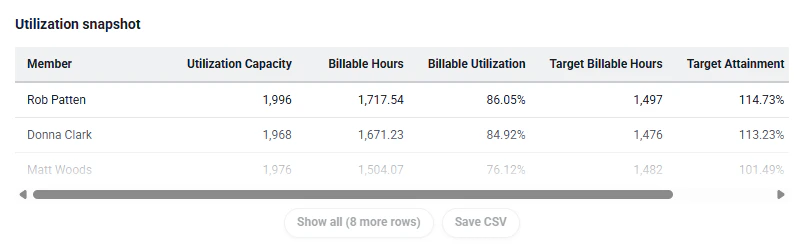 Figure 8 - Expand/Collapse Report Rows or Export to CSV
The Ruddr Assistant can also create custom charts. Supported chart types include:
* Bar
* Line
* Pie
* Stacked bar
* Grouped bar
At the bottom of a custom chart, buttons are provided that allow you to easily download the chart as either a PNG (Portable Network Graphic) file or SVG (Scalable Vector Graphics) file (Figure 9). A PNG file is a raster-based format while an SVG file is a vector-based format.
Figure 8 - Expand/Collapse Report Rows or Export to CSV
The Ruddr Assistant can also create custom charts. Supported chart types include:
* Bar
* Line
* Pie
* Stacked bar
* Grouped bar
At the bottom of a custom chart, buttons are provided that allow you to easily download the chart as either a PNG (Portable Network Graphic) file or SVG (Scalable Vector Graphics) file (Figure 9). A PNG file is a raster-based format while an SVG file is a vector-based format.
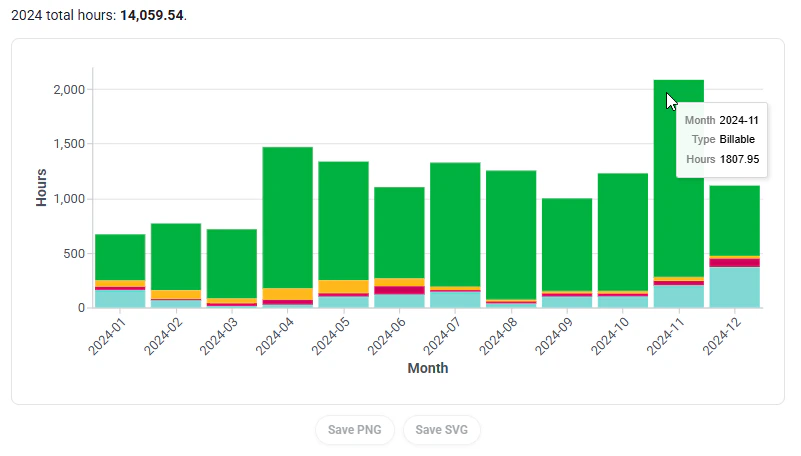 Figure 9 - A Stacked Bar Chart Created by the Ruddr Assistant