> ## Documentation Index
> Fetch the complete documentation index at: https://help.ruddr.io/llms.txt
> Use this file to discover all available pages before exploring further.
# Navigating the Ruddr Interface
Getting around Ruddr is pretty easy. Once you learn the main navigation components, you'll be off and sailing! We've kept the general interface consistent throughout Ruddr, so that you can quickly come up to speed. Notably, you can [access help and provide feedback](#help-and-support) from directly within Ruddr.
### Header Bar
At the top of every screen in Ruddr is the header bar (Figure 1). No matter what area of the application you are working in, the header bar remains the same.
 Figure 1 - Header Bar
The header bar provides access to multiple components as outlined below, including [search](#workspace-search) and the [Ruddr assistant](/getting-started/ruddr-assistant).
#### Workspace Search
The **Search** button (Figure 2) in the header bar allows you to quickly find clients, projects, and tasks. Simply type in a few letters of the item you are looking for and Ruddr will bring back a categorized list of results.
Figure 1 - Header Bar
The header bar provides access to multiple components as outlined below, including [search](#workspace-search) and the [Ruddr assistant](/getting-started/ruddr-assistant).
#### Workspace Search
The **Search** button (Figure 2) in the header bar allows you to quickly find clients, projects, and tasks. Simply type in a few letters of the item you are looking for and Ruddr will bring back a categorized list of results.
 Figure 2 - Searching for Clients, Projects, and/or Tasks from the Header Bar
If you are looking for a specific type of content (i.e. - a Task) you can click into the search dialog box (Figure 3) to narrow your scope. Note that you will only see search results that your assigned [security role](/workspace-administration/security-roles) will allow you to view.
You can also revisit pages in Ruddr that you recently accessed via search.
Note that the search function supports keyboard interactions:
* **Cmd+K or Ctrl+K** — Toggle the search modal open/closed
* **Escape (with query)** — Clears the search query text
* **Escape (empty query)** — Closes the modal
* **Arrow Down / Up** — Navigate through search results
* **Enter** — Navigate to the selected client / project / task
Figure 2 - Searching for Clients, Projects, and/or Tasks from the Header Bar
If you are looking for a specific type of content (i.e. - a Task) you can click into the search dialog box (Figure 3) to narrow your scope. Note that you will only see search results that your assigned [security role](/workspace-administration/security-roles) will allow you to view.
You can also revisit pages in Ruddr that you recently accessed via search.
Note that the search function supports keyboard interactions:
* **Cmd+K or Ctrl+K** — Toggle the search modal open/closed
* **Escape (with query)** — Clears the search query text
* **Escape (empty query)** — Closes the modal
* **Arrow Down / Up** — Navigate through search results
* **Enter** — Navigate to the selected client / project / task
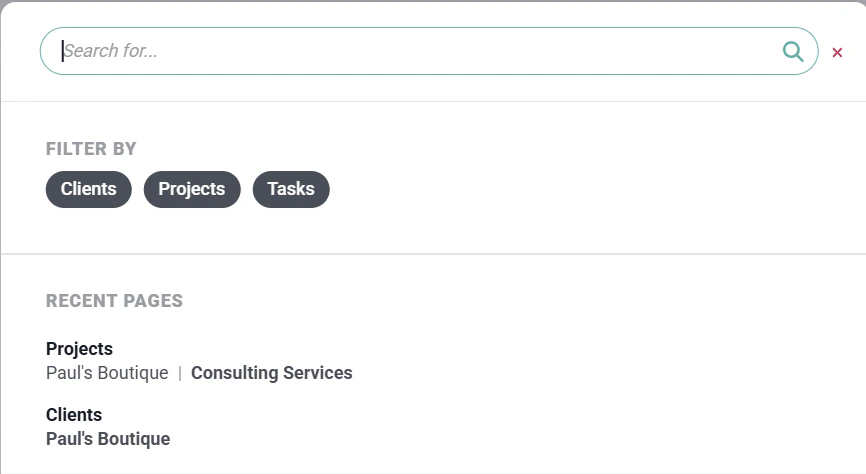 Figure 3 - Specifying the Scope of Your Search and Accessing Recent Search Results
#### Help and Support
To the right of the Search button is the **Help and Support** button (Figure 4).
Figure 3 - Specifying the Scope of Your Search and Accessing Recent Search Results
#### Help and Support
To the right of the Search button is the **Help and Support** button (Figure 4).
 Figure 4 - Access Ruddr Help and Contact Support
Clicking the Help and Support Button will present three menu options:
* [Help Center](#help-center)
* [Submit Support Request](#submit-support-request)
* [Submit Feedback](#submit-feedback)
##### Help Center
The [Ruddr Help Center](https://help.ruddr.io) is a Knowledge Base, containing information and direction on all things Ruddr.
##### Submit Support Request
If you have a need to contact the Ruddr support team, you can submit a support request. Clicking this link under Help & Support will present you with a form (Figure 5), where you can provide details about your support need. Submitting this form will create a support ticket and our team will immediately be notified.
Figure 4 - Access Ruddr Help and Contact Support
Clicking the Help and Support Button will present three menu options:
* [Help Center](#help-center)
* [Submit Support Request](#submit-support-request)
* [Submit Feedback](#submit-feedback)
##### Help Center
The [Ruddr Help Center](https://help.ruddr.io) is a Knowledge Base, containing information and direction on all things Ruddr.
##### Submit Support Request
If you have a need to contact the Ruddr support team, you can submit a support request. Clicking this link under Help & Support will present you with a form (Figure 5), where you can provide details about your support need. Submitting this form will create a support ticket and our team will immediately be notified.
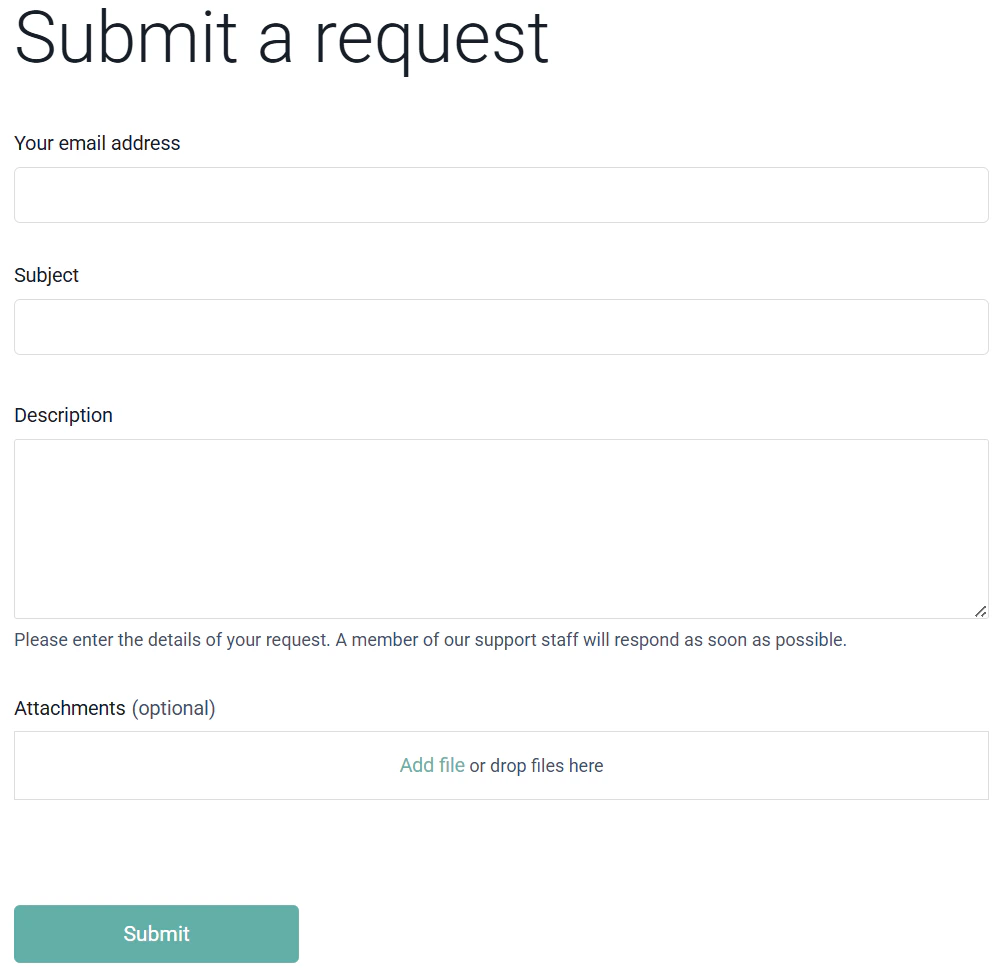 Figure 5 - Create a Support Ticket with the Ruddr Support Team
##### Submit Feedback
Clicking the **Submit Feedback** option under Help & Support brings up a dialog (Figure 6) through which you can submit a feature that you would like to see in Ruddr. Once submitted, the team will review and reach out if further discussion is needed.
Figure 5 - Create a Support Ticket with the Ruddr Support Team
##### Submit Feedback
Clicking the **Submit Feedback** option under Help & Support brings up a dialog (Figure 6) through which you can submit a feature that you would like to see in Ruddr. Once submitted, the team will review and reach out if further discussion is needed.
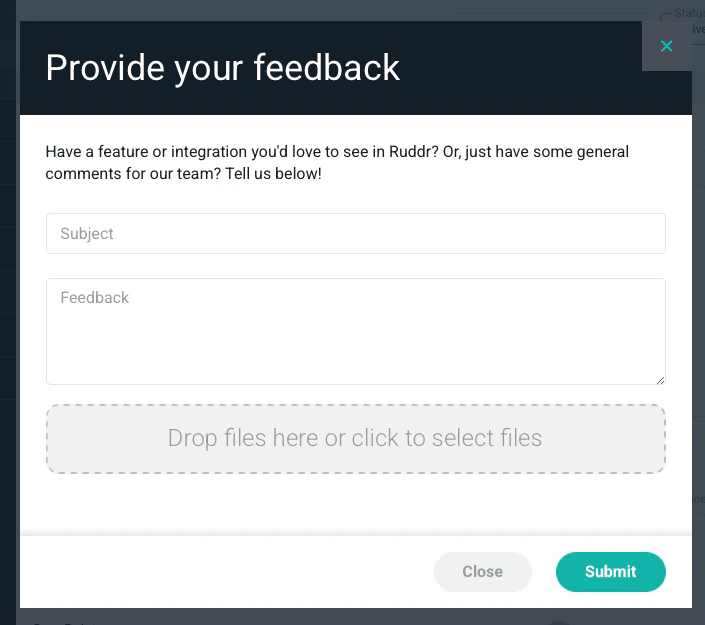 Figure 6 - Submit a Feature Request to the Ruddr Product Team
#### What's New
Clicking the **What's New** button (Figure 7) in the header bar will direct you to a list of enhancements / features that have been released in Ruddr.
Figure 6 - Submit a Feature Request to the Ruddr Product Team
#### What's New
Clicking the **What's New** button (Figure 7) in the header bar will direct you to a list of enhancements / features that have been released in Ruddr.
 Figure 7 - Access a List of the Latest Enhancements to Ruddr
#### Ask Ruddr
The Ask Ruddr button (Figure 8) will launch the Ruddr Assistant, an AI-powered chatbot that helps you find answers, explore workspace data, and understand Ruddr features faster. Note that the Ruddr Assistant [feature](/workspace-administration/features) must be enabled in the workspace in order to leverage the assistant.
Figure 7 - Access a List of the Latest Enhancements to Ruddr
#### Ask Ruddr
The Ask Ruddr button (Figure 8) will launch the Ruddr Assistant, an AI-powered chatbot that helps you find answers, explore workspace data, and understand Ruddr features faster. Note that the Ruddr Assistant [feature](/workspace-administration/features) must be enabled in the workspace in order to leverage the assistant.
 Figure 8 - Use Ruddr's AI-powered Assistant
#### Timer
Towards the right of the header bar is the timer indicator. The timer indicator shows whether or not a timer is currently running. When a timer is not running, the timer is in an inactive state. This inactive state shows a gray Ruddr logo followed by a gray, zeroed-out timer (Figure 9).
Figure 8 - Use Ruddr's AI-powered Assistant
#### Timer
Towards the right of the header bar is the timer indicator. The timer indicator shows whether or not a timer is currently running. When a timer is not running, the timer is in an inactive state. This inactive state shows a gray Ruddr logo followed by a gray, zeroed-out timer (Figure 9).
 Figure 9 - Inactive Timer
When a timer is running, the Ruddr logo will be green and the timer will be black and show the current amount of accrued time (hours and minutes) for the running timer. For example, the time below (Figure 10) represents an active timer with one hour and forty-two minutes.
Figure 9 - Inactive Timer
When a timer is running, the Ruddr logo will be green and the timer will be black and show the current amount of accrued time (hours and minutes) for the running timer. For example, the time below (Figure 10) represents an active timer with one hour and forty-two minutes.
 Figure 10 - Active / Running Timer
Also, if you click on this timer, you will be presented with the [time overlay window](/time/the-time-overlay-window) (Figure 11). The time overlay window will default to the current day unless you have a timer running on a different day. You can easily navigate to other nearby days using the arrows or click the calendar icon at the top-right of the window to select a specific day. With the timer overlay window, you can always access your time entries regardless of where you are within Ruddr.
Figure 10 - Active / Running Timer
Also, if you click on this timer, you will be presented with the [time overlay window](/time/the-time-overlay-window) (Figure 11). The time overlay window will default to the current day unless you have a timer running on a different day. You can easily navigate to other nearby days using the arrows or click the calendar icon at the top-right of the window to select a specific day. With the timer overlay window, you can always access your time entries regardless of where you are within Ruddr.
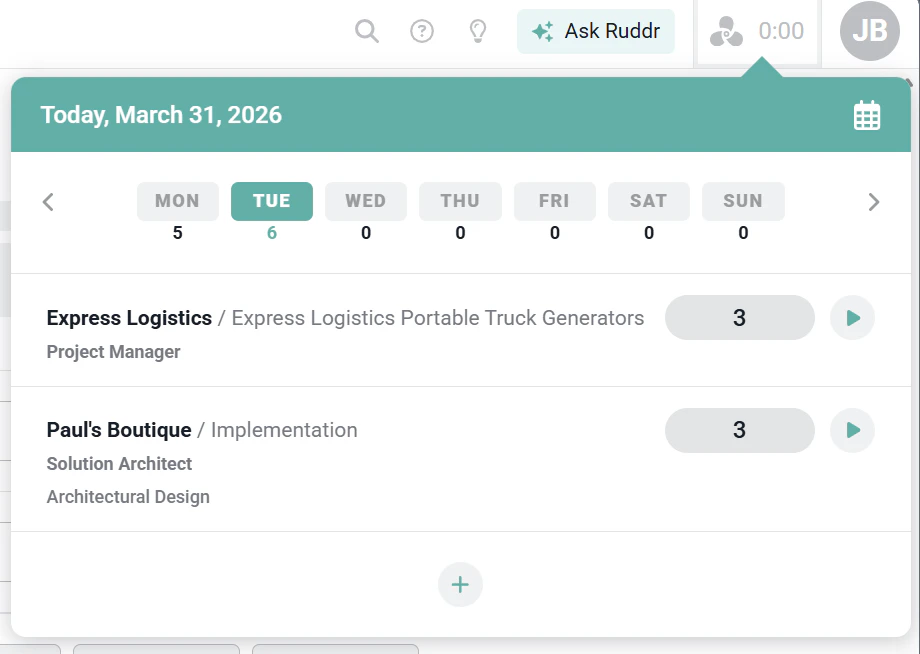 Figure 11 - Viewing Time Entries via the Time Overlay Window
#### User Profile Menu
The final element of the header bar is the user profile menu (Figure 12). This will show your name and the current workspace name. Clicking on this menu will allow you to change to a different workspace (if you are a member of more than one workspace), edit your profile information, or provide feedback to the Ruddr team.
Figure 11 - Viewing Time Entries via the Time Overlay Window
#### User Profile Menu
The final element of the header bar is the user profile menu (Figure 12). This will show your name and the current workspace name. Clicking on this menu will allow you to change to a different workspace (if you are a member of more than one workspace), edit your profile information, or provide feedback to the Ruddr team.
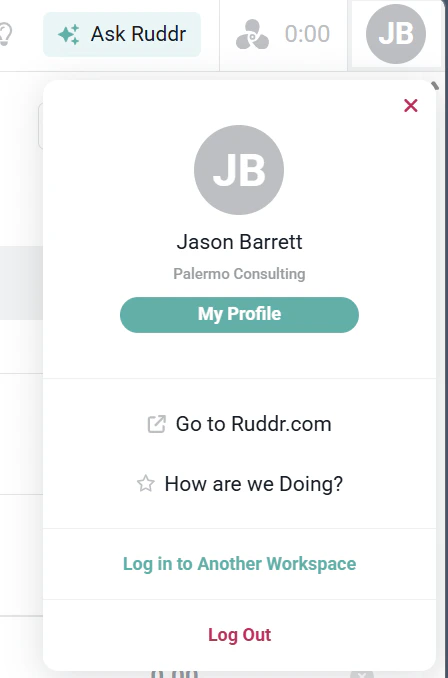 Figure 12 - Access Your User Profile Menu
### Nav Bar
On the left side of every screen in Ruddr is the nav bar. When expanded (Figure 13), the nav bar allows you to easily move between areas of the application, and also see and access related work functions. The current area will be highlighted in green as shown below. NOTE: Your nav bar will be limited to the functional areas of Ruddr that your [security role](/workspace-administration/security-roles) will allow you to access.
Figure 12 - Access Your User Profile Menu
### Nav Bar
On the left side of every screen in Ruddr is the nav bar. When expanded (Figure 13), the nav bar allows you to easily move between areas of the application, and also see and access related work functions. The current area will be highlighted in green as shown below. NOTE: Your nav bar will be limited to the functional areas of Ruddr that your [security role](/workspace-administration/security-roles) will allow you to access.
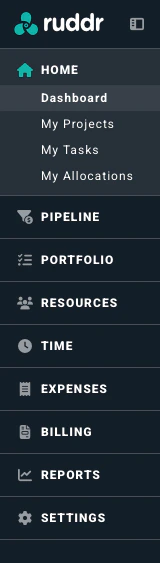 Figure 13 - Expanded Nav Bar
Note that you can collapse the nav bar down to a smaller version (Figure 14) if you are using a device with limited horizontal screen space. To expand or collapse the nav bar, simply click the arrow to the right of the Ruddr logo at the top-left of the screen.
Figure 13 - Expanded Nav Bar
Note that you can collapse the nav bar down to a smaller version (Figure 14) if you are using a device with limited horizontal screen space. To expand or collapse the nav bar, simply click the arrow to the right of the Ruddr logo at the top-left of the screen.
 Figure 14 - Collapsed Nav Bar
Additionally, when the nav bar has been collapsed, you can can view the items by hovering your mouse over the various sections of the navigation (Figure 15). By clicking on icons, you can view the sub - nav item. Below, the user is hovering over the "Home" area, which shows that they are currently on the Dashboard page, and offers the ability to visit other functional sections of Ruddr (Figure 16).
Figure 14 - Collapsed Nav Bar
Additionally, when the nav bar has been collapsed, you can can view the items by hovering your mouse over the various sections of the navigation (Figure 15). By clicking on icons, you can view the sub - nav item. Below, the user is hovering over the "Home" area, which shows that they are currently on the Dashboard page, and offers the ability to visit other functional sections of Ruddr (Figure 16).
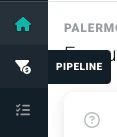 Figure 15 - Hover to view navigation
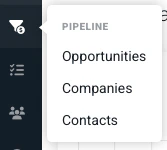 Figure 16 - View a Sub-menu when the Ruddr Nav Bar is Collapsed