> ## Documentation Index
> Fetch the complete documentation index at: https://help.ruddr.io/llms.txt
> Use this file to discover all available pages before exploring further.
# Manage Two-factor Authentication
Ruddr supports two-factor authentication (2FA) through:
* Third-party authentication applications on your phone (such as 1Password, Authy, Google Authenticator, Last Pass Authenticator, or Microsoft Authenticator), or
* SMS (Short Message Service)
To manage two-factor authentication for your Ruddr account, click on the **User Profile Menu** nav bar element (Figure 1) and select **My Profile**.
 Figure 1 - Access the User Profile Area to Manage Two-factor Authentication
This will direct you to an area where you can manage your profile. From this screen, select the **Two-factor Authentication** link on the left (Figure 2) to access the 2FA. Click the **Enable Two-factor Authentication** button to begin the setup wizard (Figure 3).
Figure 1 - Access the User Profile Area to Manage Two-factor Authentication
This will direct you to an area where you can manage your profile. From this screen, select the **Two-factor Authentication** link on the left (Figure 2) to access the 2FA. Click the **Enable Two-factor Authentication** button to begin the setup wizard (Figure 3).
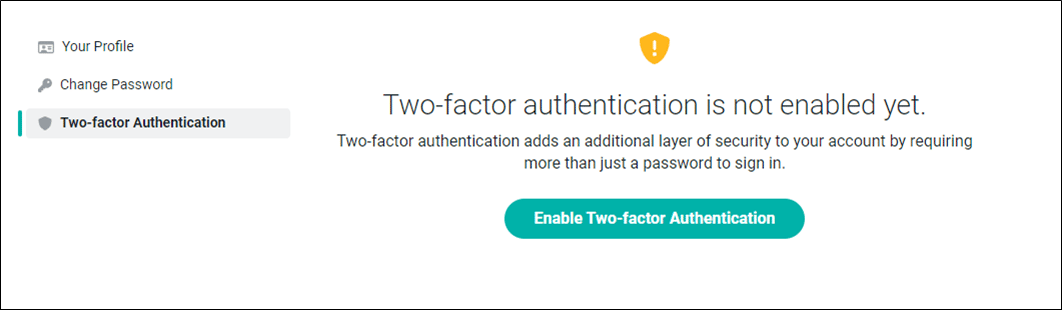 Figure 2 - Enable Two-factor Authentication
### Using an Authentication Application
To use an Authentication application, ensure the first radio button **Set up using an app** is selected. Click **Continue** as part of Step One (Figure 3) to advance to the second step (Figure 4) of the configuration process for use with an app.
Figure 2 - Enable Two-factor Authentication
### Using an Authentication Application
To use an Authentication application, ensure the first radio button **Set up using an app** is selected. Click **Continue** as part of Step One (Figure 3) to advance to the second step (Figure 4) of the configuration process for use with an app.
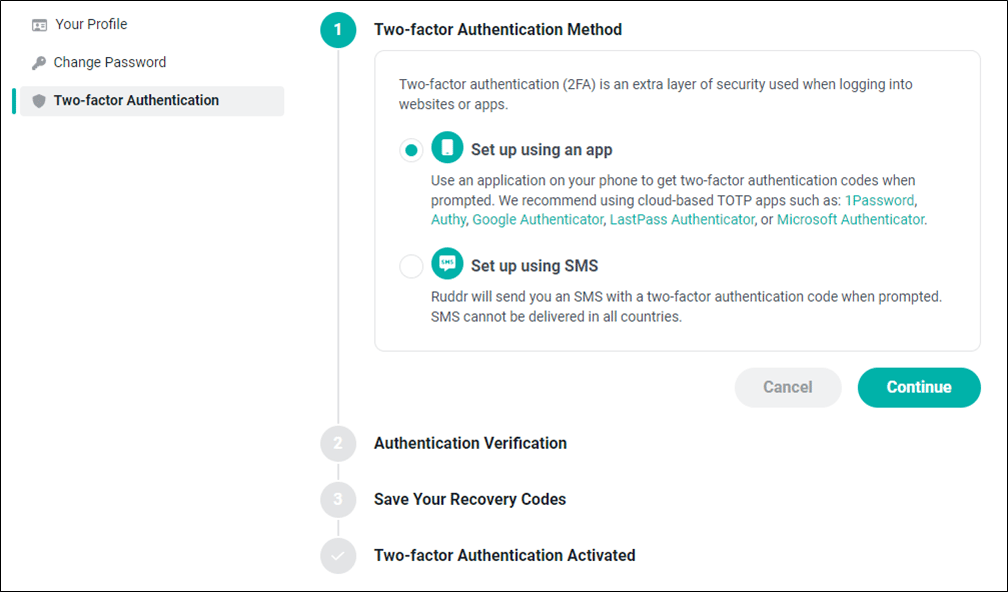 Figure 3 - Step One in the Two-factor Authentication Wizard: Authentication Application
In the second step (Figure 4), scan the QR code presented on your screen using the authentication application on your phone. If you can not scan a QR code with your app, click the **enter this text code** link to generate a 6-digit code that you can enter into your authentication app.
Figure 3 - Step One in the Two-factor Authentication Wizard: Authentication Application
In the second step (Figure 4), scan the QR code presented on your screen using the authentication application on your phone. If you can not scan a QR code with your app, click the **enter this text code** link to generate a 6-digit code that you can enter into your authentication app.
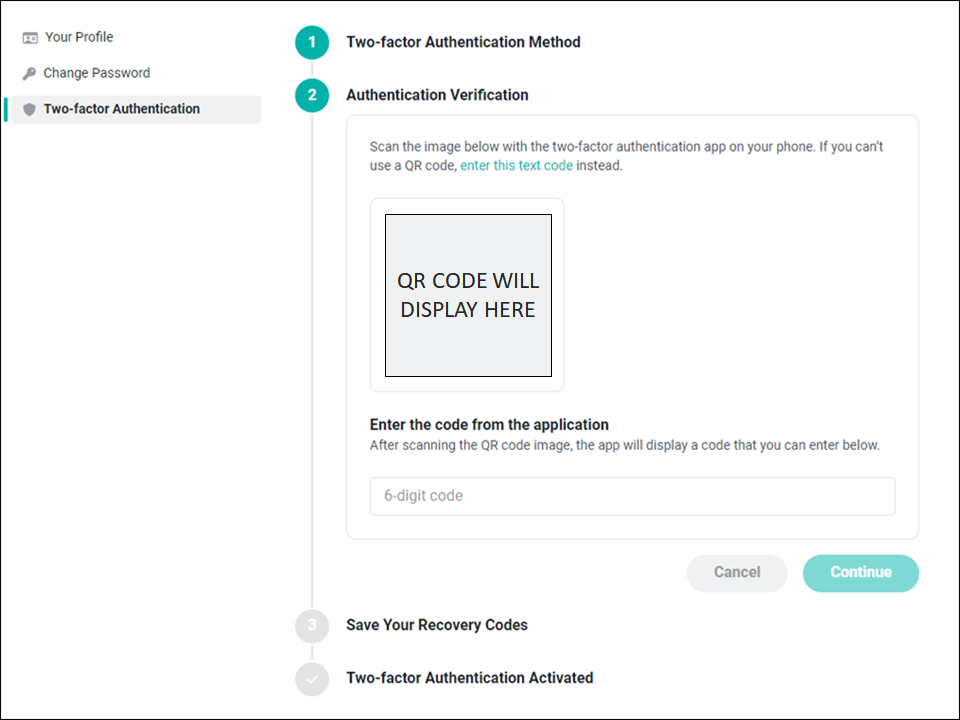 Figure 4 - Step Two in the Two-factor Authentication Wizard
If you scanned a QR code (or entered the text code into your authentication app), your authentication application will display a 6-digit code that you will need to enter into the textbox provided (Figure 4). Once you enter the code, you will see the following verification message (Figure 5).
Figure 4 - Step Two in the Two-factor Authentication Wizard
If you scanned a QR code (or entered the text code into your authentication app), your authentication application will display a 6-digit code that you will need to enter into the textbox provided (Figure 4). Once you enter the code, you will see the following verification message (Figure 5).
 Figure 5 - This Verification Message will Display Upon Successful Entry of Authentication Code
Click **Continue** to move onto the third step (Figure 6) in the configuration process. In this step, Ruddr will display a list of recovery codes. If you lose access to your phone, you will be able to authenticate to Ruddr using your recovery codes. Here, you will want to copy these codes to a secure location (other than your phone) for future access as/if needed.
Figure 5 - This Verification Message will Display Upon Successful Entry of Authentication Code
Click **Continue** to move onto the third step (Figure 6) in the configuration process. In this step, Ruddr will display a list of recovery codes. If you lose access to your phone, you will be able to authenticate to Ruddr using your recovery codes. Here, you will want to copy these codes to a secure location (other than your phone) for future access as/if needed.
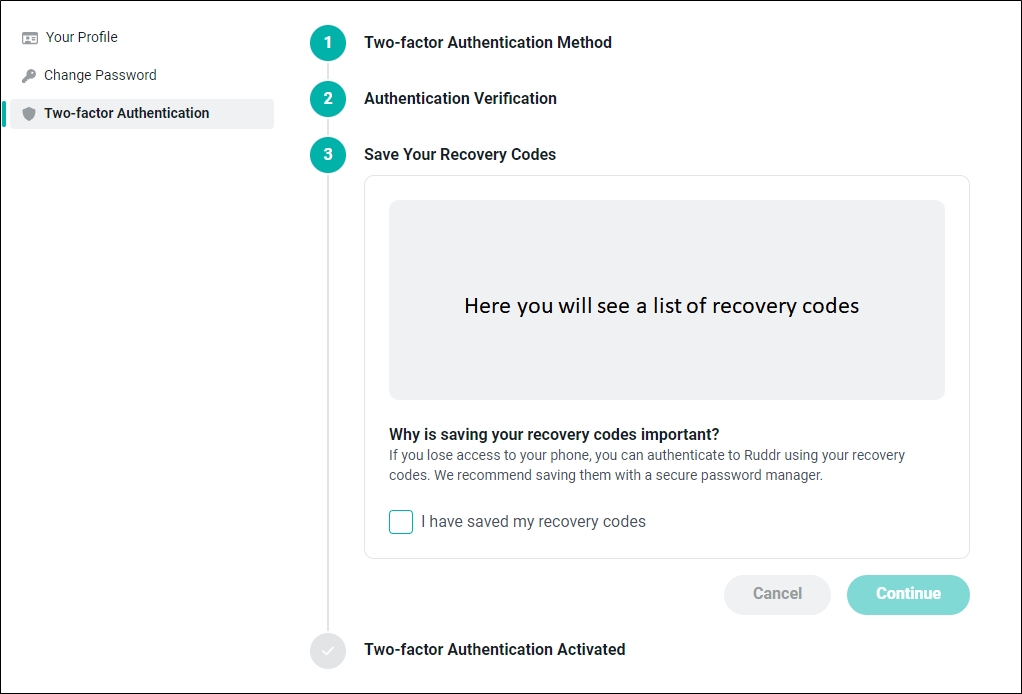 Figure 6 - Step Three: Be Sure to Save Your Recover Codes
Once you have copied your recovery codes, check the **I have saved my recovery codes** box and click the **Continue** button to complete the two-factor authentication process, at which time you will receive the following activation confirmation (Figure 7).
Figure 6 - Step Three: Be Sure to Save Your Recover Codes
Once you have copied your recovery codes, check the **I have saved my recovery codes** box and click the **Continue** button to complete the two-factor authentication process, at which time you will receive the following activation confirmation (Figure 7).
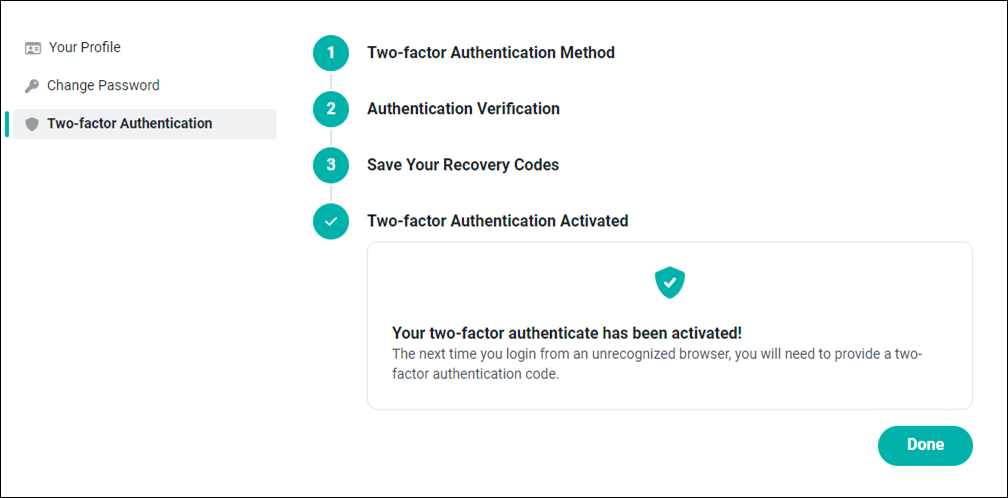 Figure 7 - Two-factor Authentication Activated
Clicking **Done** will close the wizard and display the current status of two-factor authentication in your account (Figure 8). From this status screen in Your Profile, you can change the method of two-factor authentication or disable two-factor authentication for your account. Disabling two-factor authentication will remove any reference to a third-party authentication application and will no longer require you to input an authentication code when logging into Ruddr.
Figure 7 - Two-factor Authentication Activated
Clicking **Done** will close the wizard and display the current status of two-factor authentication in your account (Figure 8). From this status screen in Your Profile, you can change the method of two-factor authentication or disable two-factor authentication for your account. Disabling two-factor authentication will remove any reference to a third-party authentication application and will no longer require you to input an authentication code when logging into Ruddr.
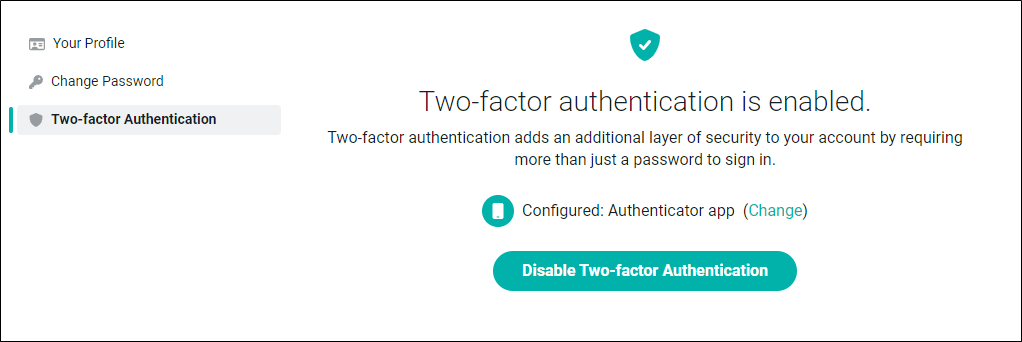 Figure 8 - Displaying Two-factor Authentication Enabled Status
### Using SMS (Short Message Service)
To leverage SMS for two-factor authentication, ensure that the **Set up using SMS** radio button is selected (Figure 9) and click **Continue**. When prompted, Ruddr will send you a two-factor authentication code for validation.
**
Figure 8 - Displaying Two-factor Authentication Enabled Status
### Using SMS (Short Message Service)
To leverage SMS for two-factor authentication, ensure that the **Set up using SMS** radio button is selected (Figure 9) and click **Continue**. When prompted, Ruddr will send you a two-factor authentication code for validation.
** **
Figure 9 - Step One in the Two-factor Authentication Wizard: SMS
In the second step (Figure 10), specify the country code that should be used, along with the phone number to which Ruddr can send the authentication code. Click **Send Authentication Code** to receive the code that will be entered next.
**
Figure 9 - Step One in the Two-factor Authentication Wizard: SMS
In the second step (Figure 10), specify the country code that should be used, along with the phone number to which Ruddr can send the authentication code. Click **Send Authentication Code** to receive the code that will be entered next.
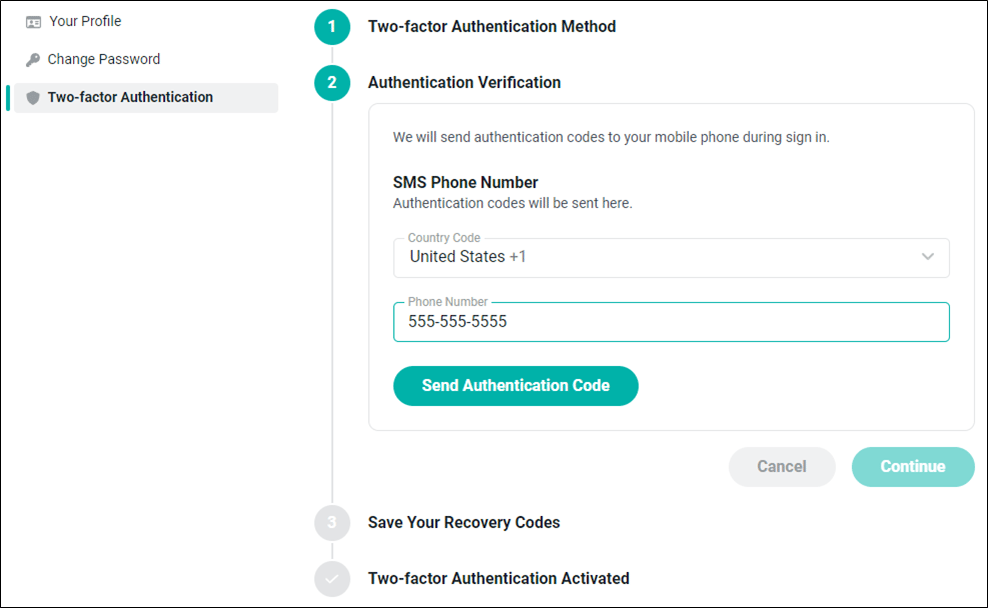 Figure 10 - Step Two: Specify the Phone Number to be used for SMS Two-factor Authentication
When you receive your code, enter the code in the box that is displayed (Figure 11). Upon entering the correct code, you will receive a message stating that your code has been verified (Figure 11). Click **Continue** to advance to the next step.
Figure 10 - Step Two: Specify the Phone Number to be used for SMS Two-factor Authentication
When you receive your code, enter the code in the box that is displayed (Figure 11). Upon entering the correct code, you will receive a message stating that your code has been verified (Figure 11). Click **Continue** to advance to the next step.
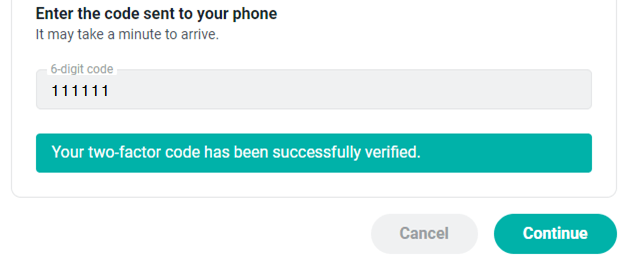 Figure 11 - Enter the Code sent via SMS to Validate Two-factor Authentication
As it will during the Authentication Application setup process, once your SMS method is verified, Ruddr will present you with a unique set of recovery codes (Figure 6). If you lose access to your phone, you will be able to authenticate to Ruddr using your recovery codes. Here, you will want to copy these codes to a secure location (other than your phone) for future access as/if needed.
Once you have copied your recovery codes, check the **I have saved my recovery codes** box and click the **Continue** button to complete the two-factor authentication process, at which time you will receive the following activation confirmation (Figure 7).
Clicking **Done** will close the wizard and display the current status of two-factor authentication in your account (Figure 12). From this status screen in Your Profile, you can change the method of two-factor authentication or disable two-factor authentication for your account. Disabling two-factor authentication will remove any reference to a third-party authentication application and will not longer you to input an authentication code when logging into Ruddr.
Figure 11 - Enter the Code sent via SMS to Validate Two-factor Authentication
As it will during the Authentication Application setup process, once your SMS method is verified, Ruddr will present you with a unique set of recovery codes (Figure 6). If you lose access to your phone, you will be able to authenticate to Ruddr using your recovery codes. Here, you will want to copy these codes to a secure location (other than your phone) for future access as/if needed.
Once you have copied your recovery codes, check the **I have saved my recovery codes** box and click the **Continue** button to complete the two-factor authentication process, at which time you will receive the following activation confirmation (Figure 7).
Clicking **Done** will close the wizard and display the current status of two-factor authentication in your account (Figure 12). From this status screen in Your Profile, you can change the method of two-factor authentication or disable two-factor authentication for your account. Disabling two-factor authentication will remove any reference to a third-party authentication application and will not longer you to input an authentication code when logging into Ruddr.
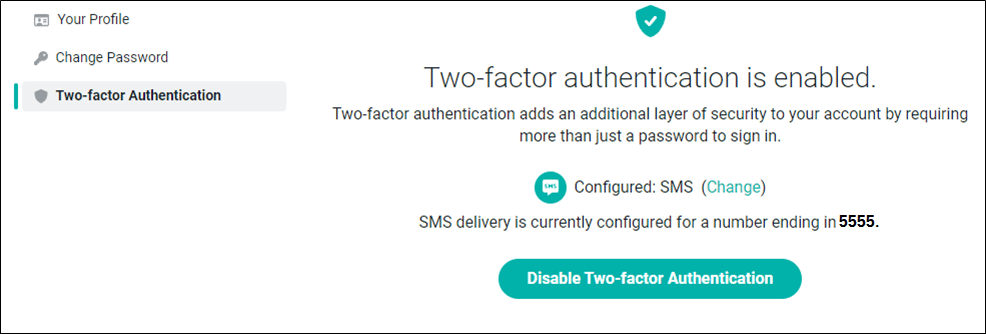 Figure 12 - Displaying Two-factor Authentication Enabled Status for SMS