> ## Documentation Index
> Fetch the complete documentation index at: https://help.ruddr.io/llms.txt
> Use this file to discover all available pages before exploring further.
# Why are time off entries not syncing to Ruddr from our integrated HRIS platform?
If your Ruddr workspace is integrated with an HRIS platform, such as Bamboo HR or Rippling, you can configure the integration to synchronize time off entries to Ruddr. These time off entries will be synchronized to Ruddr and locked such that they can't be edited within Ruddr.
If some or all of the time off entries in the HRIS system are not being synchronized, it is recommended that you run a manual sync by clicking on the **New Manual Sync** button within the HRIS integration in Ruddr.
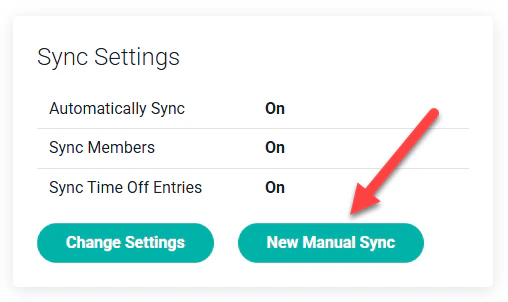 Figure 1 - Initiating a Manual Sync
This will bring up a window that will allow you to set the entities to sync as well as the start and end date for the time off entries. Just click on the **Start Sync** button to initiate the process. It may take several minutes for the sync to complete.
Figure 1 - Initiating a Manual Sync
This will bring up a window that will allow you to set the entities to sync as well as the start and end date for the time off entries. Just click on the **Start Sync** button to initiate the process. It may take several minutes for the sync to complete.
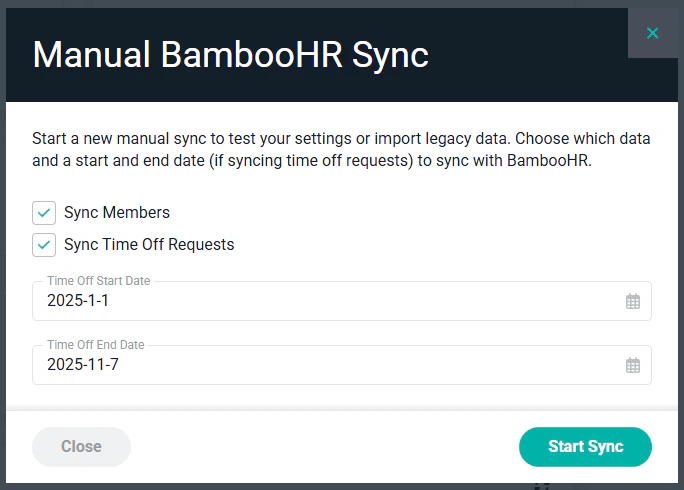 Figure 2 - New Manual Sync Settings
Once the manual sync process has completed, click on the sync results row to bring up the sync results log file.
Figure 2 - New Manual Sync Settings
Once the manual sync process has completed, click on the sync results row to bring up the sync results log file.
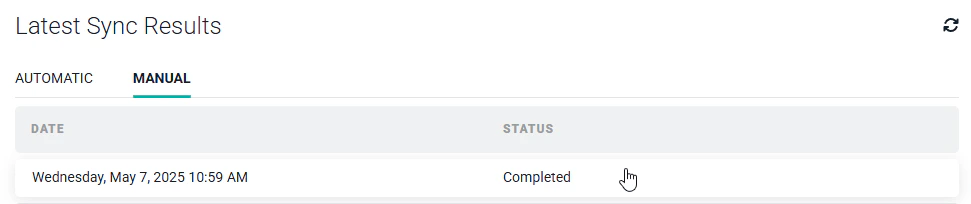 Figure 3 - Sync Results List
If a specific member's time off entries are not being synchronized, scroll through the sync results log until you locate that member. If Ruddr is not importing the time off entries, there should be a reason shown. For example, these two days of vacation for Bill Jones (shown in the log excerpt below) are not being imported because Bill's member account in Ruddr is not configured with capacity on the given days.
Figure 3 - Sync Results List
If a specific member's time off entries are not being synchronized, scroll through the sync results log until you locate that member. If Ruddr is not importing the time off entries, there should be a reason shown. For example, these two days of vacation for Bill Jones (shown in the log excerpt below) are not being imported because Bill's member account in Ruddr is not configured with capacity on the given days.
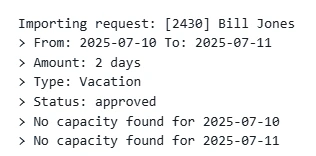 Figure 4 - Sync Results Log File
For this particular situation, simply navigate to Bill's member dashboard (you must be a Workspace Admin to access this area of Ruddr) and click on the Capacity tab. Ensure that Bill has the proper amount of capacity configured for each day of the week.
Figure 4 - Sync Results Log File
For this particular situation, simply navigate to Bill's member dashboard (you must be a Workspace Admin to access this area of Ruddr) and click on the Capacity tab. Ensure that Bill has the proper amount of capacity configured for each day of the week.
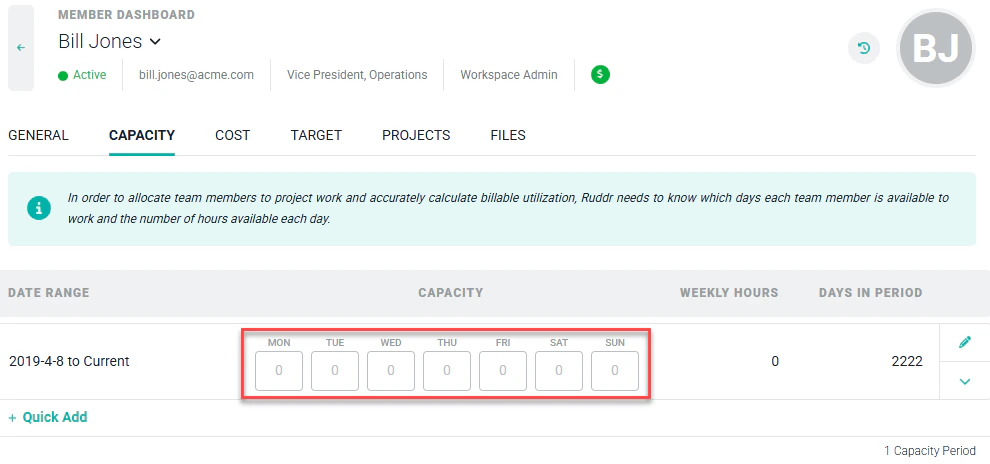 Figure 5 - Member Capacity Configuration
One the capacity is corrected, simply re-run the manual sync process and ensure that the time off entries are being properly synchronized.
Figure 5 - Member Capacity Configuration
One the capacity is corrected, simply re-run the manual sync process and ensure that the time off entries are being properly synchronized.