> ## Documentation Index
> Fetch the complete documentation index at: https://help.ruddr.io/llms.txt
> Use this file to discover all available pages before exploring further.
# I am set up as a time and expense approver. Why can I not see items in my approval queue?
In cases where a member is set up as an Approver -- often as a Project Admin, a Member's Manager, or a Client Relationship Owner -- but cannot see those items in their approval queue, the Approver lacks the necessary Time and Expense administrative permissions. In order to approve time and expense, a member must have administrative rights to those items, as detailed in the [View and Manage Time Entries of Other Members](/time/view-and-manage-time-entries-of-other-members) and [View and Manage Expense Items of Other Members](/expenses/view-and-manage-expense-items-of-other-members) articles in the Ruddr Help Center.
For more on managing member permissions, please refer to the [Security Roles](/workspace-administration/security-roles) article in the Ruddr Help Center.
In instances where time and expense administrative permissions are granted to a member, there may be time and expense locking scenarios that require elevated permissions to approve time and expense.
Some of the more common locking occurrences include:
#### Time-Based Locking of Time Entries and Expense Items
Workspaces can specify that time entries and expense items are to be locked based on either the age of the entries / items or if a certain date has passed in the month following the entries / items. These settings ensure that members cannot edit their time entries or expense items after a certain amount of time has elapsed. When this type of "time lock" has been applied, "Pending Approval" time entries / expense items will not be available for approval via the Approvals screen unless the approver has member-level time and expense administrative permissions to those entries / items. Members that have project-level time and expense administrative privileges will no longer be able to approve items locked in this manner.
To view these items on the Approvals screen, you can leverage the **Include Locked Items** filter (Figure 1). When this filter is set to "Yes", Ruddr will display any locked items that are unavailable for approval.
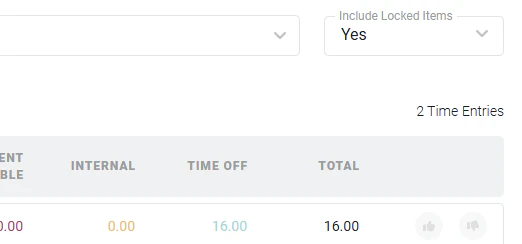 Figure 1 - Set the **Include Locked Items** filter to "Yes" to View a List of Locked Items on the Approvals Screen
When viewing a locked time entry either on the Approvals screen or in the Time Detail report (or expense item in the Expense Detail report), you will see a lock icon listed with the time entry (Figure 2). Hovering over this icon will inform you as to the nature of why the time entry is locked.
Figure 1 - Set the **Include Locked Items** filter to "Yes" to View a List of Locked Items on the Approvals Screen
When viewing a locked time entry either on the Approvals screen or in the Time Detail report (or expense item in the Expense Detail report), you will see a lock icon listed with the time entry (Figure 2). Hovering over this icon will inform you as to the nature of why the time entry is locked.
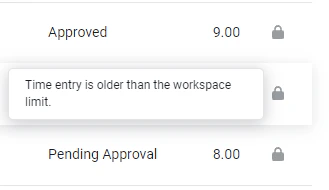 Figure 2 - Locking Information for a Time Entry on the Time Detail Report
For more on this workspace setting, please refer to [Time and Expense Settings](/workspace-administration/general-workspace-settings#time-and-expense-settings) in the [General Workspace Settings](/workspace-administration/general-workspace-settings) article in the Ruddr Help Center. For more on locking and related permissions, please refer to the [Time Entry Locking](/time/time-entry-locking) article in the Ruddr Help Center.
#### Projects / Project Tasks are Locked
A **Lock time and expense** setting is available on projects and on individual project tasks. When this setting is applied and it affects time entries on the project / project task, those time entries are locked and will not be available in the approval queue for anyone other than workspace administrators. Members that have member-level or project-level time and expense administrative privileges will no longer be able to approve items locked in this manner.
To view these items on the Approvals screen, you can leverage the **Include Locked Items** filter (Figure 1). When this filter is set to "Yes", Ruddr will display any locked items that are unavailable for approval.
When viewing a time entry in the Time Detail report (or expense item in the Expense Detail report), you will see a lock icon to the right of the time entry (Figure 3). Hovering over this icon will inform you as to the nature of why the time entry is locked.
Figure 2 - Locking Information for a Time Entry on the Time Detail Report
For more on this workspace setting, please refer to [Time and Expense Settings](/workspace-administration/general-workspace-settings#time-and-expense-settings) in the [General Workspace Settings](/workspace-administration/general-workspace-settings) article in the Ruddr Help Center. For more on locking and related permissions, please refer to the [Time Entry Locking](/time/time-entry-locking) article in the Ruddr Help Center.
#### Projects / Project Tasks are Locked
A **Lock time and expense** setting is available on projects and on individual project tasks. When this setting is applied and it affects time entries on the project / project task, those time entries are locked and will not be available in the approval queue for anyone other than workspace administrators. Members that have member-level or project-level time and expense administrative privileges will no longer be able to approve items locked in this manner.
To view these items on the Approvals screen, you can leverage the **Include Locked Items** filter (Figure 1). When this filter is set to "Yes", Ruddr will display any locked items that are unavailable for approval.
When viewing a time entry in the Time Detail report (or expense item in the Expense Detail report), you will see a lock icon to the right of the time entry (Figure 3). Hovering over this icon will inform you as to the nature of why the time entry is locked.
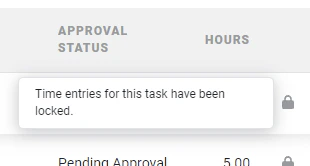 Figure 3 - A Project's Task has had the Lock Time and Expense Setting Applied
For more on locking and related permissions, please refer to the [Time Entry Locking](/time/time-entry-locking) article in the Ruddr Help Center.
Figure 3 - A Project's Task has had the Lock Time and Expense Setting Applied
For more on locking and related permissions, please refer to the [Time Entry Locking](/time/time-entry-locking) article in the Ruddr Help Center.