> ## Documentation Index
> Fetch the complete documentation index at: https://help.ruddr.io/llms.txt
> Use this file to discover all available pages before exploring further.
# How do I fix a "Failed to refresh tokens" error as indicated in the sync log from the BambooHR integration?
If you receive an error log from Ruddr, indicating that the BambooHR sync failed, you may find that BambooHR produced a "Failed to refresh tokens" error (Figure 1).
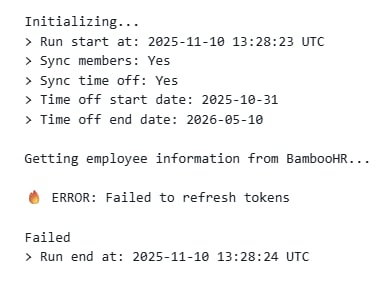 Figure 1 - Example of the **Failed to Refresh Tokens** Error from BambooHR
If you encounter this error, you will need to reauthorize the connection between Ruddr and BambooHR. To do this, take the following steps:
**Step 1: Log into BambooHR**
Being logged into BambooHR (having an active browser session) prior to beginning this reauthorization process ensures a seamless experience with setting up the integration. Also, you will want to ensure that you are setting this integration up using a BambooHR user account with full access to all BambooHR users and time off policies.
**Step 2: Reauthorize integration in Ruddr**
In Ruddr, under Settings / Integrations, find the BambooHR integration. Once you are in the settings for the BambooHR integration, select the "Reauthorize Connection" option. (Figure 2)
Figure 1 - Example of the **Failed to Refresh Tokens** Error from BambooHR
If you encounter this error, you will need to reauthorize the connection between Ruddr and BambooHR. To do this, take the following steps:
**Step 1: Log into BambooHR**
Being logged into BambooHR (having an active browser session) prior to beginning this reauthorization process ensures a seamless experience with setting up the integration. Also, you will want to ensure that you are setting this integration up using a BambooHR user account with full access to all BambooHR users and time off policies.
**Step 2: Reauthorize integration in Ruddr**
In Ruddr, under Settings / Integrations, find the BambooHR integration. Once you are in the settings for the BambooHR integration, select the "Reauthorize Connection" option. (Figure 2)
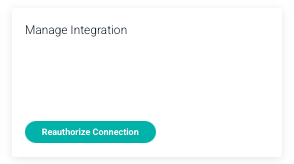 Figure 2 - Reauthorize Connection in Ruddr
**Step 3: Enter your company domain into the pop up**
You will be prompted to enter your companies BambooHR domain information. (Figure 3) Once added, click Install to be redirected to BambooHR.
Figure 2 - Reauthorize Connection in Ruddr
**Step 3: Enter your company domain into the pop up**
You will be prompted to enter your companies BambooHR domain information. (Figure 3) Once added, click Install to be redirected to BambooHR.
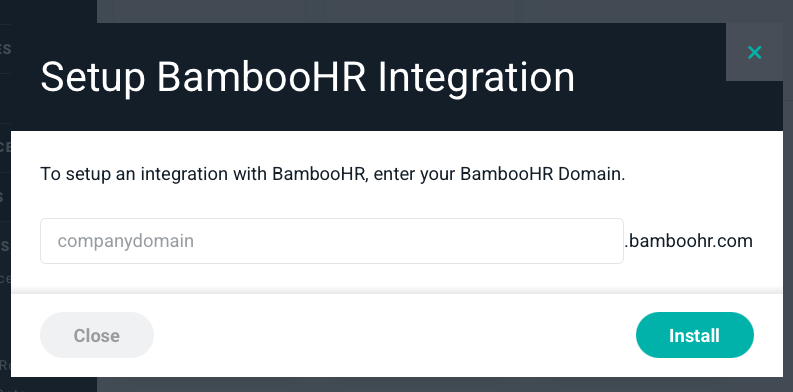 Figure 3 - Enter BambooHR domain information
**Step 4: Allow access in BambooHR**
Once you enter your BambooHR domain, you will be directed to BambooHR to allow Ruddr access the desired information. (Figure 4) You can customize in this screen the information you would like sent to Ruddr. Once complete, you can select Allow Access and now you are set up with OAuth.
Figure 3 - Enter BambooHR domain information
**Step 4: Allow access in BambooHR**
Once you enter your BambooHR domain, you will be directed to BambooHR to allow Ruddr access the desired information. (Figure 4) You can customize in this screen the information you would like sent to Ruddr. Once complete, you can select Allow Access and now you are set up with OAuth.
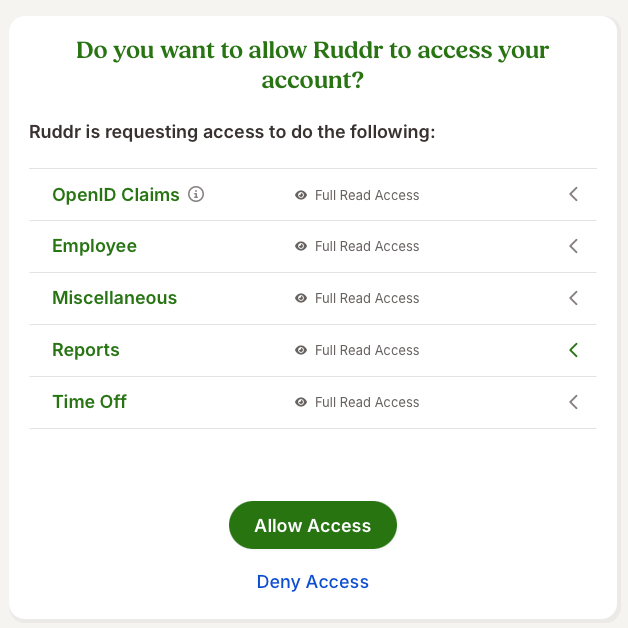 Figure 4 - Allow Ruddr to Access BambooHR data