> ## Documentation Index
> Fetch the complete documentation index at: https://help.ruddr.io/llms.txt
> Use this file to discover all available pages before exploring further.
# Expense Reimbursement Tracking
Expenses in Ruddr can be marked as "Reimbursed" to designate which expenses have been accounted for as part of Accounting's reimbursement procedures. This designation can be applied / unapplied in two, distinct areas of Ruddr:
* [Expense Auditing](#expense-auditing)
* [Expense Reports](#expense-reports)
Setting an expense as "Reimbursed" requires **Administer time and expenses** permissions and can be applied to any / all expenses in Ruddr that were created with **Reimburse to me** set on the expense.
For more information regarding View / Administer time and expense permissions, view the [Security Roles](/workspace-administration/security-roles) article in the Ruddr Help Center.
For more information on expense details and the **Reimburse to me** setting, view the [Add Expense Items to an Expense Report](/expenses/add-expense-items-to-an-expense-report) article.
Once an expense's reimbursement status has been set, an event is logged in the expense item's history (Figure 1) and a **Reimbursed** indicator is now visible at the top of the View / Edit Expense Item drawer.
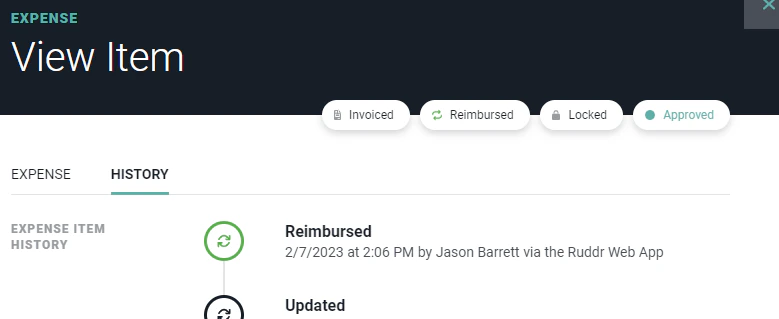 Figure 1 - In an Expense Item's History, an Event is Logged to Show when the Item was set as **Reimbursed**. Note the Reimbursed Indicator at the top of the View Item Drawer
#### Reporting
As part of tracking the reimbursement status of expense items, members will now be able to filter the Expense Detail report by the **Reimbursed** status.
### Expense Auditing
To audit expense items in Ruddr, simply click on the **Auditing** sub-menu item (Figure 2) within the **Expenses** area.
Figure 1 - In an Expense Item's History, an Event is Logged to Show when the Item was set as **Reimbursed**. Note the Reimbursed Indicator at the top of the View Item Drawer
#### Reporting
As part of tracking the reimbursement status of expense items, members will now be able to filter the Expense Detail report by the **Reimbursed** status.
### Expense Auditing
To audit expense items in Ruddr, simply click on the **Auditing** sub-menu item (Figure 2) within the **Expenses** area.
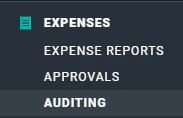 Figure 2 - Select **Auditing** to Administer Expense Entries
Once on the Auditing screen (Figure 3), select from the various filters at the top of the screen to narrow the returned results.
Figure 2 - Select **Auditing** to Administer Expense Entries
Once on the Auditing screen (Figure 3), select from the various filters at the top of the screen to narrow the returned results.
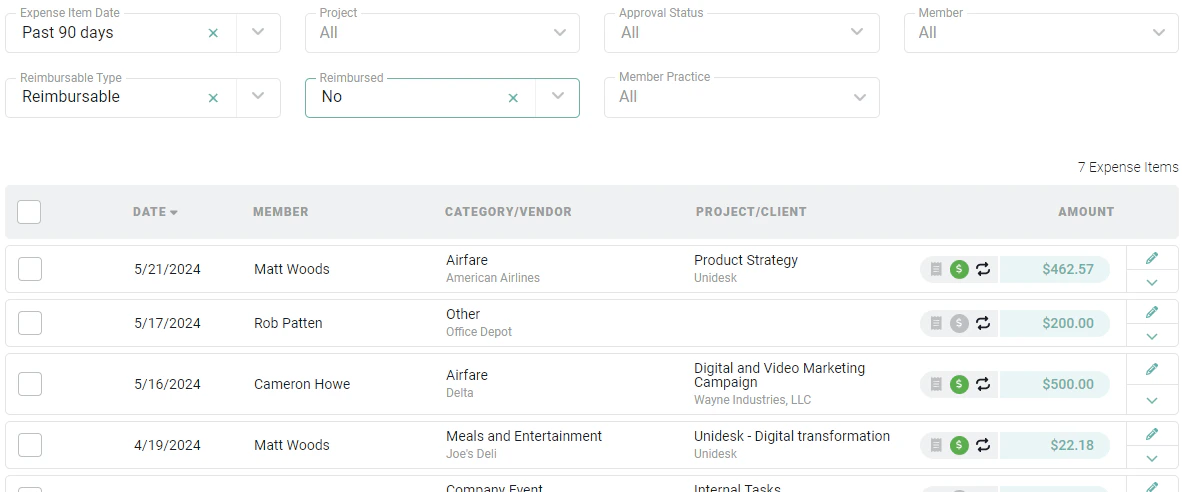 Figure 3 - Administer Multiple Expense Entries from the Expense Auditing Screen
In the results, each item's reimbursement status will be displayed via a logo (Figure 4) on the item's row.
Figure 3 - Administer Multiple Expense Entries from the Expense Auditing Screen
In the results, each item's reimbursement status will be displayed via a logo (Figure 4) on the item's row.
 Figure 4 - This Icon on the Expense Item Row of the Auditing Screen Indicated Reimbursement Status
There are three colors that represent each reimbursement status:
* **Grey**: Expense item is not set for reimbursement. The member that created this expense specified that the expense should not be reimbursed.
* **Black**: Expense item is set for reimbursement but has not yet been marked as reimbursed.
* **Green**: Expense item is set for reimbursement and has been marked as reimbursed for tracking purposes.
When an item's indicator is black or green, an action is available in the item's action menu. Using this action item, a member can either set the expense as **Reimbursed** (Figure 5) or can set the item as **Not Reimbursed**, (Figure 6) respectively.
Figure 4 - This Icon on the Expense Item Row of the Auditing Screen Indicated Reimbursement Status
There are three colors that represent each reimbursement status:
* **Grey**: Expense item is not set for reimbursement. The member that created this expense specified that the expense should not be reimbursed.
* **Black**: Expense item is set for reimbursement but has not yet been marked as reimbursed.
* **Green**: Expense item is set for reimbursement and has been marked as reimbursed for tracking purposes.
When an item's indicator is black or green, an action is available in the item's action menu. Using this action item, a member can either set the expense as **Reimbursed** (Figure 5) or can set the item as **Not Reimbursed**, (Figure 6) respectively.
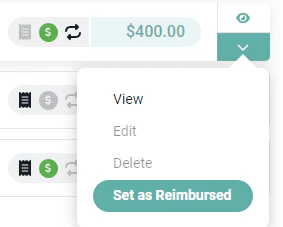 Figure 5 - Set a Reimbursable Expense Item as **Reimbursed**
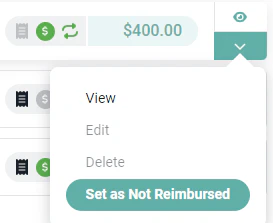 Figure 6 - Set a Reimbursed Expense as **Not Reimbursed**
#### Bulk Reimbursement
In addition to marking individual expenses as Reimbursed from the Auditing screen, you can also apply the Reimbursed status to multiple expenses. Each row on the auditing screen (Figure 3) has a checkbox. Selecting the checkbox(s) for the expenses you wish to approve will enable a Set as Reimbursed button (Figure 7).
Figure 6 - Set a Reimbursed Expense as **Not Reimbursed**
#### Bulk Reimbursement
In addition to marking individual expenses as Reimbursed from the Auditing screen, you can also apply the Reimbursed status to multiple expenses. Each row on the auditing screen (Figure 3) has a checkbox. Selecting the checkbox(s) for the expenses you wish to approve will enable a Set as Reimbursed button (Figure 7).
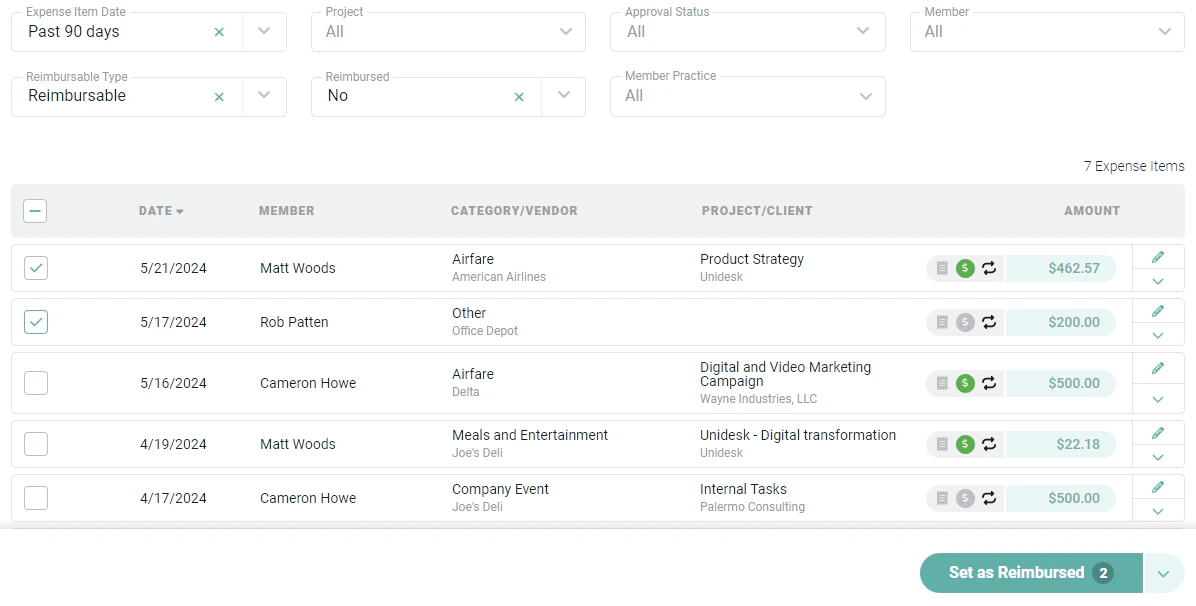 Figure 7 - Select One or More Expenses to Set as Reimbursed and Click the Set as Reimbursed Button
If you wish to set multiple expenses as Not Reimbursed, you can repeat the action of selecting multiple expenses and selecting the **Set as Not Reimbursed** action from the action menu (Figure 8).
Figure 7 - Select One or More Expenses to Set as Reimbursed and Click the Set as Reimbursed Button
If you wish to set multiple expenses as Not Reimbursed, you can repeat the action of selecting multiple expenses and selecting the **Set as Not Reimbursed** action from the action menu (Figure 8).
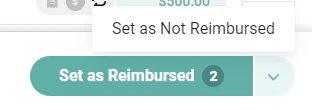 Figure 8 - Expenses Can be Set as Not Reimbursed
### Expense Reports
As noted in the [View and Manage Expense Items of Other Members](/expenses/view-and-manage-expense-items-of-other-members) article, members with appropriate **Administer time and expenses** permissions can impersonate other members on the Expense Reports screen, giving them access to the expense reports and expense items of those other members.
When viewing the details of an individual expense report (Figure 9), a member with the required, administrative permissions can take action to set an expense as **Reimbursed**.
Figure 8 - Expenses Can be Set as Not Reimbursed
### Expense Reports
As noted in the [View and Manage Expense Items of Other Members](/expenses/view-and-manage-expense-items-of-other-members) article, members with appropriate **Administer time and expenses** permissions can impersonate other members on the Expense Reports screen, giving them access to the expense reports and expense items of those other members.
When viewing the details of an individual expense report (Figure 9), a member with the required, administrative permissions can take action to set an expense as **Reimbursed**.
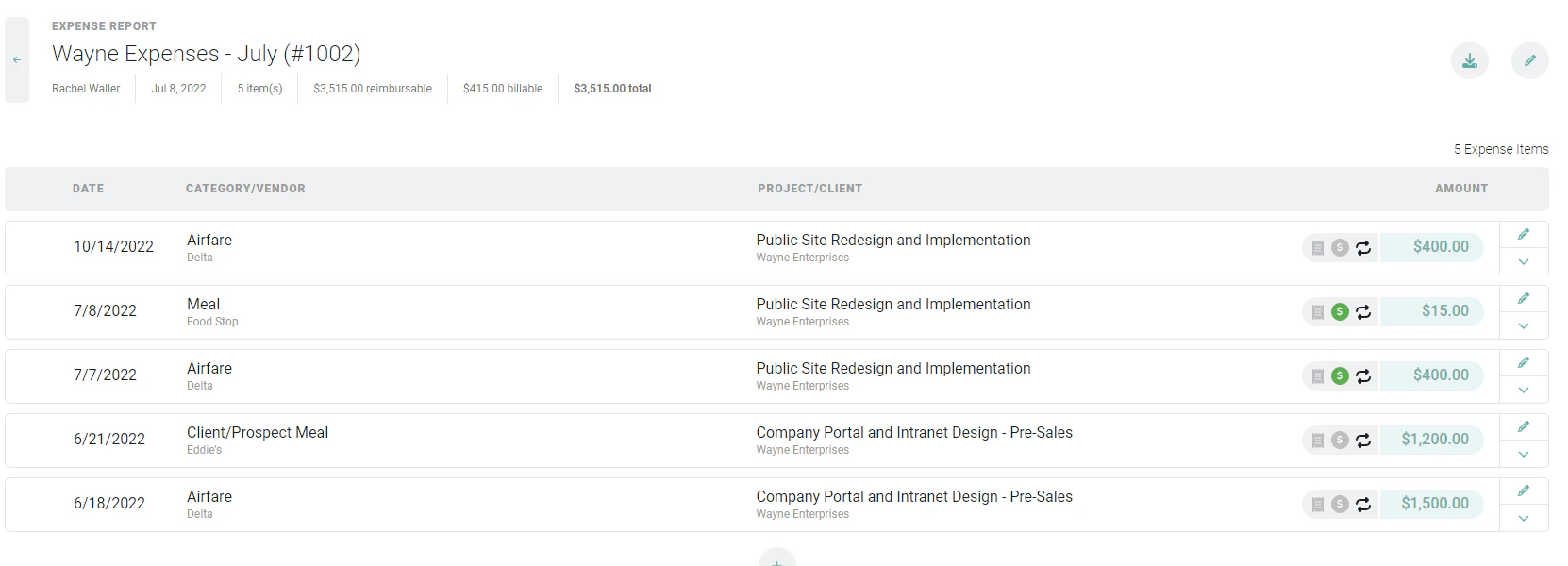 Figure 9 - Expense Report Details
In an expense report, each expense item's reimbursement status will be displayed via a logo (Figure 10) on the item's row.
Figure 10 - This Icon on the Expense Item Row of the Auditing Screen Indicated Reimbursement Status
There are three colors that represent each reimbursement status:
* **Grey**: Expense item is not set for reimbursement. The member that created this expense specified that the expense should not be reimbursed.
* **Black**: Expense item is set for reimbursement but has not yet been marked as reimbursed.
* **Green**: Expense item is set for reimbursement and has been marked as reimbursed for tracking purposes.
When an item's indicator is black or green, an action is available in the item's action menu. Using this action item, a member can either set the expense as **Reimbursed** (Figure 11) or can set the item as **Not Reimbursed**, (Figure 12) respectively.
Figure 11 - Set a Reimbursable Expense Item as **Reimbursed**
Figure 12 - Set a Reimbursed Expense as **Not Reimbursed**
Figure 9 - Expense Report Details
In an expense report, each expense item's reimbursement status will be displayed via a logo (Figure 10) on the item's row.
Figure 10 - This Icon on the Expense Item Row of the Auditing Screen Indicated Reimbursement Status
There are three colors that represent each reimbursement status:
* **Grey**: Expense item is not set for reimbursement. The member that created this expense specified that the expense should not be reimbursed.
* **Black**: Expense item is set for reimbursement but has not yet been marked as reimbursed.
* **Green**: Expense item is set for reimbursement and has been marked as reimbursed for tracking purposes.
When an item's indicator is black or green, an action is available in the item's action menu. Using this action item, a member can either set the expense as **Reimbursed** (Figure 11) or can set the item as **Not Reimbursed**, (Figure 12) respectively.
Figure 11 - Set a Reimbursable Expense Item as **Reimbursed**
Figure 12 - Set a Reimbursed Expense as **Not Reimbursed**