> ## Documentation Index
> Fetch the complete documentation index at: https://help.ruddr.io/llms.txt
> Use this file to discover all available pages before exploring further.
# Create an Expense Report
Before you can start creating individual expense items, you must first create an expense report to house those items. From the expense report list page (Figure 2), click the **New Expense Report** button (Figure 1) at the bottom of the screen.
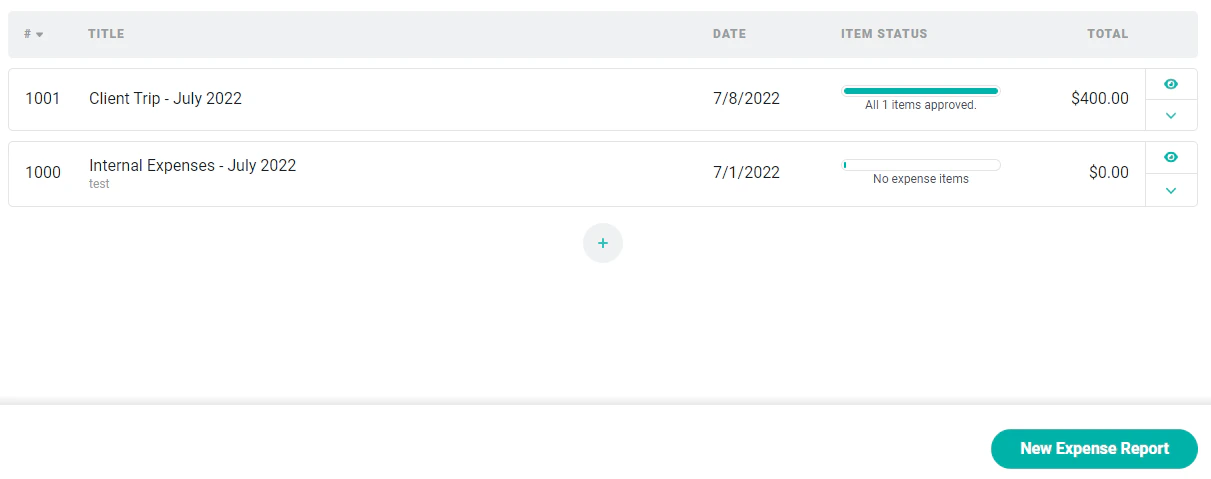 Figure 1 - Create a New Expense Report to which you can add New Expense Items
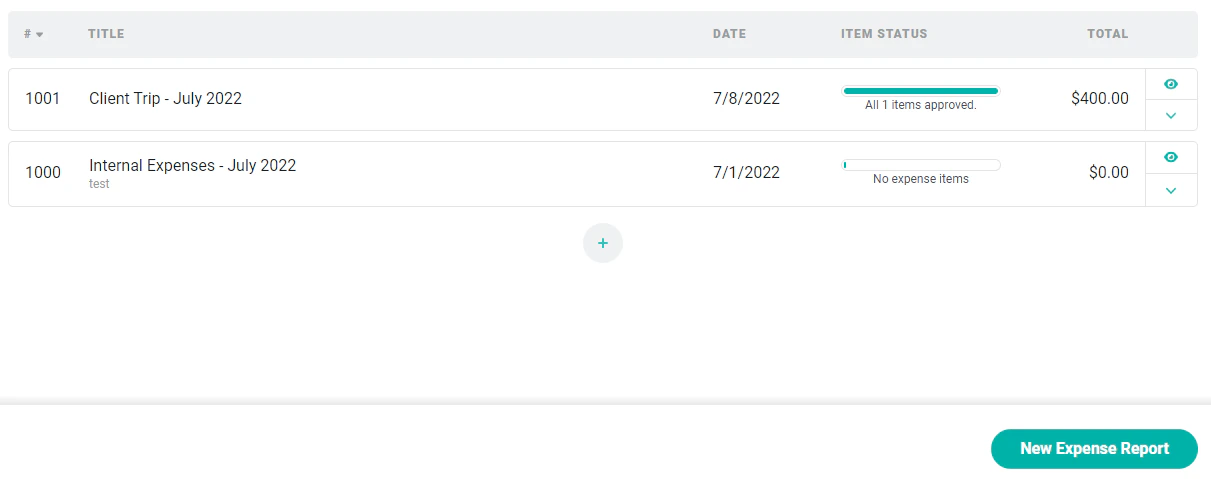 Figure 2 - Expense Report View
This will bring up the new expense report drawer (Figure 3). To create a report, simply provide the title and date. Optionally, you can provide notes about the nature of the expense report.
Figure 2 - Expense Report View
This will bring up the new expense report drawer (Figure 3). To create a report, simply provide the title and date. Optionally, you can provide notes about the nature of the expense report.
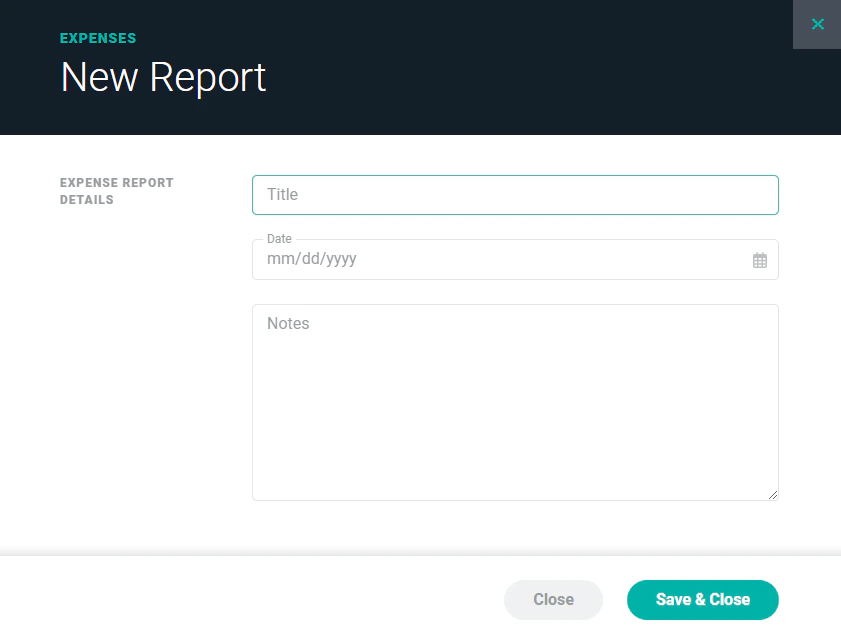 Figure 3 - Create a New Expense Report
Once you have these fields entered, simply click the **Save & Close** button at the bottom of the drawer. This will take you to the expense report detail screen (Figure 4) where you can [add the individual expense items](/expenses/add-expense-items-to-an-expense-report) to the report.
When an expense report is created, it is automatically given a unique expense report number. No two expense reports in the workspace can have the same expense report number. The expense report number is assigned by Ruddr and cannot be changed.
Figure 3 - Create a New Expense Report
Once you have these fields entered, simply click the **Save & Close** button at the bottom of the drawer. This will take you to the expense report detail screen (Figure 4) where you can [add the individual expense items](/expenses/add-expense-items-to-an-expense-report) to the report.
When an expense report is created, it is automatically given a unique expense report number. No two expense reports in the workspace can have the same expense report number. The expense report number is assigned by Ruddr and cannot be changed.
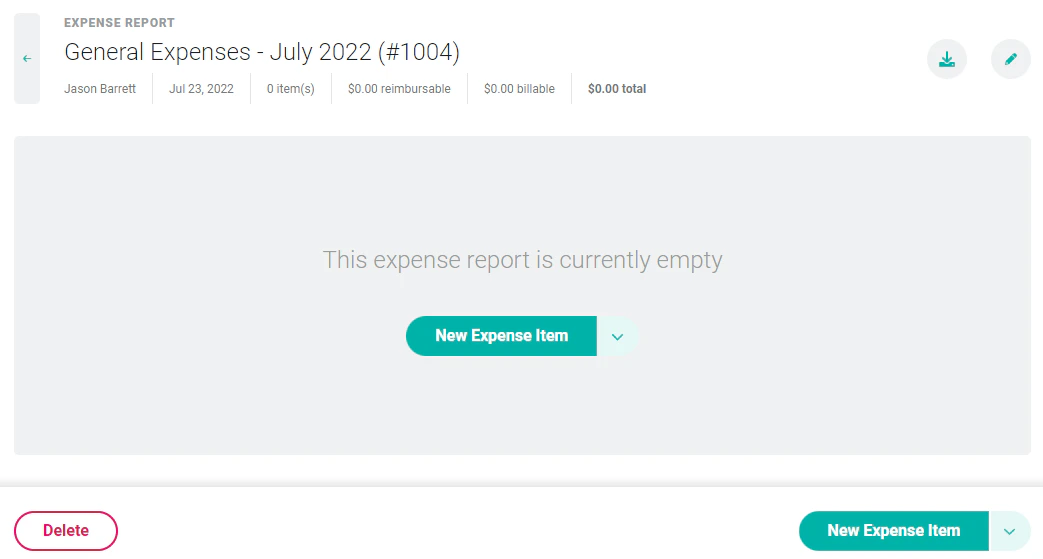 Figure 4 - On the Expense Report Detail Screen you can add Multiple Expense Items