> ## Documentation Index
> Fetch the complete documentation index at: https://help.ruddr.io/llms.txt
> Use this file to discover all available pages before exploring further.
# Ruddr Mobile App
Ruddr users can access time entry and expense entry on their iOS and Android devices.
## Downloading the Ruddr Mobile App
For iOS you will want to download the Ruddr app in the Apple App Store by searching for "Ruddr". (Figure 1)
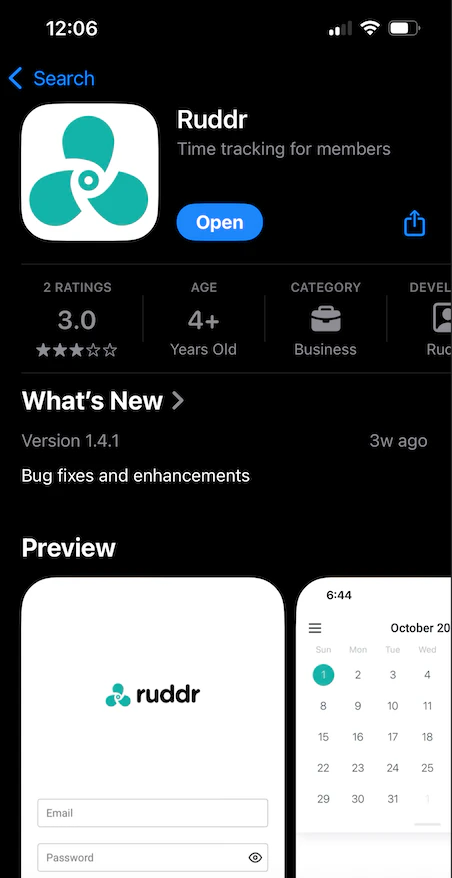 Figure 1 - Apple App Store
For Android devices, you will want to visit the Google Play store. (Figure 2)
Figure 1 - Apple App Store
For Android devices, you will want to visit the Google Play store. (Figure 2)
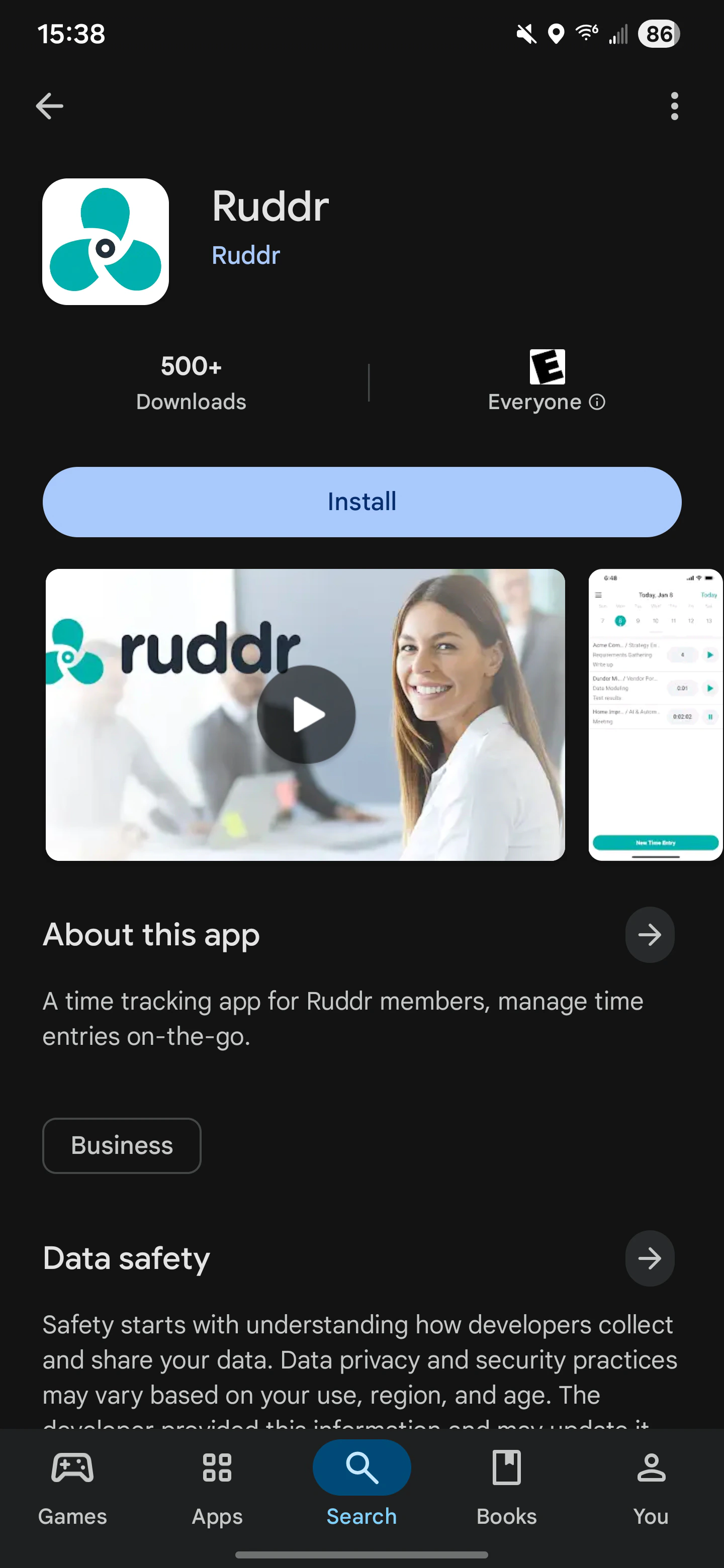 Figure 2 - Ruddr in the Google Play Store
In the app, you can navigate between Time Entries and Expenses (Figure 4) by clicking the three lines in the top left corner of the app. (Figure 3)
Figure 2 - Ruddr in the Google Play Store
In the app, you can navigate between Time Entries and Expenses (Figure 4) by clicking the three lines in the top left corner of the app. (Figure 3)
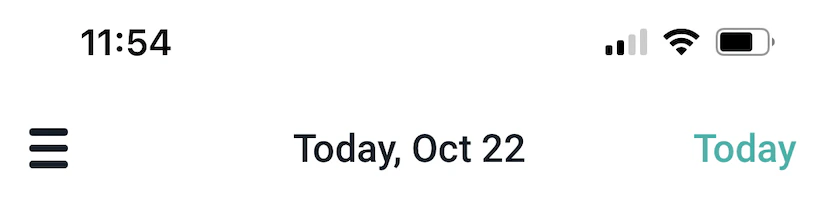 Figure 3 - Home Screen to select the three lines to toggle between expenses and time entry
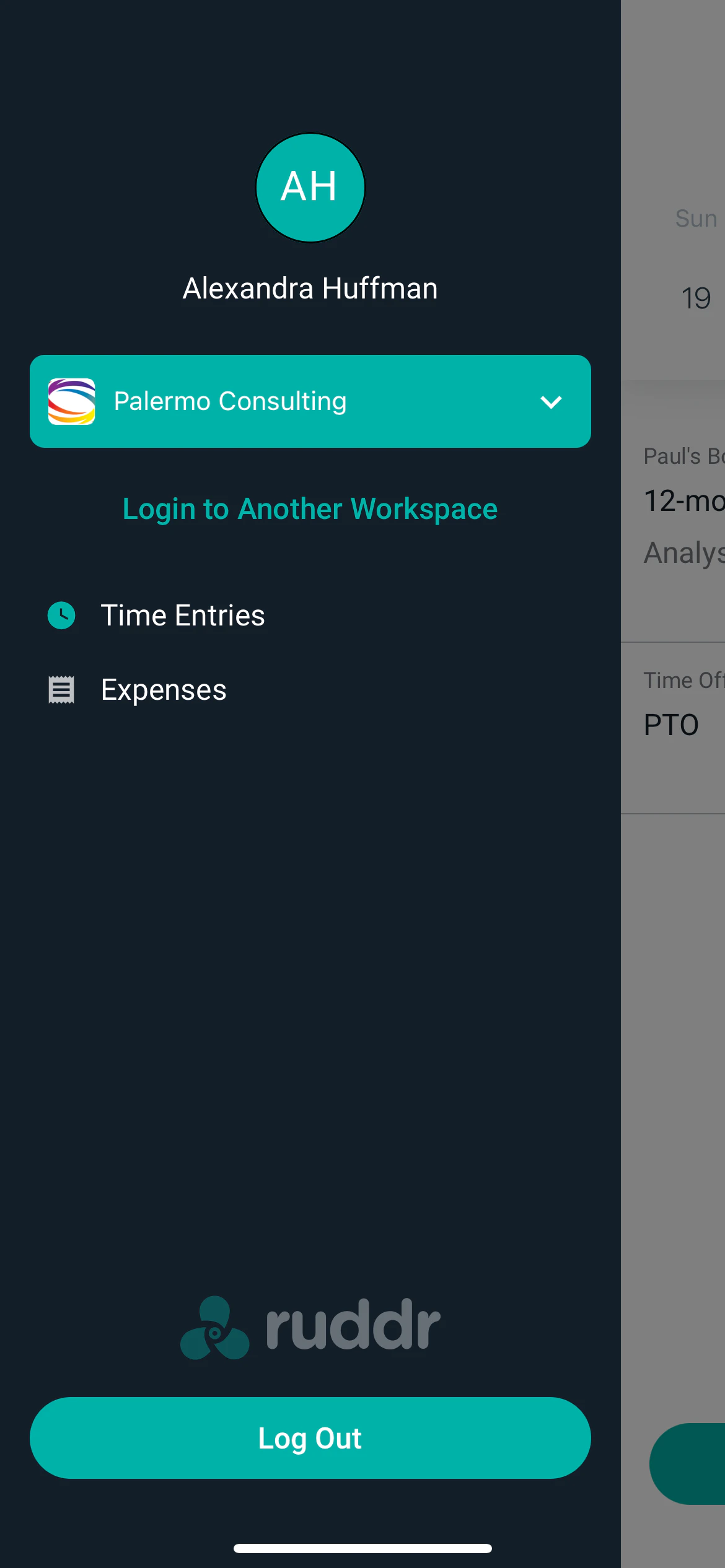 ## Figure 4 - Ability to toggle between time entries and expenses
# Time Entries
When you open the Mobile App, the first screen will allow you to enter time by day. (Figure 5) Here you can edit the time entries or start the timer to track your time by pressing the play button next to any existing time entry. You can also toggle to other days on this screen by clicking on the date.
## Figure 4 - Ability to toggle between time entries and expenses
# Time Entries
When you open the Mobile App, the first screen will allow you to enter time by day. (Figure 5) Here you can edit the time entries or start the timer to track your time by pressing the play button next to any existing time entry. You can also toggle to other days on this screen by clicking on the date.
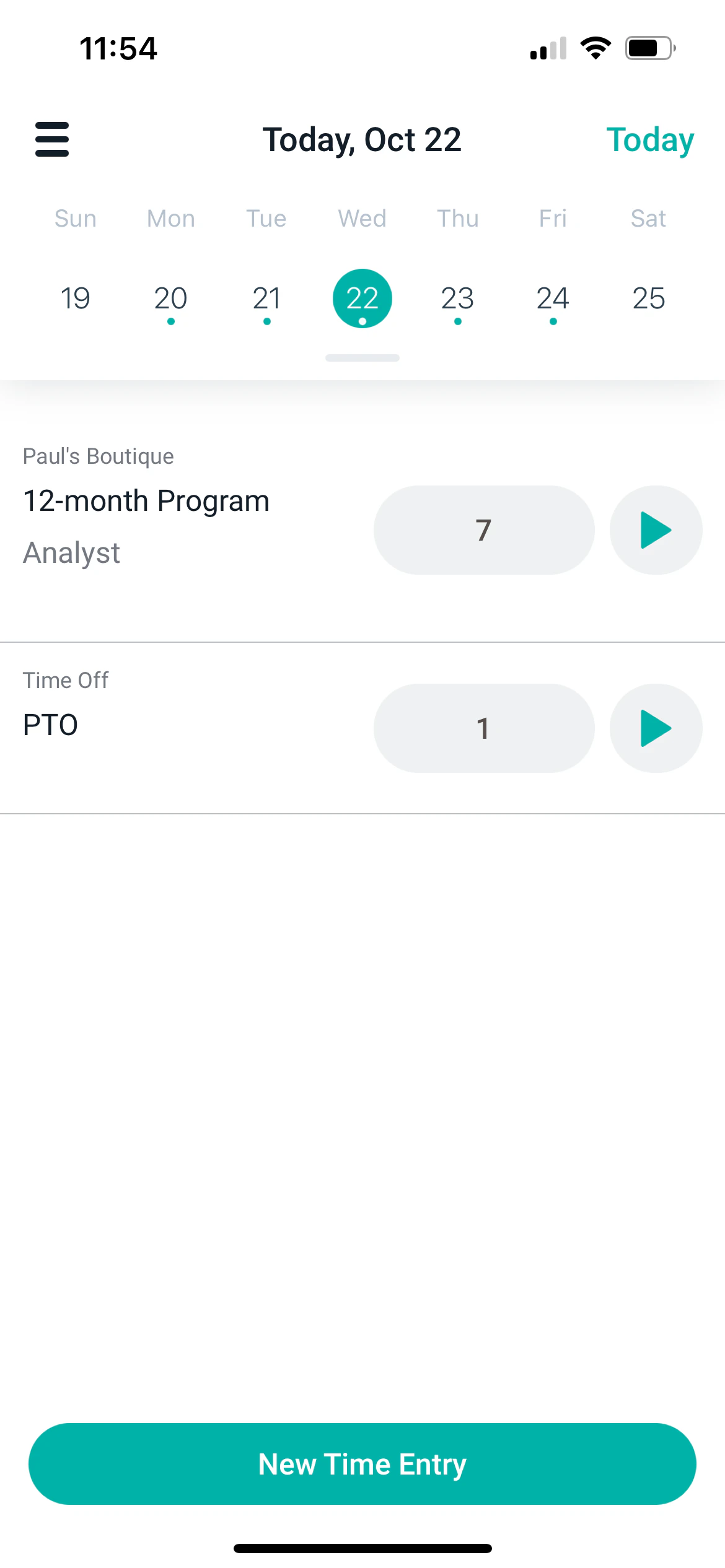 Figure 5 - Update time entries or begin a timer
## Add or edit a time entry
If you need to add a new item, you can do so by clicking the **New Time Entry** button on the bottom of the app. You will be able to enter a new time entry, specifying either Project Time or Time Off as the time type. (Figure 6) The new time entry will default to project time, for which you can start a timer. If you just want to record the hours worked, you need to add hours to the **time** field and then you will have the option to save.
To edit a time entry, select the time entry you want to edit and it will open the details. Make the edits needed and submit.
Figure 5 - Update time entries or begin a timer
## Add or edit a time entry
If you need to add a new item, you can do so by clicking the **New Time Entry** button on the bottom of the app. You will be able to enter a new time entry, specifying either Project Time or Time Off as the time type. (Figure 6) The new time entry will default to project time, for which you can start a timer. If you just want to record the hours worked, you need to add hours to the **time** field and then you will have the option to save.
To edit a time entry, select the time entry you want to edit and it will open the details. Make the edits needed and submit.
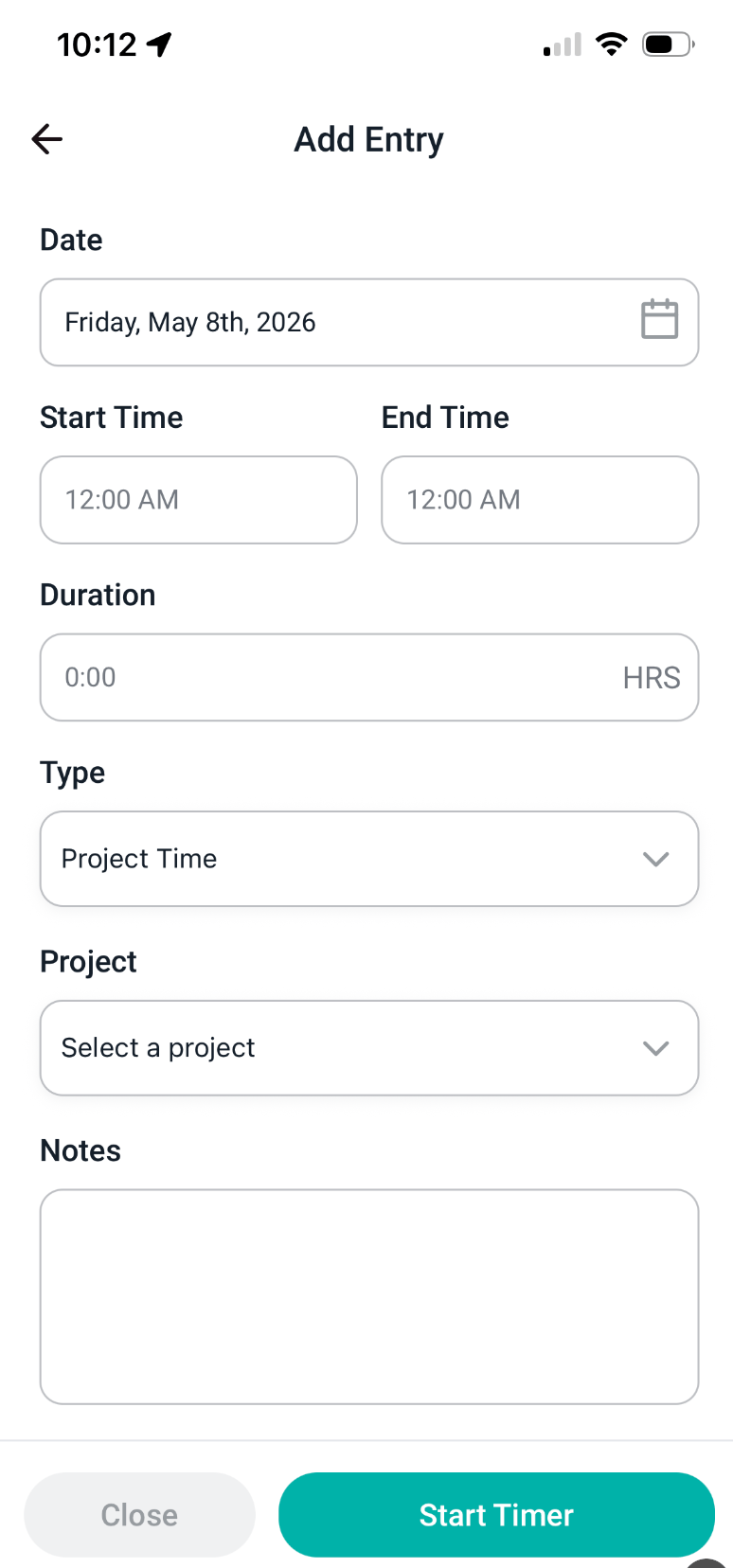 Figure 6 - How to add a new time entry in the mobile app
## Submitting Your Time Sheet
You can submit your timesheet directly from the mobile app. Timesheets can also be submitted from the Web App — you can view [instructions](/time/timesheets-overview) in the Help Center on submitting on the Web App.
# Expenses
You can create expenses in the Ruddr mobile app by switching to the expense section. By clicking the three lines in the top left of the app, you will be given the option to move between time and expenses.
Once in the expense you have the option to add to a current expense report or create a new one by clicking **New Expense Report** on the bottom of the app. (Figure 7)
Figure 6 - How to add a new time entry in the mobile app
## Submitting Your Time Sheet
You can submit your timesheet directly from the mobile app. Timesheets can also be submitted from the Web App — you can view [instructions](/time/timesheets-overview) in the Help Center on submitting on the Web App.
# Expenses
You can create expenses in the Ruddr mobile app by switching to the expense section. By clicking the three lines in the top left of the app, you will be given the option to move between time and expenses.
Once in the expense you have the option to add to a current expense report or create a new one by clicking **New Expense Report** on the bottom of the app. (Figure 7)
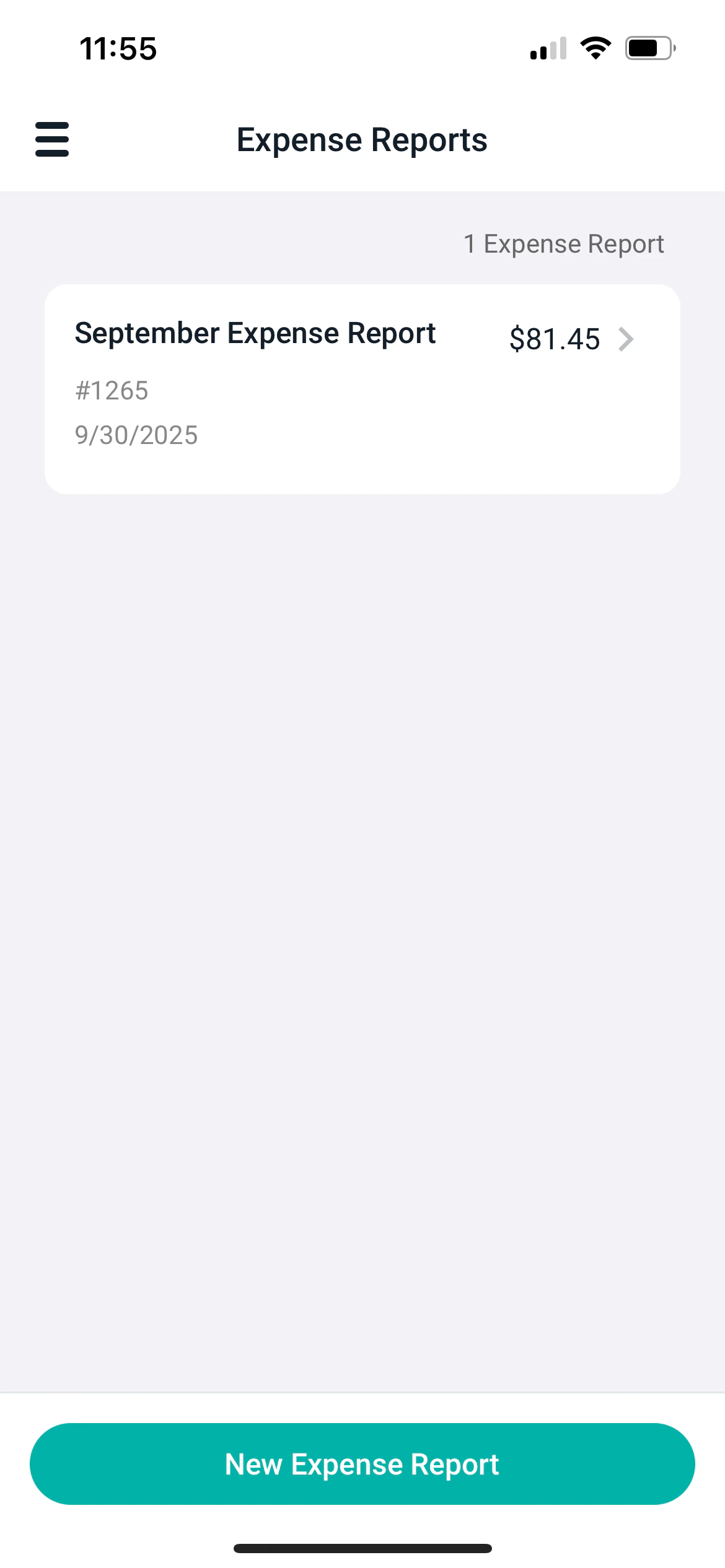 Figure 7 - Add to a current expense report or create a new report
## Add or edit an expense
Once in your expense report, you can either add a new expense or edit an existing expense. To edit an existing expense, (Figure 8) simply click on the expense and you can add further details, receipts or view the history of the expense.
To add a new expense, select the **New Expense Item** in the bottom left of the expense report screen.
Figure 7 - Add to a current expense report or create a new report
## Add or edit an expense
Once in your expense report, you can either add a new expense or edit an existing expense. To edit an existing expense, (Figure 8) simply click on the expense and you can add further details, receipts or view the history of the expense.
To add a new expense, select the **New Expense Item** in the bottom left of the expense report screen.
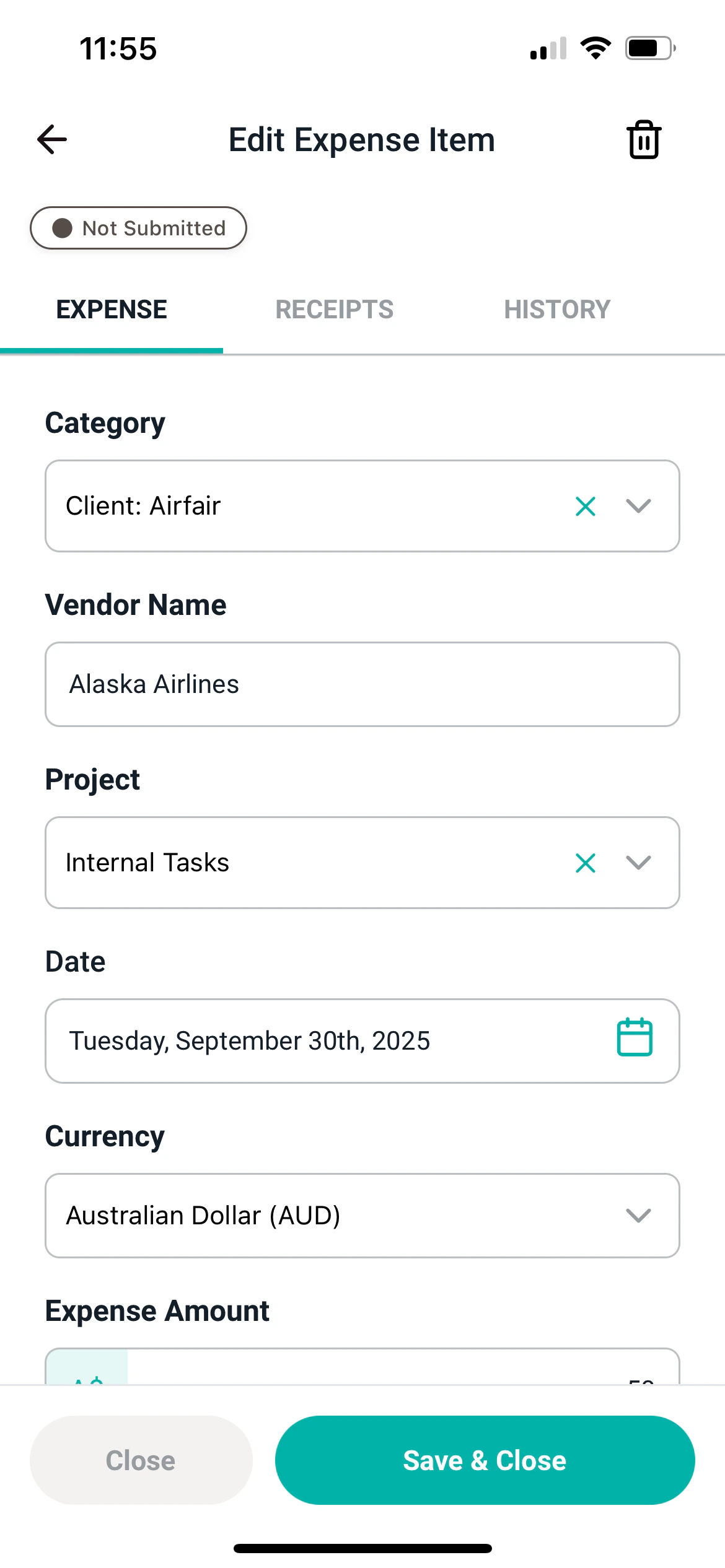 ## Figure 8 - Edit an existing expense
 ## Figure 9 - Create a new expense
## Submitting your expense report
Once you have added all needed expenses, you can submit your expense report for approval utilizing the Submit for Approval button in the bottom right. (Figure 10) If you need to add additional expenses to this report, you can add them with the **New Expense Items** button.
## Figure 9 - Create a new expense
## Submitting your expense report
Once you have added all needed expenses, you can submit your expense report for approval utilizing the Submit for Approval button in the bottom right. (Figure 10) If you need to add additional expenses to this report, you can add them with the **New Expense Items** button.
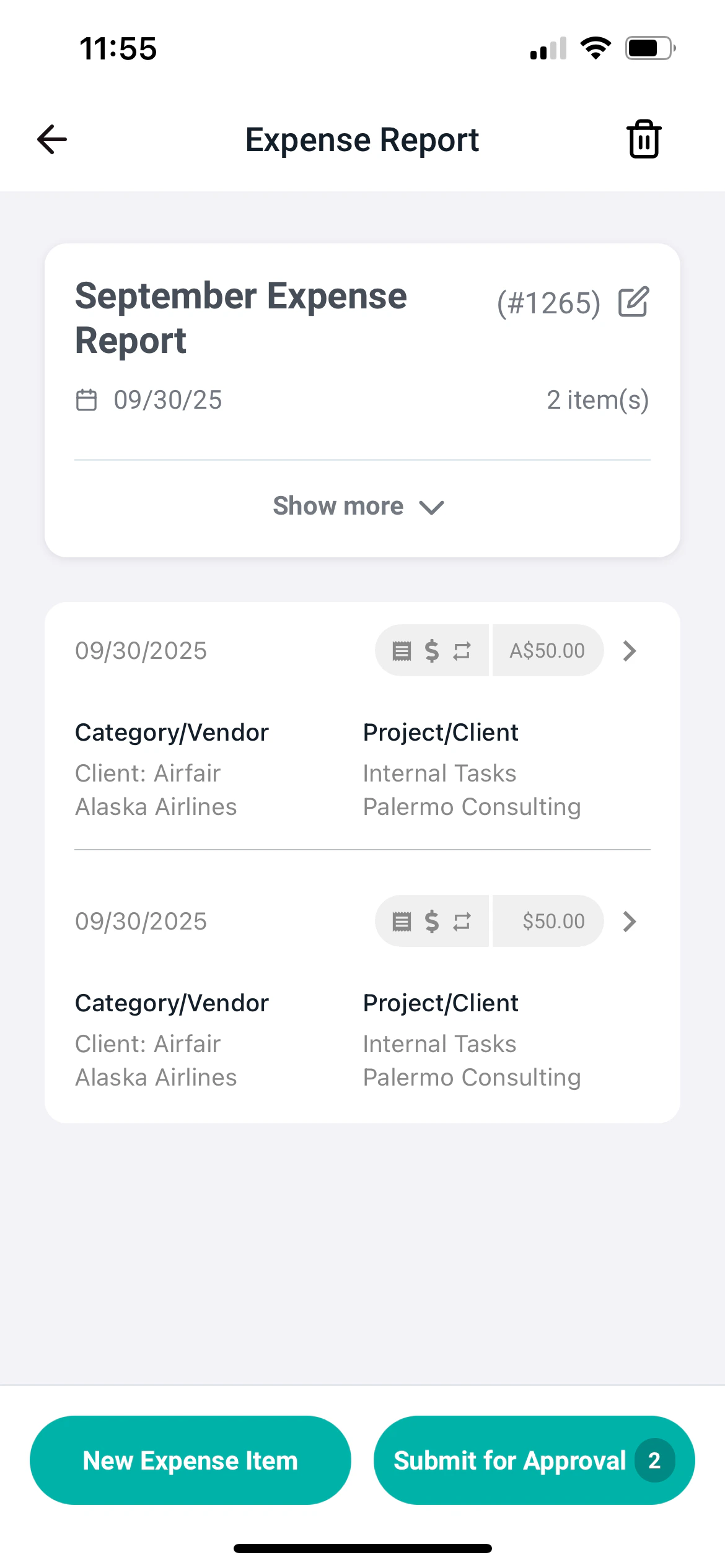 Figure 10 - Add more expenses or submit expenses for approval