> ## Documentation Index
> Fetch the complete documentation index at: https://help.ruddr.io/llms.txt
> Use this file to discover all available pages before exploring further.
# Client List
To view all of the clients in your workspace, click on **Portfolio** in the nav bar and then select the **Clients** sub-menu option (Figure 1). This will bring up the client list screen (Figure 2). Depending on the [security role](/workspace-administration/security-roles) assigned to your member profile, you may only see clients where you are on a project team for that client.
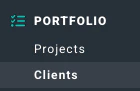 Figure 1 - Select **Clients** to View the Client List
If you have the **Create client** permission, you will see an enabled **New Client** (**+**) button. For more on creating clients in Ruddr, see the [Create a New Client](/clients/create-a-new-client) article.
The list of clients can be downloaded by clicking the download button to the left of the **New Client** button at the top-right of the list.
Figure 1 - Select **Clients** to View the Client List
If you have the **Create client** permission, you will see an enabled **New Client** (**+**) button. For more on creating clients in Ruddr, see the [Create a New Client](/clients/create-a-new-client) article.
The list of clients can be downloaded by clicking the download button to the left of the **New Client** button at the top-right of the list.
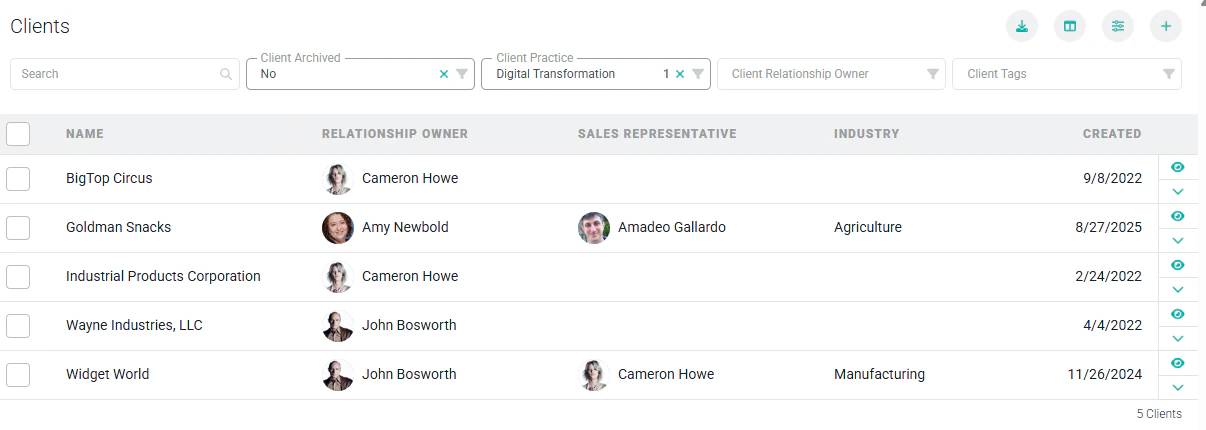 Figure 2 - Client List Screen
From the client list screen, you have the following filters at the top of the list to help you narrow down the results:
* **Search** - You can type in a partial client name to narrow the results.
* **Client Archived** - Specify "Yes" to view archived clients or "No" to only view non-archived clients. In the client list illustrated above (Figure 2), the "greyed out" items are archived clients that are displaying based on the search criteria.
* **Client Practice** - The practice that is assigned as the owner of the client. Practices are optional in Ruddr.
* **Client Relationship** **Owner** - Narrow down the results for a specific Client Relationship Owner.
* **Client Tags** - If you leverage client tags in your workspace, search the list of clients by active and/or inactive tags. For more information on client tags, refer to the [Custom Data article](/workspace-administration/custom-data) in the Ruddr Help Center.
Additional filters are available by clicking on the filters button at the top-right of the screen.
To view the [client dashboard](/clients/client-dashboard) for a particular client, simply click on the row in the list. The client dashboard provides high-level information about the client and its associated projects.
At the right end of each client row, you are provided with a menu of actions (Figure 3). These actions are **View**, [**Edit**](#edit-an-opportunity), [**Archive**](#delete-an-opportunity), **View Client Statement**, and [**Delete**](#delete-a-company). Depending on your security role, some of these options may be disabled.
Figure 2 - Client List Screen
From the client list screen, you have the following filters at the top of the list to help you narrow down the results:
* **Search** - You can type in a partial client name to narrow the results.
* **Client Archived** - Specify "Yes" to view archived clients or "No" to only view non-archived clients. In the client list illustrated above (Figure 2), the "greyed out" items are archived clients that are displaying based on the search criteria.
* **Client Practice** - The practice that is assigned as the owner of the client. Practices are optional in Ruddr.
* **Client Relationship** **Owner** - Narrow down the results for a specific Client Relationship Owner.
* **Client Tags** - If you leverage client tags in your workspace, search the list of clients by active and/or inactive tags. For more information on client tags, refer to the [Custom Data article](/workspace-administration/custom-data) in the Ruddr Help Center.
Additional filters are available by clicking on the filters button at the top-right of the screen.
To view the [client dashboard](/clients/client-dashboard) for a particular client, simply click on the row in the list. The client dashboard provides high-level information about the client and its associated projects.
At the right end of each client row, you are provided with a menu of actions (Figure 3). These actions are **View**, [**Edit**](#edit-an-opportunity), [**Archive**](#delete-an-opportunity), **View Client Statement**, and [**Delete**](#delete-a-company). Depending on your security role, some of these options may be disabled.
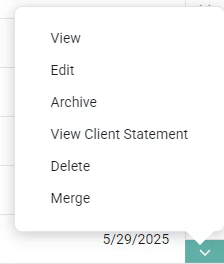 Figure 3 - Client Actions from the Client List
The **View Client Statement** action item will take you to the Client Statement report in the Ruddr [Report library](/reports/accounting-reports).
### Edit a Client
To edit a client, you must have the **Edit clients** permission on your security role. Simply click on the **Edit** menu option on the row that you want to edit. This will open up the same client drawer (Figure 4) that is used to create a client. Alternatively, you can click on the edit button (a pencil icon) at the top-right of the client dashboard.
Figure 3 - Client Actions from the Client List
The **View Client Statement** action item will take you to the Client Statement report in the Ruddr [Report library](/reports/accounting-reports).
### Edit a Client
To edit a client, you must have the **Edit clients** permission on your security role. Simply click on the **Edit** menu option on the row that you want to edit. This will open up the same client drawer (Figure 4) that is used to create a client. Alternatively, you can click on the edit button (a pencil icon) at the top-right of the client dashboard.
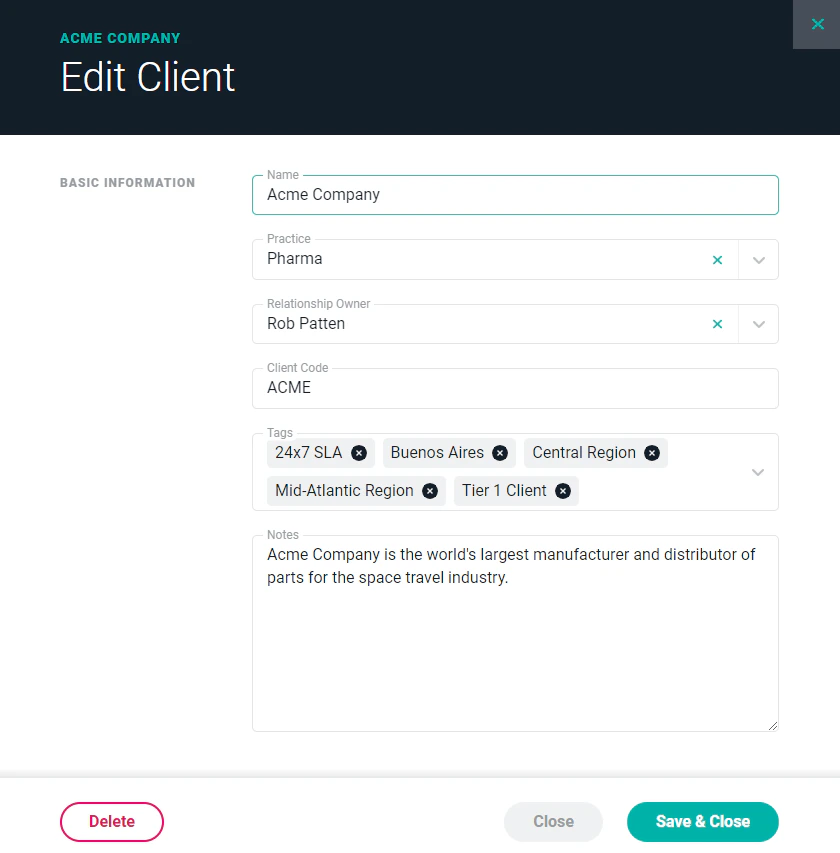 Figure 4 - Change Details about the Client in the Edit Client Drawer
### Archive a Client
To archive a client, you must have the **Delete or archive clients** permission. Simply click on the **Archive** menu option (Figure 3) on the row that you wish to archive. This will bring up a confirmation window (Figure 5). When you archive a client, you will also archive all of the projects within that client.
Figure 4 - Change Details about the Client in the Edit Client Drawer
### Archive a Client
To archive a client, you must have the **Delete or archive clients** permission. Simply click on the **Archive** menu option (Figure 3) on the row that you wish to archive. This will bring up a confirmation window (Figure 5). When you archive a client, you will also archive all of the projects within that client.
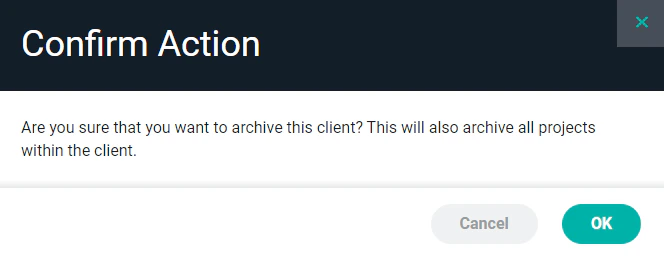 Figure 5 - Confirm your Choice to Archive a Client in the Workspace
For more about archiving a client, see the [Archive or Delete a Client](/clients/archive-or-delete-a-client) article.
### Bulk Updates for Clients
Workspace Admins have the ability to archive or unarchive clients in bulk. Once you select the clients you want to update, select the **Bulk Actions** button in the bottom right corner of the Clients list screen. (Figure 6) You will have the option of archiving, unarchiving, or deleting multiple clients.
Figure 5 - Confirm your Choice to Archive a Client in the Workspace
For more about archiving a client, see the [Archive or Delete a Client](/clients/archive-or-delete-a-client) article.
### Bulk Updates for Clients
Workspace Admins have the ability to archive or unarchive clients in bulk. Once you select the clients you want to update, select the **Bulk Actions** button in the bottom right corner of the Clients list screen. (Figure 6) You will have the option of archiving, unarchiving, or deleting multiple clients.
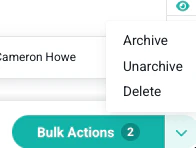 Figure 6 - Options for bulk updating clients
Once you have made your selection, you will confirm the updates you want to apply and Ruddr will then show a screen confirming the actions have been completed.
**NOTE**: Ruddr will only allow clients to be deleted in bulk if those clients do not have associated projects, time entries, expenses, invoices, etc.
### Delete a Client
To delete a client, you must have the **Delete client** permission. Simply click on the **Delete** menu option (Figure 3) on the row that you want to delete. This will bring up a confirmation window (Figure 7). If the client has projects, *it is strongly recommended that you archive the client instead of deleting it*.
**Once you delete a client, you cannot reverse this action and all associated data (including projects, time entries, expenses, invoices, and payments) will be gone forever!**
Figure 6 - Options for bulk updating clients
Once you have made your selection, you will confirm the updates you want to apply and Ruddr will then show a screen confirming the actions have been completed.
**NOTE**: Ruddr will only allow clients to be deleted in bulk if those clients do not have associated projects, time entries, expenses, invoices, etc.
### Delete a Client
To delete a client, you must have the **Delete client** permission. Simply click on the **Delete** menu option (Figure 3) on the row that you want to delete. This will bring up a confirmation window (Figure 7). If the client has projects, *it is strongly recommended that you archive the client instead of deleting it*.
**Once you delete a client, you cannot reverse this action and all associated data (including projects, time entries, expenses, invoices, and payments) will be gone forever!**
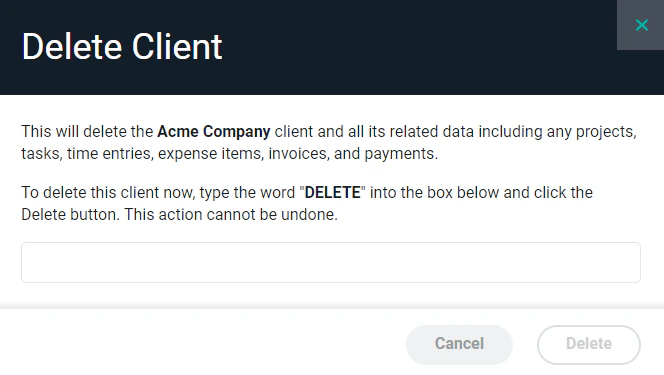 Figure 7 - Confirm your Decision to Delete a Client
For more about deleting a client, see the [Archive or Delete a Client](/clients/archive-or-delete-a-client) article.
Figure 7 - Confirm your Decision to Delete a Client
For more about deleting a client, see the [Archive or Delete a Client](/clients/archive-or-delete-a-client) article.