> ## Documentation Index
> Fetch the complete documentation index at: https://help.ruddr.io/llms.txt
> Use this file to discover all available pages before exploring further.
# Archive or Delete a Client
There may be times when you will need to archive or delete a client in Ruddr. If you have an old client that your team hasn't done work for in years, you may want to archive that client so that it does not show up in the active clients list in Ruddr.
You should only delete a client if it was created by mistake or is a duplicate. If a client has projects, it is highly recommended that the client be archived instead of deleted.
You can [archive](#archi-ving-a-client) or delete a client from the [client list](/clients/client-list) screen (Figure 2). To bring up this screen, click on **Portfolio** in the nav bar and then select the **Clients** sub-menu option (Figure 1).
 Figure 1 - Select **Clients** to View the Client List
Depending on the [security role](/workspace-administration/security-roles) assigned to your member profile, you may only see clients where you are on a project team for that client.
Figure 1 - Select **Clients** to View the Client List
Depending on the [security role](/workspace-administration/security-roles) assigned to your member profile, you may only see clients where you are on a project team for that client.
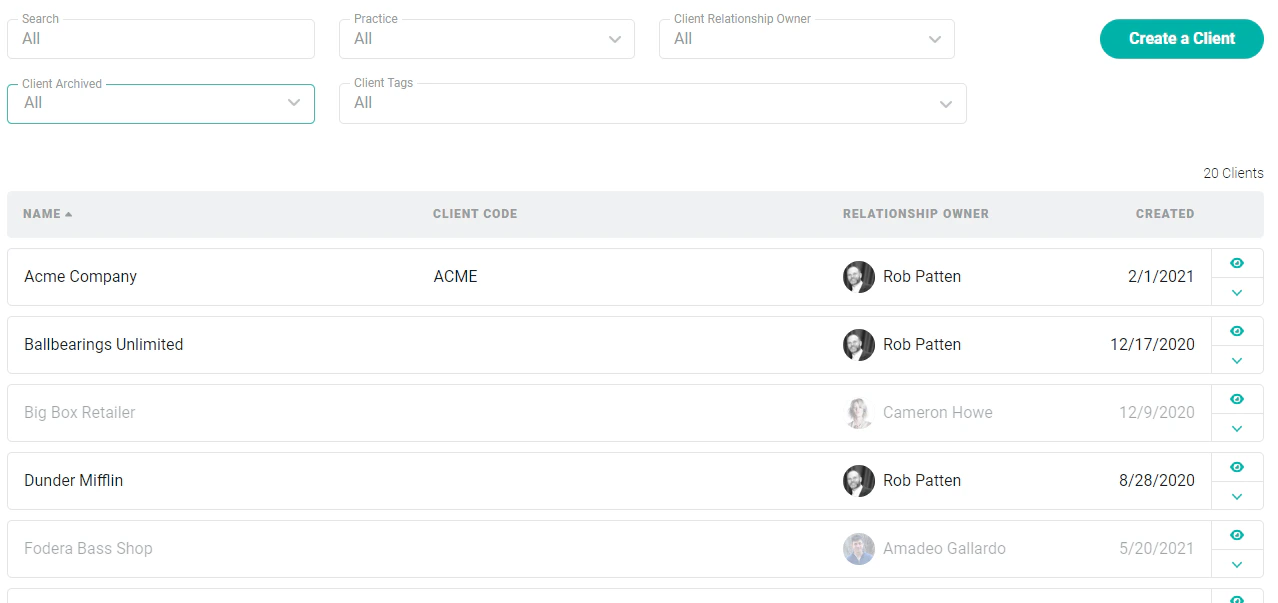 Figure 2 - Client List Screen
At the right end of each row, there is a menu of actions (Figure 3) you can take against the client. These actions are **View**, **Edit**, **Archive**, and **Delete**. Depending on your permissions, some of these options may be disabled.
Figure 2 - Client List Screen
At the right end of each row, there is a menu of actions (Figure 3) you can take against the client. These actions are **View**, **Edit**, **Archive**, and **Delete**. Depending on your permissions, some of these options may be disabled.
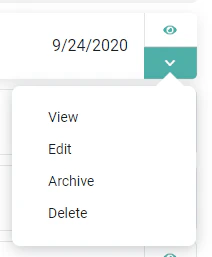 Figure 3 - Client Actions from the Client List
### Archiving a Client
In order to archive a client, you must have the **Delete or archive clients** permission on your security role. Simply click the **Archive** menu option on the intended client row. This will bring up a confirmation window.
When a client is archived, each project within that client is also archived. It is not possible to have active projects within an archived client.
Once the client is archived, it is no longer possible to create projects, invoices, time entries, or expense items related to that client. Also, to edit a time or expense entry on an archived project, the member must have member-level **Administer time and expenses** permissions.
An archived client will no longer show up in the active clients list in Ruddr. But, all data associated with the archived client is maintained. Reports can be run against archived clients just as they can with active clients.
If you need to unarchive a client, simply choose the **Unarchive** menu option (Figure 4) on the archived client row in the client list.
Figure 3 - Client Actions from the Client List
### Archiving a Client
In order to archive a client, you must have the **Delete or archive clients** permission on your security role. Simply click the **Archive** menu option on the intended client row. This will bring up a confirmation window.
When a client is archived, each project within that client is also archived. It is not possible to have active projects within an archived client.
Once the client is archived, it is no longer possible to create projects, invoices, time entries, or expense items related to that client. Also, to edit a time or expense entry on an archived project, the member must have member-level **Administer time and expenses** permissions.
An archived client will no longer show up in the active clients list in Ruddr. But, all data associated with the archived client is maintained. Reports can be run against archived clients just as they can with active clients.
If you need to unarchive a client, simply choose the **Unarchive** menu option (Figure 4) on the archived client row in the client list.
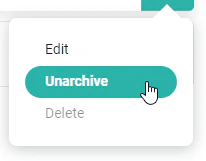 Figure 4 - Client Actions for Archived Clients in the Client List
### Deleting a Client
In order to delete a client, you must have the **Delete client** permission. Deleting a client should be a rare action and is usually only done to correct a mistake or remove a duplicate client. Once a client has projects, it is recommended that the client be archived instead of deleted.
If there are not associated projects, tasks, time entries, expenses, etc. simply click the **Delete** menu option (Figure 3) on the client row.
Figure 4 - Client Actions for Archived Clients in the Client List
### Deleting a Client
In order to delete a client, you must have the **Delete client** permission. Deleting a client should be a rare action and is usually only done to correct a mistake or remove a duplicate client. Once a client has projects, it is recommended that the client be archived instead of deleted.
If there are not associated projects, tasks, time entries, expenses, etc. simply click the **Delete** menu option (Figure 3) on the client row.
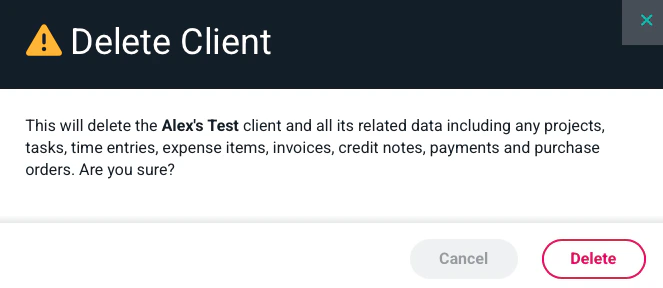 Figure 5 - Confirm your Action to Delete a Client
If there any projects, tasks, time entries, expenses, etc. you will be required to confirm this action by typing in the client's name to confirm deletion. When a client is deleted, all associated data related to that client is also deleted. This includes all projects, time entries, expense items, invoices, and payments.
Figure 5 - Confirm your Action to Delete a Client
If there any projects, tasks, time entries, expenses, etc. you will be required to confirm this action by typing in the client's name to confirm deletion. When a client is deleted, all associated data related to that client is also deleted. This includes all projects, time entries, expense items, invoices, and payments.
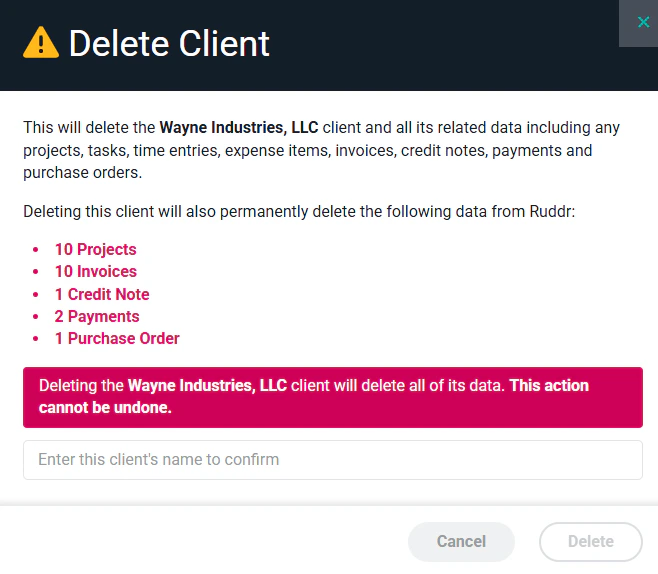 Figure 6 - Confirm your Action to Delete a Client
**Once you delete a client, you cannot reverse this action, and all data related to the client will be gone forever!**
Figure 6 - Confirm your Action to Delete a Client
**Once you delete a client, you cannot reverse this action, and all data related to the client will be gone forever!**