> ## Documentation Index
> Fetch the complete documentation index at: https://help.ruddr.io/llms.txt
> Use this file to discover all available pages before exploring further.
# Taking Payments
When you receive payments from your clients, you can enter those payments directly in Ruddr. If you have an accounting integration installed, such as the QuickBooks integration, you can take the payment in either Ruddr or the accounting application.
You can take a payment in Ruddr from the invoice itself, the [invoices list](/billing/invoices-list), or from the **Payments** section (Figure 1) in the **Billing** area of Ruddr. To receive a payment from the invoice, simply click on the invoice menu (Figure 2) and select the **Receive Payment** option.
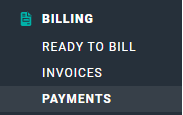 Figure 1 - Select **Payments** to View and Take Payments Against Invoices
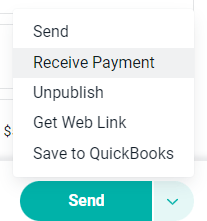 Figure 2 - When Viewing an Invoice you can **Receive Payment** by Accessing the Invoice Action Menu
This will bring up the **Receive Payment** drawer (Figure 3). From this drawer, you can provide the amount received, date received, payment method, reference number, and any notes related to the payment. Additionally, you can allocate the payment to any of the open invoices within that client.
Figure 2 - When Viewing an Invoice you can **Receive Payment** by Accessing the Invoice Action Menu
This will bring up the **Receive Payment** drawer (Figure 3). From this drawer, you can provide the amount received, date received, payment method, reference number, and any notes related to the payment. Additionally, you can allocate the payment to any of the open invoices within that client.
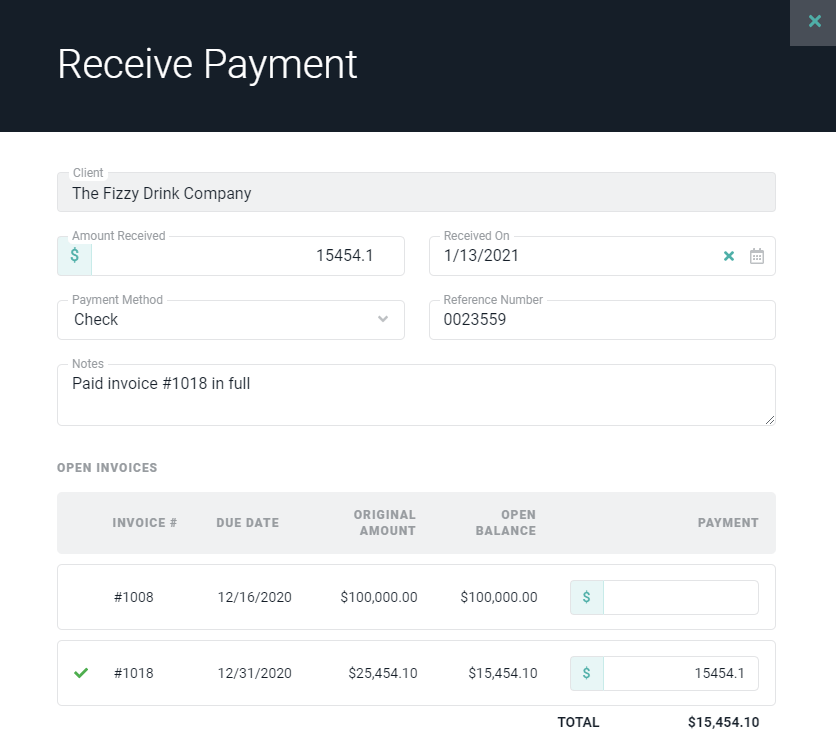 Figure 3 - From the Payments Drawer you can Apply Payments to One or More Invoices for a Client
If an invoice is paid in full, its status will automatically change from **Open** to **Paid**. If the invoice has a partial outstanding balance, it will remain in the **Open** state.
Figure 3 - From the Payments Drawer you can Apply Payments to One or More Invoices for a Client
If an invoice is paid in full, its status will automatically change from **Open** to **Paid**. If the invoice has a partial outstanding balance, it will remain in the **Open** state.