> ## Documentation Index
> Fetch the complete documentation index at: https://help.ruddr.io/llms.txt
> Use this file to discover all available pages before exploring further.
# Send an Invoice
Once an invoice has been published, it can be sent to the client by Ruddr via email. To do this, simply select the **Send** option from the invoice menu (Figure 1) available on the [invoices list](/billing/invoices-list) or when viewing [invoice details](/billing/configure-a-draft-invoice).
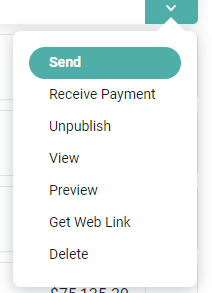 Figure 1 - Send an Invoice to the Client from the Invoice Action Menu
This will bring up the **Send Invoice via Email** drawer (Figure 2). From this drawer, you can set the recipient's email address, the from name, the reply-to email address, anyone that needs to be Cc'd, the email subject, and the email body. Also, you can opt to be Bcc'd on the invoice email.
When a single project is associated with the invoice, the recipient information is populated using the project's invoice settings, as set on the Edit Project drawer. When multiple projects are associated with the invoice, the invoice settings from the Edit Client drawer are used to populate the recipient information.
Clicking on the **Attachments** tab (Figure 3) will provide you with the ability to specify files that you wish to attach to the email. You can include external, supporting files, a copy of the invoice's detailed time report as a PDF, XML, or a compressed (ZIP) file containing receipts for expenses associated with the invoice. Note that this option to **Attach a PDF of the detailed time report** is only available if you have specified to include the detailed time report with the invoice. Similarly, **Attach a ZIP file of the expense receipts** is only available if you have chosen to include expense receipts with the invoice.
The maximum attachment limit when sending an invoice is 25 MB.
Figure 1 - Send an Invoice to the Client from the Invoice Action Menu
This will bring up the **Send Invoice via Email** drawer (Figure 2). From this drawer, you can set the recipient's email address, the from name, the reply-to email address, anyone that needs to be Cc'd, the email subject, and the email body. Also, you can opt to be Bcc'd on the invoice email.
When a single project is associated with the invoice, the recipient information is populated using the project's invoice settings, as set on the Edit Project drawer. When multiple projects are associated with the invoice, the invoice settings from the Edit Client drawer are used to populate the recipient information.
Clicking on the **Attachments** tab (Figure 3) will provide you with the ability to specify files that you wish to attach to the email. You can include external, supporting files, a copy of the invoice's detailed time report as a PDF, XML, or a compressed (ZIP) file containing receipts for expenses associated with the invoice. Note that this option to **Attach a PDF of the detailed time report** is only available if you have specified to include the detailed time report with the invoice. Similarly, **Attach a ZIP file of the expense receipts** is only available if you have chosen to include expense receipts with the invoice.
The maximum attachment limit when sending an invoice is 25 MB.
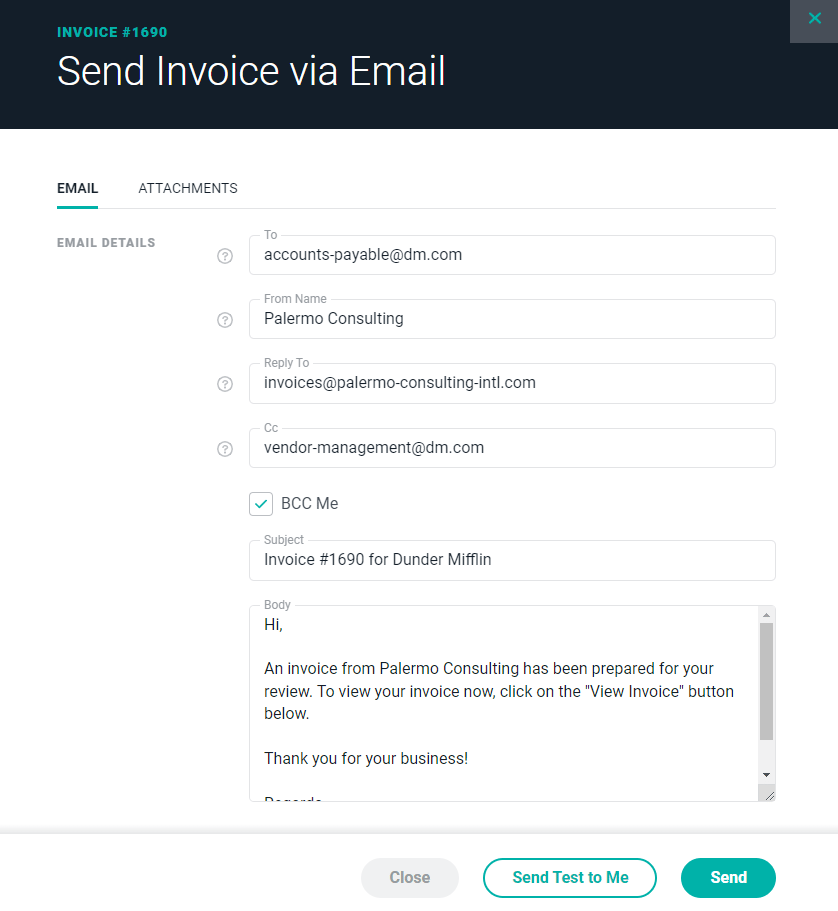 Figure 2 - Configure the Invoice Email being sent to the Client
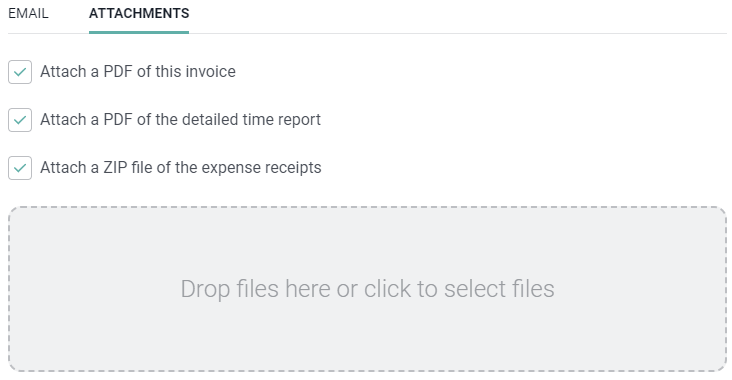 Figure 3 - Attach Files to the Invoice Email and / or Specify to Include Supporting Invoice Files as Attachments
When the email information on the drawer looks accurate, you can click the **Send Test to Me** button (Figure 4) at the bottom of the screen to send yourself a sample of what your client will receive.
Figure 3 - Attach Files to the Invoice Email and / or Specify to Include Supporting Invoice Files as Attachments
When the email information on the drawer looks accurate, you can click the **Send Test to Me** button (Figure 4) at the bottom of the screen to send yourself a sample of what your client will receive.
 Figure 4 - Prior to Sending to the Client, you can have a Test Email sent to your Inbox for Validation
After reviewing the sample email, simply click the **Send** button (Figure 4) on the drawer to send the actual invoice email (Figure 5) to the client.
Figure 4 - Prior to Sending to the Client, you can have a Test Email sent to your Inbox for Validation
After reviewing the sample email, simply click the **Send** button (Figure 4) on the drawer to send the actual invoice email (Figure 5) to the client.
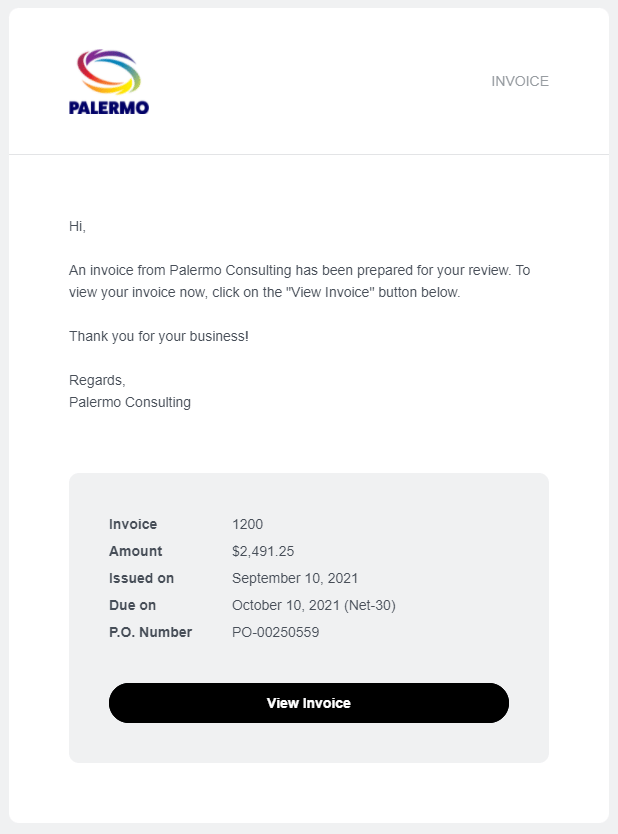 Figure 5 - Sample Email that Client will Receive when Sending an Invoice via Email
The email will include a PDF attachment of the invoice. Also, the recipient can click the **View Invoice** button on the email (Figure 5) to view a full-screen web version of the invoice. Depending on the configuration of the invoice, the web version can include receipts as well as a detailed time report.
Figure 5 - Sample Email that Client will Receive when Sending an Invoice via Email
The email will include a PDF attachment of the invoice. Also, the recipient can click the **View Invoice** button on the email (Figure 5) to view a full-screen web version of the invoice. Depending on the configuration of the invoice, the web version can include receipts as well as a detailed time report.