> ## Documentation Index
> Fetch the complete documentation index at: https://help.ruddr.io/llms.txt
> Use this file to discover all available pages before exploring further.
# Credit Notes
Credit notes (often referred to as credit memos) allow you to make changes to invoices after they have been published / issued. By issuing a credit note, you are reducing the amount of an invoice(s) to account for changes in the invoiced amount or the expected amount to be received via payment. Credit notes can also be used to offset the entire amount of an invoice. All of these scenarios allow you to make changes to the invoice without the need to delete and re-create an invoice once it has been issued or some payment has been received.
In Ruddr, there are three actions related to credit notes:
* [Create a Credit Note](#create-a-credit-note)
* [For an Invoice](#creating-a-credit-note-for-an-invoice)
* [Ad-Hoc Credit Note](#creating-an-ad-hoc-credit-note)
* [Publish a Credit Note](#publish-a-credit-note)
* [With the QuickBooks Online integration](#publishing-a-credit-note-with-the-quickbooks-online-integration)
* [With the Xero integration](#publishing-a-credit-note-with-the-xero-integration)
* [Send a Credit Note](#send-a-credit-note)
* [Delete a Credit Note](#delete-a-credit-note)
Generally speaking, credit notes are very similar to Invoices in Ruddr. They have the following sections, as do invoices:
* Credit Note Header
* Credit Note Line Items
* Credit Note Footer
### Create a Credit Note
You can issue a [credit note in Ruddr for a specific invoice](#creating-a-credit-note-for-an-invoice) from within the invoice itself or via the [invoices list](/billing/invoices-list). You can also [create an ad-hoc credit note](#creating-an-ad-hoc-credit-note) from within the **Credit Notes** section (Figure 1) in the **Billing** area of Ruddr.
Issuing a credit note for a specific invoice, will allow you to credit individual line items or individual transactions (time entries, expenses, other items, billing milestones) associated with that invoice.
Issuing an ad-hoc credit note will allow you to associate the credit note with one or more projects and to apply a credit one or more invoices without the need to associate the credit note with transactions from a specific invoice.
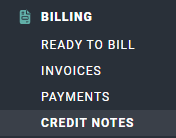 Figure 1 - Select **Credit Notes** to View and Issue Credit Notes
#### Creating a Credit Note for an Invoice
To create a credit note from within the invoice, simply click on the credit note menu (Figure 2) and select the **Issue Credit Note** option.
Figure 1 - Select **Credit Notes** to View and Issue Credit Notes
#### Creating a Credit Note for an Invoice
To create a credit note from within the invoice, simply click on the credit note menu (Figure 2) and select the **Issue Credit Note** option.
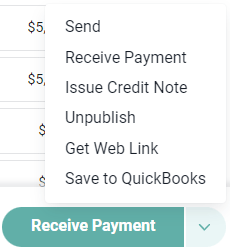 Figure 2 - When Viewing an Invoice you can **Issue a Credit Note** by Accessing the Invoice Action Menu
This will bring up the **Issue Credit Note** drawer (Figure 3). From this drawer, you can select the invoice's associated items that you wish to credit.
Figure 2 - When Viewing an Invoice you can **Issue a Credit Note** by Accessing the Invoice Action Menu
This will bring up the **Issue Credit Note** drawer (Figure 3). From this drawer, you can select the invoice's associated items that you wish to credit.
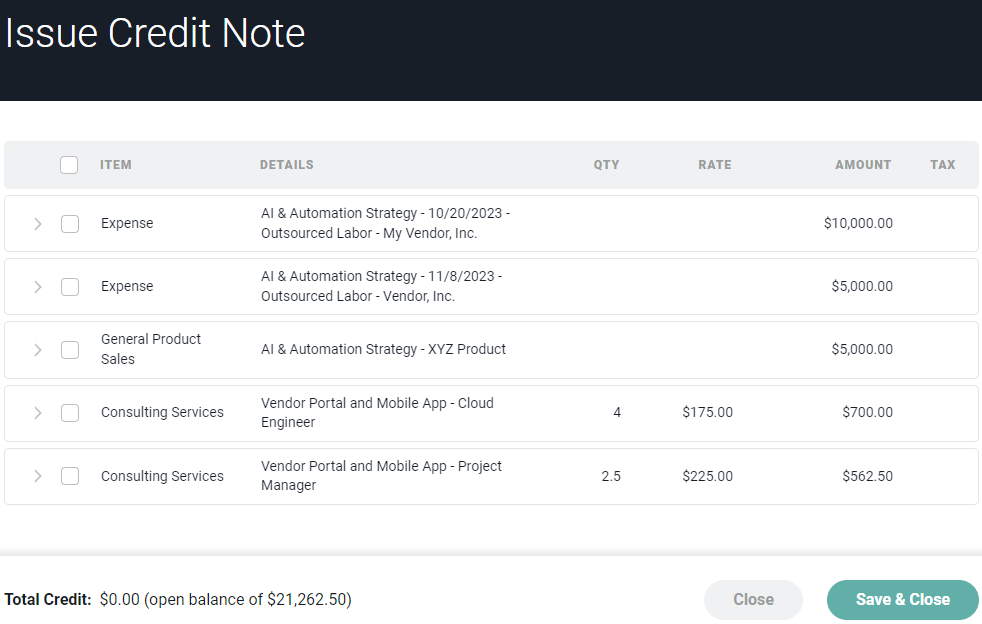 Figure 3 - Issue a Credit Note for a Specific Invoice and Specify the Items to be Credited
In the Issue Credit Note drawer, you will see a list of invoice line items. You can credit entire line items, or expand the line items to select individual time entries, expenses, other items, or fixed fee billing milestones to credit.
Once you have chosen the items, click the **Save & Close** button at the bottom of the drawer. Prior to creating the credit note (Figure 5), you will be prompted (Figure 4) to specify how you wish to treat the transactions you have selected to credit:
* Leave the credited items associated with the invoice as billable items
* Leave the credited items associated with the invoice as non-billable items
* Disassociate the credited items and move them back to the Ready to Bill screen
Figure 3 - Issue a Credit Note for a Specific Invoice and Specify the Items to be Credited
In the Issue Credit Note drawer, you will see a list of invoice line items. You can credit entire line items, or expand the line items to select individual time entries, expenses, other items, or fixed fee billing milestones to credit.
Once you have chosen the items, click the **Save & Close** button at the bottom of the drawer. Prior to creating the credit note (Figure 5), you will be prompted (Figure 4) to specify how you wish to treat the transactions you have selected to credit:
* Leave the credited items associated with the invoice as billable items
* Leave the credited items associated with the invoice as non-billable items
* Disassociate the credited items and move them back to the Ready to Bill screen
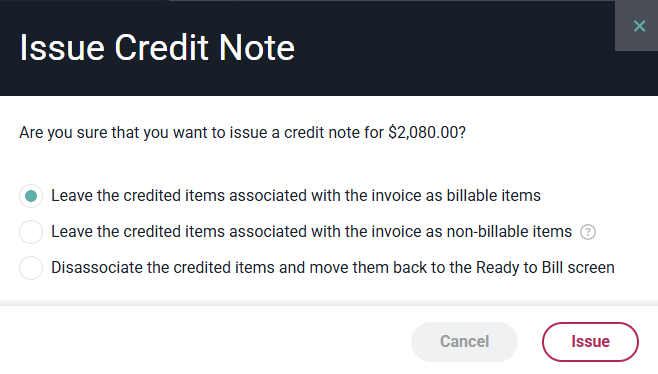 Figure 4 - Specify How You Want to Treat the Transactions Being Credited
Upon specifying how you would like to treat the credited transactions, you will be taken to the credit note (Figure 5).
Figure 4 - Specify How You Want to Treat the Transactions Being Credited
Upon specifying how you would like to treat the credited transactions, you will be taken to the credit note (Figure 5).
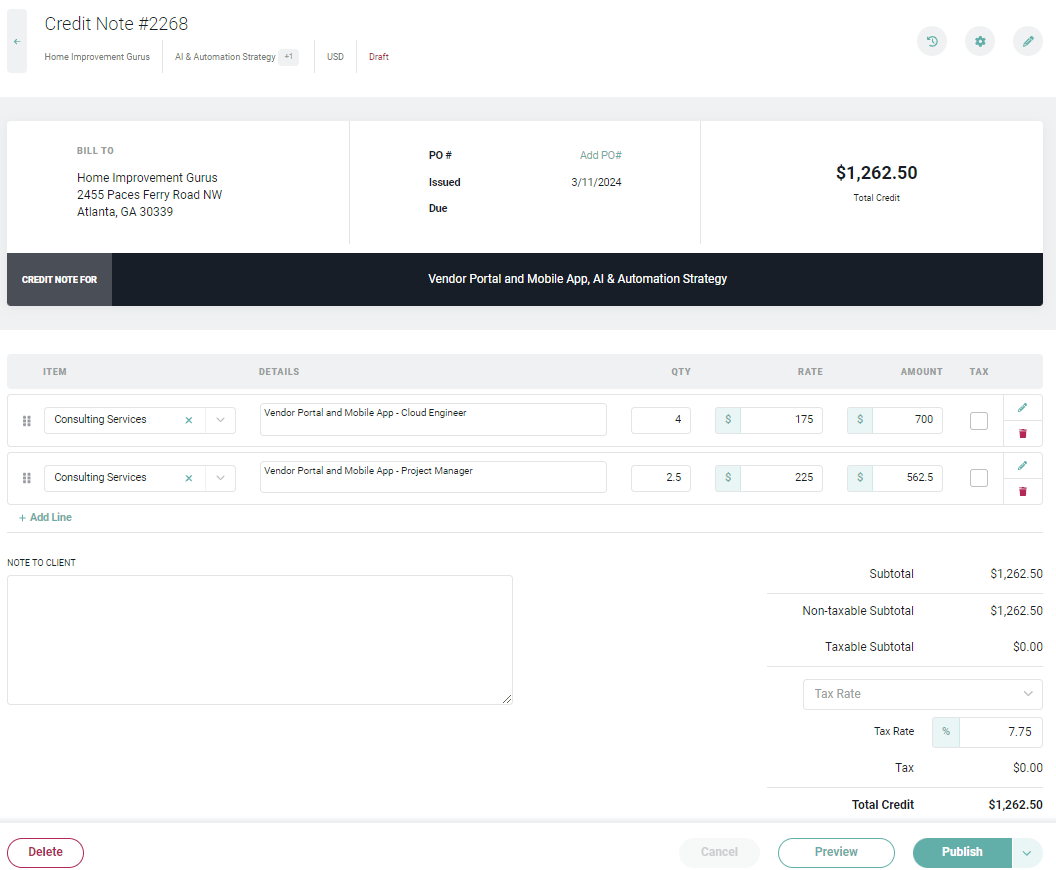 Figure 5 - A Draft Credit Note Contains Items and the Amount to be Credited
Once the credit note has been created, you can preview the credit note, just as you can preview an invoice. Once you have configured the credit note, you can publish the credit note and apply the credit to the invoice.
#### Creating an Ad-hoc Credit Note
You do not have to create a credit note for items on a specific invoice - you can create an ad-hoc credit note, in which you specify a specific credit amount for a specific client, or specific projects for a client. With an ad-hoc credit note, you can apply any amount of credit across multiple invoices.
To create an ad-hoc credit note, click the **Create Credit Note** button on the Credit Notes screen (Figure 6).
Figure 5 - A Draft Credit Note Contains Items and the Amount to be Credited
Once the credit note has been created, you can preview the credit note, just as you can preview an invoice. Once you have configured the credit note, you can publish the credit note and apply the credit to the invoice.
#### Creating an Ad-hoc Credit Note
You do not have to create a credit note for items on a specific invoice - you can create an ad-hoc credit note, in which you specify a specific credit amount for a specific client, or specific projects for a client. With an ad-hoc credit note, you can apply any amount of credit across multiple invoices.
To create an ad-hoc credit note, click the **Create Credit Note** button on the Credit Notes screen (Figure 6).
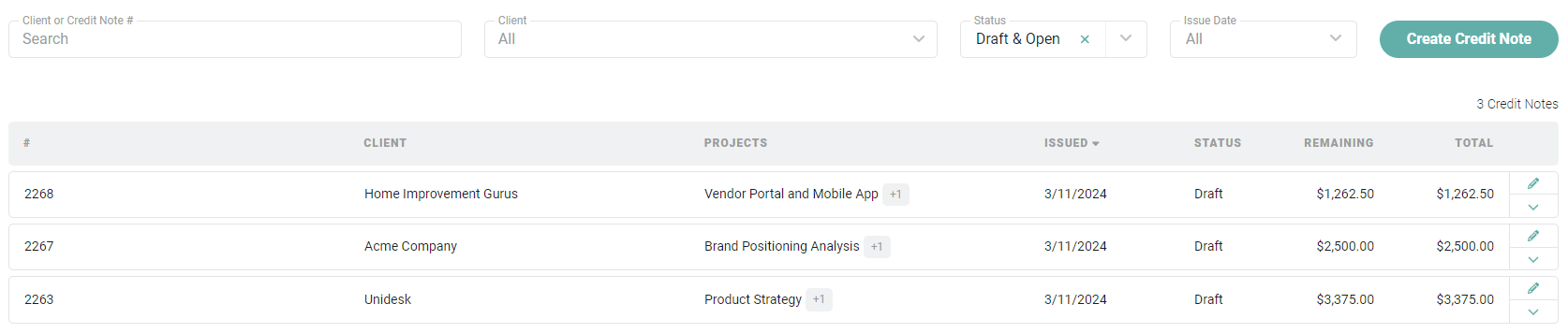 Figure 6 - The Credit Notes Screen Displays a list of Credit Notes and you can Create an Ad-Hoc Credit Note
You will be prompted (Figure 7) to specify both the client for whom to create the credit note and the currency for the credit to be applied.
Figure 6 - The Credit Notes Screen Displays a list of Credit Notes and you can Create an Ad-Hoc Credit Note
You will be prompted (Figure 7) to specify both the client for whom to create the credit note and the currency for the credit to be applied.
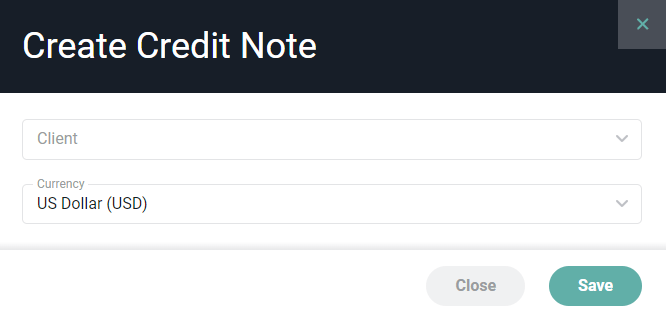 Figure 7 - Select the Client and Currency for the new Credit Note
Once a client and currency have been specified, you will be taken to a draft credit note (Figure 8). In the draft credit note, you can associate projects with the credit note by clicking the **Settings** gear button at the top of the credit note.
Figure 7 - Select the Client and Currency for the new Credit Note
Once a client and currency have been specified, you will be taken to a draft credit note (Figure 8). In the draft credit note, you can associate projects with the credit note by clicking the **Settings** gear button at the top of the credit note.
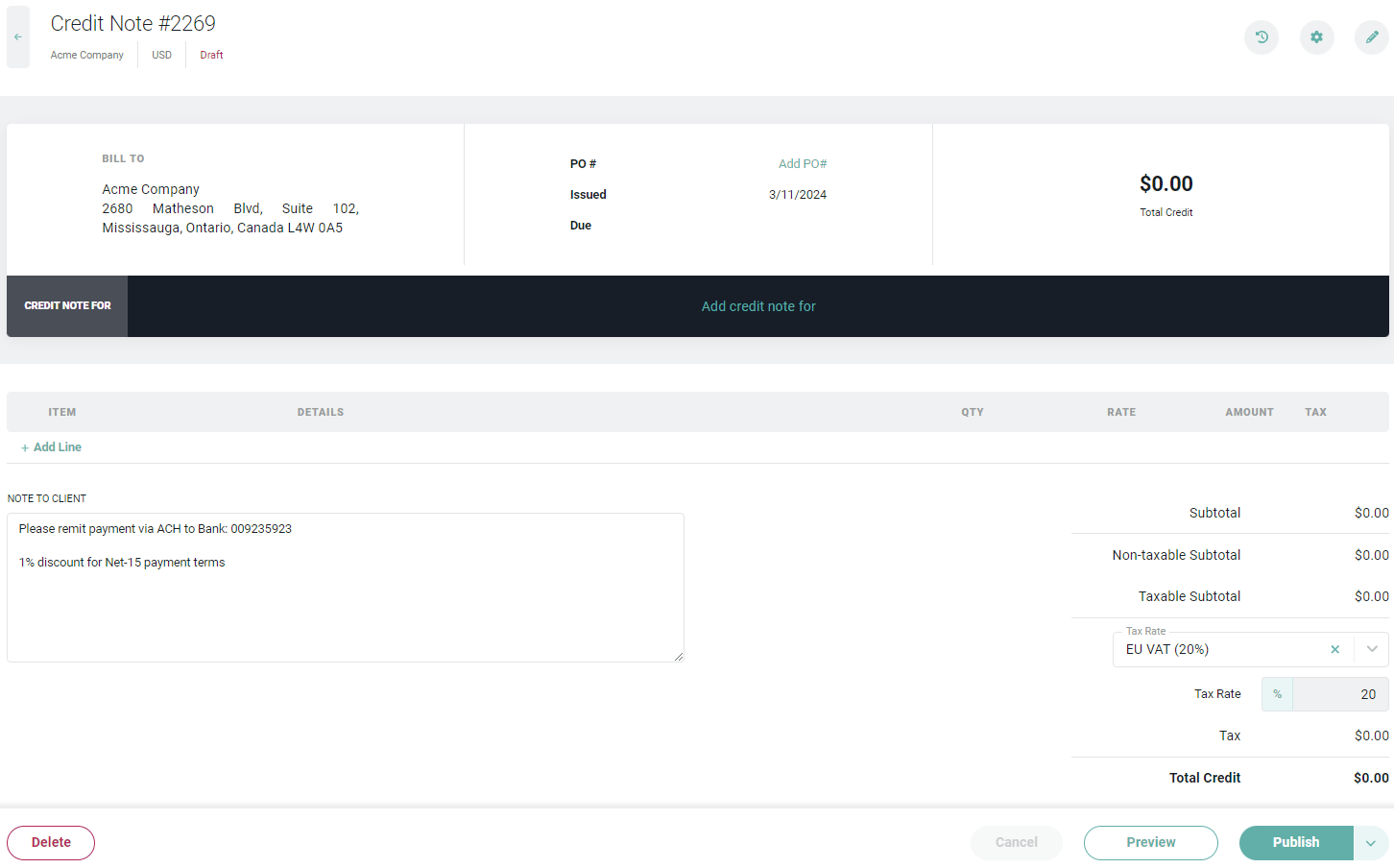 Figure 8 - A Draft Ad-hoc Credit Note Requires the Addition of Ad-Hoc Line Items
In the **Credit Note Settings** drawer (Figure 9), you can select one or more projects from the **Projects** dropdown. Doing so will make these projects available for association with individual, ad-hoc line items on the credit note.
Figure 8 - A Draft Ad-hoc Credit Note Requires the Addition of Ad-Hoc Line Items
In the **Credit Note Settings** drawer (Figure 9), you can select one or more projects from the **Projects** dropdown. Doing so will make these projects available for association with individual, ad-hoc line items on the credit note.
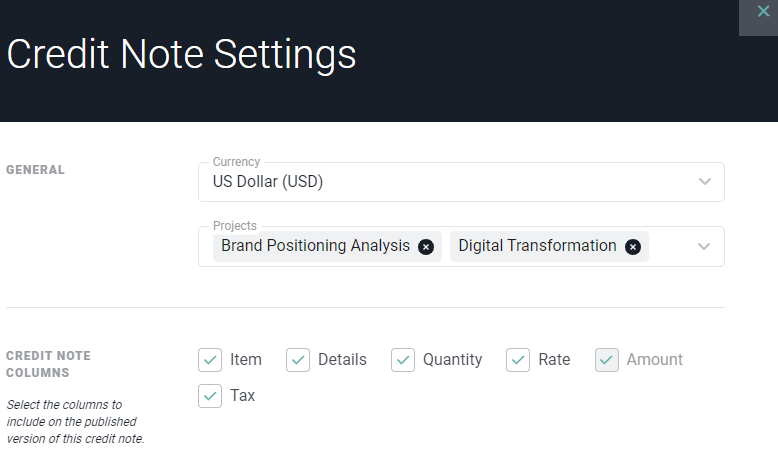 Figure 9 - In the Credit Note Settings you can Select the Projects with which to Associate the Credit Note
With projects selected, the next step will be to add ad-hoc line items to the credit note. The total of these line items should equate to the total amount of credit being issued. To add an ad-hoc line item to the credit note, click the **+ Add Line** link (Figure 10) in the credit note line item area of the credit note.
Figure 9 - In the Credit Note Settings you can Select the Projects with which to Associate the Credit Note
With projects selected, the next step will be to add ad-hoc line items to the credit note. The total of these line items should equate to the total amount of credit being issued. To add an ad-hoc line item to the credit note, click the **+ Add Line** link (Figure 10) in the credit note line item area of the credit note.
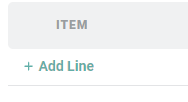 Figure 10 - Click **+ Add Line** to Create a New Ad-Hoc Credit Note Line Item
Once the ad-hoc line item has been added, you will need to supply any relevant information needed to signify the credit being issued:
* Item (required)
* Details
* Quantity
* Rate
* Amount (required)
* Taxable
Any credit note line items that are manually added to a credit note will not be correlated with underlying operational data. To associate operational data with a credit note, you will want to [create a credit note for a specific invoice](#creating-a-credit-note-for-an-invoice).
The first column in the credit note line items list is the **Item**. Any credit note row that has a total amount must have an Item selected. The values available for selection are the Invoice Items that have been setup in the workspace. Each Ruddr workspace includes two built-in Invoice Items which are "Service" and "Expense". Additional items can be created by a Workspace Admin using the [**Custom Data**](/workspace-administration/custom-data) tab within the **Settings** area. For example, if your company sells products or different types of services, you can set up distinct Invoice Items for those.
If you have associated projects with the credit note, as outlined above, you can associate a custom line item (or ad hoc line item) to a project by specifying the project in the **Credit Note Line Details** drawer (Figure 11) that is available when clicking on the **Edit** (pencil) button on the ad-hoc credit note line item row on the credit note.
Figure 10 - Click **+ Add Line** to Create a New Ad-Hoc Credit Note Line Item
Once the ad-hoc line item has been added, you will need to supply any relevant information needed to signify the credit being issued:
* Item (required)
* Details
* Quantity
* Rate
* Amount (required)
* Taxable
Any credit note line items that are manually added to a credit note will not be correlated with underlying operational data. To associate operational data with a credit note, you will want to [create a credit note for a specific invoice](#creating-a-credit-note-for-an-invoice).
The first column in the credit note line items list is the **Item**. Any credit note row that has a total amount must have an Item selected. The values available for selection are the Invoice Items that have been setup in the workspace. Each Ruddr workspace includes two built-in Invoice Items which are "Service" and "Expense". Additional items can be created by a Workspace Admin using the [**Custom Data**](/workspace-administration/custom-data) tab within the **Settings** area. For example, if your company sells products or different types of services, you can set up distinct Invoice Items for those.
If you have associated projects with the credit note, as outlined above, you can associate a custom line item (or ad hoc line item) to a project by specifying the project in the **Credit Note Line Details** drawer (Figure 11) that is available when clicking on the **Edit** (pencil) button on the ad-hoc credit note line item row on the credit note.
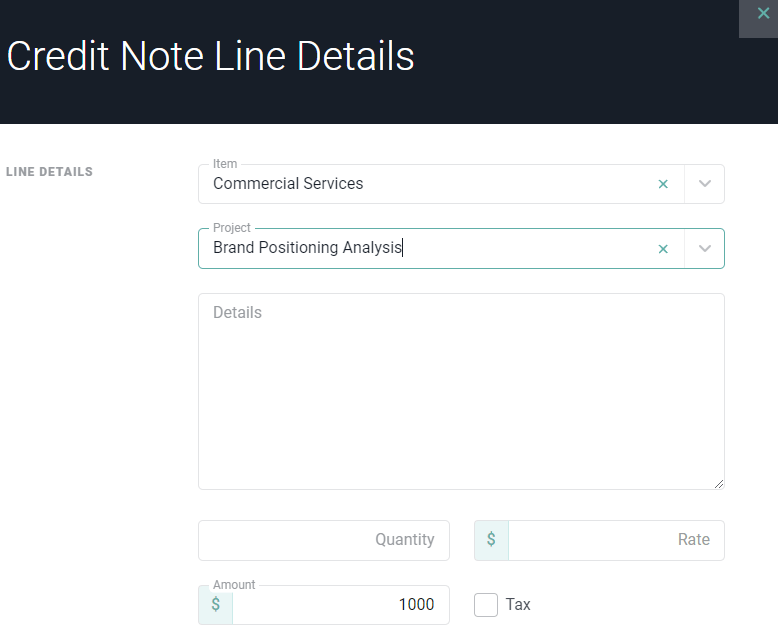 Figure 11 - Associate a Project with a Credit Note Line Item and Edit Other Details
Once you have added all of the line items to the credit note, save the credit note by clicking on the **Save** or **Save & Preview** button at the bottom of the draft credit note.
Once the credit note has been created, you can preview the credit note, just as you can preview an invoice. Once you have configured the credit note, you can publish the credit note and apply the credit to the invoice(s).
### Publish a Credit Note
Once a credit note has been created and reviewed for accuracy, it is ready to be published. A credit note can be published from the Credit Notes screen (Figure 5) or from within the draft credit note itself. In order to publish a credit note, you must have client-level or project-level **Publish and send invoices, and record payments** permissions on your security role. To publish a credit note from the Credit Notes screen, simply click the **Publish** option from the credit note action menu (Figure 12).
Figure 11 - Associate a Project with a Credit Note Line Item and Edit Other Details
Once you have added all of the line items to the credit note, save the credit note by clicking on the **Save** or **Save & Preview** button at the bottom of the draft credit note.
Once the credit note has been created, you can preview the credit note, just as you can preview an invoice. Once you have configured the credit note, you can publish the credit note and apply the credit to the invoice(s).
### Publish a Credit Note
Once a credit note has been created and reviewed for accuracy, it is ready to be published. A credit note can be published from the Credit Notes screen (Figure 5) or from within the draft credit note itself. In order to publish a credit note, you must have client-level or project-level **Publish and send invoices, and record payments** permissions on your security role. To publish a credit note from the Credit Notes screen, simply click the **Publish** option from the credit note action menu (Figure 12).
 Figure 12 - From the Credit Notes List, you can Publish a Credit Note from the Action Menu
When publishing a credit note, the **Publish Credit Note** drawer (Figure 13) will be presented. From this drawer, you must apply the entire value of the credit note to an Open invoice(s).
Figure 12 - From the Credit Notes List, you can Publish a Credit Note from the Action Menu
When publishing a credit note, the **Publish Credit Note** drawer (Figure 13) will be presented. From this drawer, you must apply the entire value of the credit note to an Open invoice(s).
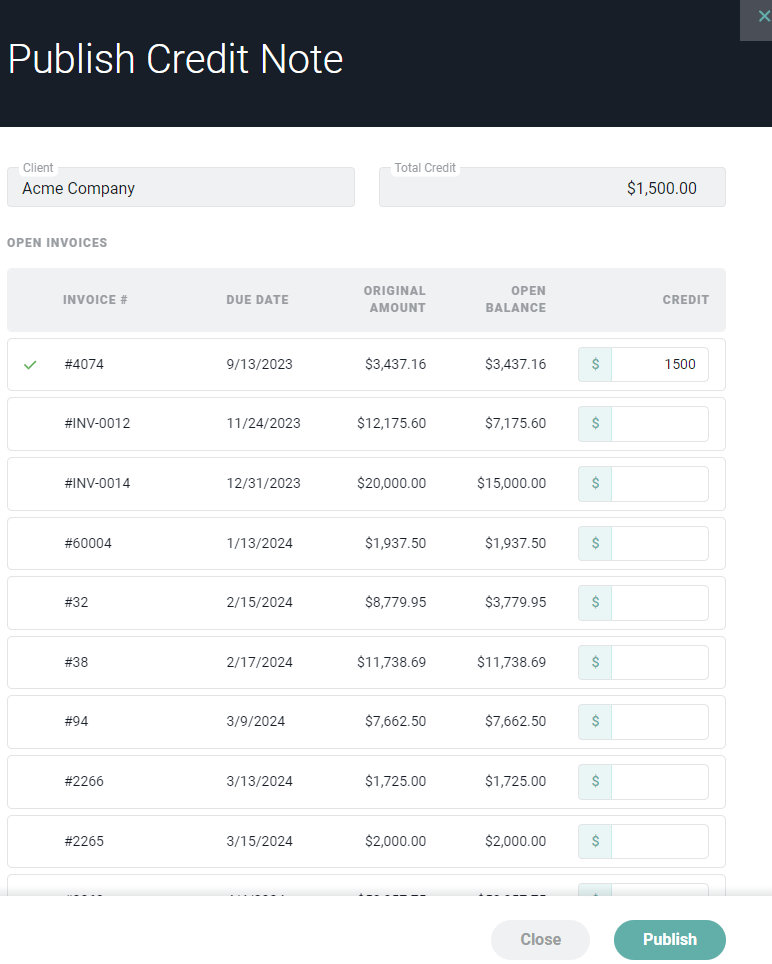 Figure 13 - Applying the Credit Note Value to Open Invoice(s) is Required to Publish the Credit Note
Once published, the invoices are credited as specified during the publishing process and their open balances are adjusted accordingly.
#### Publishing a Credit Note with the QuickBooks Online Integration
When you publish a credit note in a workspace that leverages the [QuickBooks Online integration](/integrations/quickbooks-online-integration-overview), you have the option to save the credit note to QuickBooks Online (QBO). This option will appear at the bottom of the Publish Credit Note drawer (Figure 13).
Ruddr adopts the credit memo process from QBO - both a credit note and a payment are created and then saved to QBO.
Saving the credit note to QBO will result in the following:
* A credit memo is created in QBO
* A payment is created in QBO to allocate the credit across any credited invoices
* The payment created in QBO is replicated in Ruddr. That payment would be available in the [Payments](/billing/taking-payments) section of Ruddr
**NOTE:** in order to save a credit note to QBO, the credit must be applied to invoices that are synced with QBO. Any attempt to apply a credit to an invoice not in QBO will prevent the credit memo from being saved to QBO as part of the publishing process.
#### Publishing a Credit Note with the Xero Integration
When you publish a credit note in a workspace that leverages the [Xero integration](/integrations/xero-integration-overview), you have the option to save the credit note to Xero. This option will appear at the bottom of the Publish Credit Note drawer (Figure 13). Saving the credit note to Xero will result in the following:
* Xero will create a credit note
* Credit is applied to invoices in Xero and in Ruddr
You would have a credit note in Ruddr and Xero and any number of credits applied to invoices would exist in both Ruddr and in Xero.
**NOTE:** in order to save a credit note to Xero, the credit must be applied to invoices that are synced with Xero. Any attempt to apply a credit to an invoice not in Xero will prevent the credit memo from being saved to Xero as part of the publishing process.
### Send a Credit Note
Once a credit note has been [published](#publish-a-credit-note), you can send it to your client. On the credit note, you will see a **Send** button. Clicking on that button will open the **Send Credit Note via Email** drawer (Figure 14). If you would like to attach any supporting documents or attach a PDF of the credit note , you can provide those on the Attachment tab on the drawer.
Once you have validated the contact information, click the **Send** button on the drawer to send the credit note to the client.
Figure 13 - Applying the Credit Note Value to Open Invoice(s) is Required to Publish the Credit Note
Once published, the invoices are credited as specified during the publishing process and their open balances are adjusted accordingly.
#### Publishing a Credit Note with the QuickBooks Online Integration
When you publish a credit note in a workspace that leverages the [QuickBooks Online integration](/integrations/quickbooks-online-integration-overview), you have the option to save the credit note to QuickBooks Online (QBO). This option will appear at the bottom of the Publish Credit Note drawer (Figure 13).
Ruddr adopts the credit memo process from QBO - both a credit note and a payment are created and then saved to QBO.
Saving the credit note to QBO will result in the following:
* A credit memo is created in QBO
* A payment is created in QBO to allocate the credit across any credited invoices
* The payment created in QBO is replicated in Ruddr. That payment would be available in the [Payments](/billing/taking-payments) section of Ruddr
**NOTE:** in order to save a credit note to QBO, the credit must be applied to invoices that are synced with QBO. Any attempt to apply a credit to an invoice not in QBO will prevent the credit memo from being saved to QBO as part of the publishing process.
#### Publishing a Credit Note with the Xero Integration
When you publish a credit note in a workspace that leverages the [Xero integration](/integrations/xero-integration-overview), you have the option to save the credit note to Xero. This option will appear at the bottom of the Publish Credit Note drawer (Figure 13). Saving the credit note to Xero will result in the following:
* Xero will create a credit note
* Credit is applied to invoices in Xero and in Ruddr
You would have a credit note in Ruddr and Xero and any number of credits applied to invoices would exist in both Ruddr and in Xero.
**NOTE:** in order to save a credit note to Xero, the credit must be applied to invoices that are synced with Xero. Any attempt to apply a credit to an invoice not in Xero will prevent the credit memo from being saved to Xero as part of the publishing process.
### Send a Credit Note
Once a credit note has been [published](#publish-a-credit-note), you can send it to your client. On the credit note, you will see a **Send** button. Clicking on that button will open the **Send Credit Note via Email** drawer (Figure 14). If you would like to attach any supporting documents or attach a PDF of the credit note , you can provide those on the Attachment tab on the drawer.
Once you have validated the contact information, click the **Send** button on the drawer to send the credit note to the client.
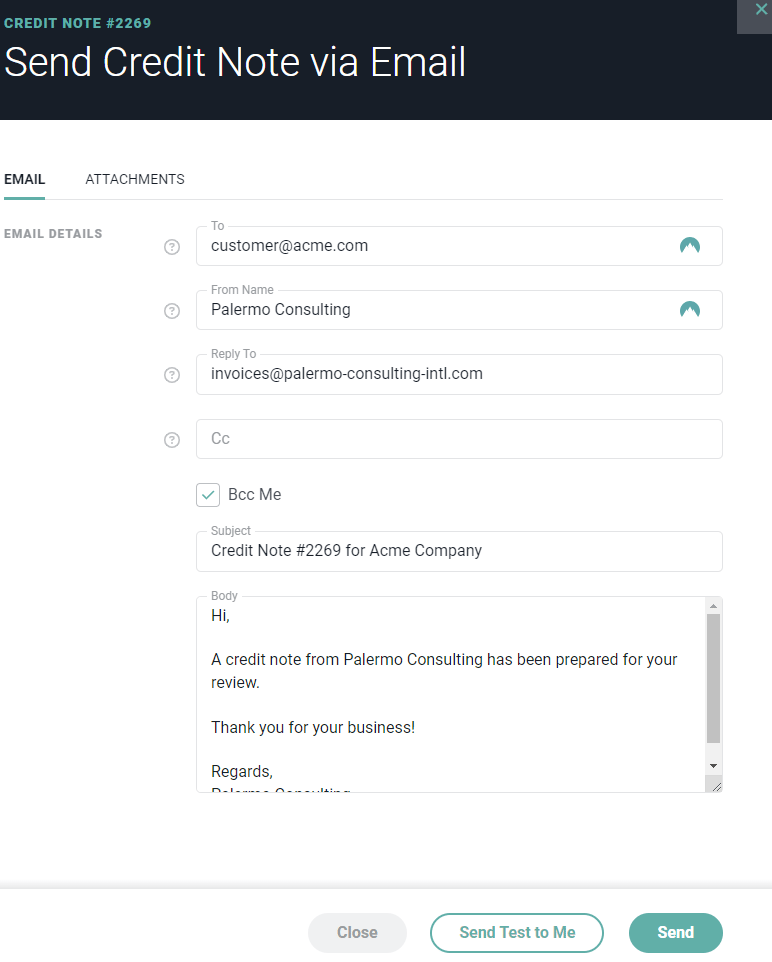 Figure 14 - Send a Published Credit Note to your Client
### Delete a Credit Note
To delete a credit note, either select the **Delete** action item from the Credit Notes action menu (Figure 11) or click the **Delete** button on the credit note itself. You will be prompted (Figure 15) by Ruddr to confirm this delete action
Figure 14 - Send a Published Credit Note to your Client
### Delete a Credit Note
To delete a credit note, either select the **Delete** action item from the Credit Notes action menu (Figure 11) or click the **Delete** button on the credit note itself. You will be prompted (Figure 15) by Ruddr to confirm this delete action
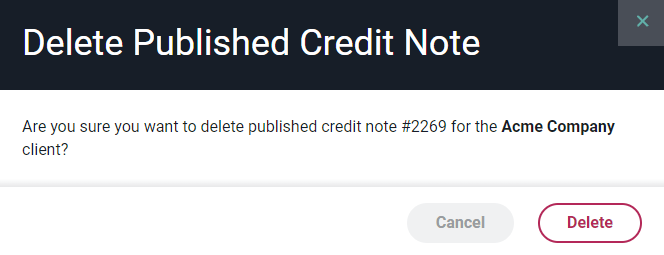 Figure 15 - Confirm Deletion of Credit Note
Deleting the credit note in Ruddr will remove all credits that have been applied to invoices.
#### Deleting a Credit Note with the QuickBooks Online Integration
As denoted in [publishing a credit note with the QuickBooks Online integration](#publishing-a-credit-note-with-the-quickbooks-online-integration), QBO creates a credit memo and any number of payments needed to credit invoices when a credit note is saved to QBO via the integration. Those payments are replicated in Ruddr.
When you delete a credit note in Ruddr, you will be prompted to also remove that credit note from QBO. If you choose to remove the credit note in QBO, it will delete the QBO credit memo, all QBO payments created in support of the credit memo, all payments created in Ruddr, and the credit note in Ruddr.
#### Deleting a Credit Note with the Xero Integration
As denoted in [publishing a credit note with the Xero Online integration](#publishing-a-credit-note-with-the-xero-integration), Xero creates a credit note and applies the credit to any specified invoices when a Ruddr credit note is saved to Xero via the integration.
When you delete a credit note in Ruddr, you will be prompted to also remove that credit note from Xero. If you choose to remove the credit note in Xero, that credit note in Xero will be deleted, all Xero applied credits to invoices will be deleted, and the Ruddr credit note will be deleted as well.
Figure 15 - Confirm Deletion of Credit Note
Deleting the credit note in Ruddr will remove all credits that have been applied to invoices.
#### Deleting a Credit Note with the QuickBooks Online Integration
As denoted in [publishing a credit note with the QuickBooks Online integration](#publishing-a-credit-note-with-the-quickbooks-online-integration), QBO creates a credit memo and any number of payments needed to credit invoices when a credit note is saved to QBO via the integration. Those payments are replicated in Ruddr.
When you delete a credit note in Ruddr, you will be prompted to also remove that credit note from QBO. If you choose to remove the credit note in QBO, it will delete the QBO credit memo, all QBO payments created in support of the credit memo, all payments created in Ruddr, and the credit note in Ruddr.
#### Deleting a Credit Note with the Xero Integration
As denoted in [publishing a credit note with the Xero Online integration](#publishing-a-credit-note-with-the-xero-integration), Xero creates a credit note and applies the credit to any specified invoices when a Ruddr credit note is saved to Xero via the integration.
When you delete a credit note in Ruddr, you will be prompted to also remove that credit note from Xero. If you choose to remove the credit note in Xero, that credit note in Xero will be deleted, all Xero applied credits to invoices will be deleted, and the Ruddr credit note will be deleted as well.